
Most people only think about backups after something goes wrong: a laptop is stolen, a phone falls into the sea, or ransomware encrypts every file on the PC. The 3-2-1 backup rule is the simplest way to make sure that a single accident can never take all your photos, documents and work with it.
This guide explains what the rule means, why each number matters, how to set it up at home with free tools, and the modern additions that protect you against ransomware.
What is the 3-2-1 backup rule?
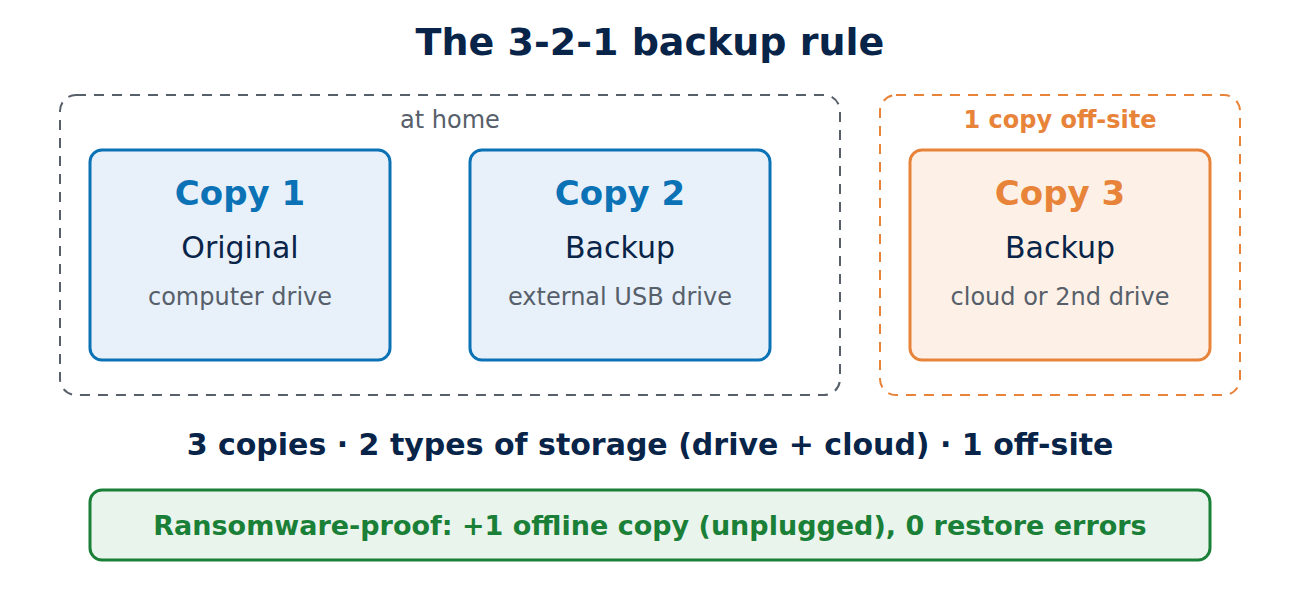
The rule is easy to remember:
- 3 copies of your data: the original plus two backups.
- 2 different types of storage: for example the internal drive of your computer and an external USB drive, or a drive and a cloud service.
- 1 copy off-site: stored somewhere else, such as in the cloud or at a relative’s home.
The idea goes back to the photographer Peter Krogh, who described it in his book on digital asset management for photographers. It has since become the standard recommendation of IT departments, backup vendors and government security agencies, because it protects against almost every common way of losing data.
Why each number matters
Each part of the rule covers a different kind of failure:
- Three copies protect against a single failed drive. Hard drives and SSDs do fail, often without warning. With two backups, one can fail too and you still have your files.
- Two types of storage protect against problems that hit all devices of one kind at once, such as a bad batch of drives, a power surge that kills everything plugged in at the same desk, or a software bug in one backup tool.
- One copy off-site protects against fire, flooding, burglary and theft. If the computer and the backup drive sit next to each other, a single event can destroy both.
Backup is not the same as sync
A common mistake is to treat a sync folder such as Google Drive, OneDrive, Dropbox or iCloud Drive as a backup. Sync services mirror your files: if you delete a file or ransomware encrypts it, the change is copied to the cloud within seconds. A real backup keeps older versions so you can go back to the state from yesterday or last week.
Sync services do keep a version history and a recycle bin for a limited time, which helps with accidents, but the period is short on free plans. Use them as one layer, not as your only copy. Our comparison of free online backup options (Drive, OneDrive, Mega and others) shows what each free plan includes.
How to set up 3-2-1 at home
A typical setup for one computer looks like this:
- Copy 1, the original: the files on your computer’s internal drive.
- Copy 2, local backup: an external USB drive with automatic, versioned backups. On Windows 11 this is File History (Control Panel > File History), on a Mac Time Machine. Both run in the background whenever the drive is connected and keep older versions of your files.
- Copy 3, off-site: a cloud backup or cloud storage with version history, for example the Windows Backup app with OneDrive, iCloud, Google Drive, or a dedicated backup service. Our step-by-step guide shows how to back up your computer to the cloud.
The external drive gives you fast restores of large amounts of data, the cloud copy survives anything that happens to your home. If you would rather not pay for cloud storage, a second external drive that you swap every few weeks and keep at work or with family also counts as off-site.
Free tools that cover all three copies
- Windows: File History for versioned file backups to an external drive, and the Windows Backup app for folders, settings and apps in OneDrive (5 GB free).
- Mac: Time Machine to an external drive or network storage, plus iCloud (5 GB free).
- Cross-platform: open-source tools such as Duplicati and restic encrypt your backups and can write them to an external drive or to cloud storage you already have.
- Phones: Android and iPhone back up to Google and iCloud. See how to back up your phone for the details.
For a comparison of paid backup programs see our review of backup software for PC to cloud.
3-2-1-1-0: the ransomware-proof version
Ransomware deliberately looks for connected backup drives and network shares and encrypts them too. That is why many security professionals now recommend an extended rule, often written as 3-2-1-1-0:
- 1 offline or immutable copy: at least one backup that malware cannot reach or change. At home, the simplest way is an external drive that you unplug after each backup. Some cloud services offer locked versions that cannot be deleted for a set time.
- 0 errors: backups that have been tested and restore without errors.
The recent ransomware leak in Berlin is a good example of why an offline copy matters even for small organisations.
Test your backups
A backup you have never restored is only a hope. Once a month, pick a few random files and restore them to a different folder, and open them to check that they work. Once a year, check that you could rebuild your whole computer: do you know where the recovery key, the passwords and the installers are? Write down the steps while everything still works. Our older article Have You Tested Your Backup Lately? lists more checks.
Common mistakes
- Leaving the backup drive connected all the time. It is then exposed to the same ransomware, power surges and theft as the computer.
- Backing up only some folders. Check that photos, documents, desktop and download folders, and app data such as e-mail archives or game saves are included.
- No encryption. A lost backup drive exposes everything on it. Turn on encryption (BitLocker on Windows, encrypted Time Machine backups on Mac, or the encryption built into your backup tool) and keep the password somewhere safe outside the computer.
- Forgetting the passwords. An encrypted cloud backup is useless if the only copy of its password was on the lost computer. Store it in a password manager and on paper.
Conclusion
Keep three copies, on two kinds of storage, with one somewhere else, and add one copy that ransomware cannot reach. For most homes this means an external drive with File History or Time Machine, plus a cloud backup, plus the habit of unplugging the drive and testing a restore now and then. It costs little and turns a disaster into an inconvenience.
Sources and further reading
- Backup (Wikipedia, including the 3-2-1 rule)
- Back up and restore with Windows Backup (Microsoft Support)
- Back up your Mac with Time Machine (Apple Support)

















Recent Comments