
If you are tired of juggling dozens of complex passwords or worrying about your accounts being compromised by hackers, this guide is for you. By the end of this article, you will understand exactly how passkeys work and how to implement them across your mobile devices and desktop computers to create a more secure digital life.
The transition away from traditional passwords toward "passkeys" represents one of the most significant shifts in cybersecurity in the last decade. Instead of a string of characters that can be guessed, stolen, or phished, passkeys use public-key cryptography to verify your identity. This means that even if a hacker intercepts the data during a login attempt, they cannot use it to access your account because the "private key" never leaves your local device.
What are Passkeys and Why Do They Matter?
To understand why you should switch, we first need to look at the mechanics of the technology. A passkey is essentially a digital credential that allows you to sign in to websites and apps using the biometric sensors or local security features already built into your hardware.
When you create a passkey, your device generates a pair of keys: a public key and a private key. The public key is shared with the service (like Google, Amazon, or PayPal), while the private key stays securely stored in your phone’s secure enclave or your PC’s TPM (Trusted Platform Module). When you log in, the service sends a "challenge" to your device; your device signs this challenge using the private key and sends it back. Because the private key is never transmitted over the internet, it is virtually impossible for a remote attacker to steal it via a phishing site.
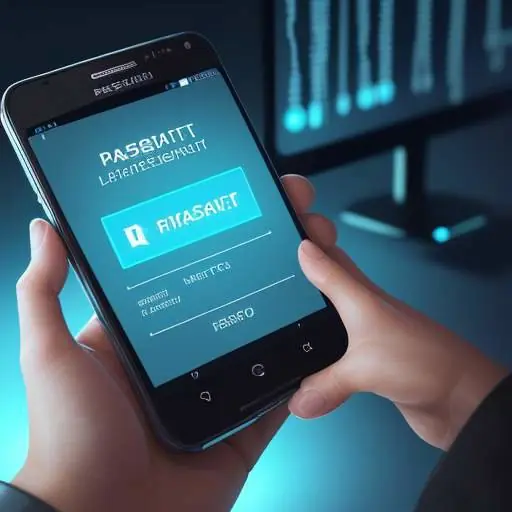
For many users, this means you no longer have to worry about your cell phone being compromised by a fake login page. If a hacker sends you a link to a fake site, they cannot "steal" your passkey because the physical device—your mobile phone or pc—would recognize that the domain doesn’t match the one associated with the key.
Prerequisites Before Making the Switch
Before you begin replacing your passwords, you must ensure your hardware and software are ready to handle cryptographic keys.
- Device Compatibility: You need a modern smart phone (Android 9.0 or higher) or a recent iPhone (iOS 16 or later). For your pc or laptop, you should be running Windows 10/11 or the latest version of macOS.
- Security Hardware: Your device must have a TPM 2.0 chip (standard on most modern PCs) or a Secure Enclave (standard on iPhones and high-end Android devices).
- Sync Services: To use passkeys across multiple devices, you should have a sync service active. For example, if you use an android phone, your passkeys might be synced via Google Password Manager. If you use an iPhone, they are managed through iCloud Keychain.
- Backup Plan: While passkeys are more secure, ensure you have a recovery method (like a verified phone number or a physical security key) in case you lose access to the specific device where the passkey is stored.
How to Set Up Passkeys on Your Mobile Devices
Setting up a passkey on your mobile phone is the most common way to begin. Most modern apps now offer this as an option in their security settings.
- Open the app or website you want to secure (e.g., Google, Microsoft, or PayPal).
- Navigate to the "Security" or "Account Settings" section.
- Look for an option labeled "Passkeys," "Skip Password," or "Passkey and Security Key."
- Select "Create a Passkey."
- Your device will prompt you to authenticate using your face (FaceID), fingerprint, or the device’s PIN.
- Once confirmed, the device will generate the keys and link them to that specific account.
If you are using an android phone, these passkeys are often managed through the Google Password Manager. You can check your current status by opening your device settings and searching for "Passkeys." For those who want extra layers of security on their mobile devices, some users choose to protect the data on their phones using specialized security suites.
Transitioning to Passkeys on Your PC and Laptop
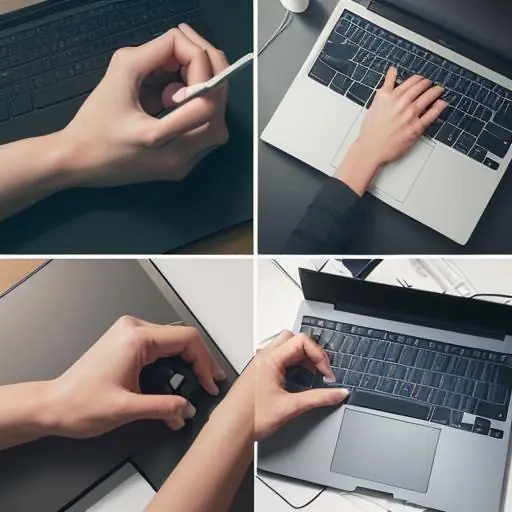
Switching to passkeys on your pc or laptop provides a seamless experience for desktop users. Instead of typing a long password every time you log into your email or social media, you can simply use your Windows Hello or Touch ID.
- Open the browser of your choice (Chrome, Edge, or Safari).
- Log in to the service you wish to update.
- Go to the account’s security settings and select "Add a Passkey."
- A system prompt will appear. On Windows, this will trigger the Windows Hello prompt; on macOS, it will trigger Touch ID or your Mac password.
- Complete the authentication. The browser will now store the passkey in your local system vault.
If you are using a window phone (referring to older Windows Mobile devices) or a legacy system, these features may not be supported, and you might need to rely on standard security methods. However, for modern users, this transition is essential. For those who still struggle with login issues on their desktops, there are ways to recover a Windows 10 password if they aren’t ready to move to passkeys just yet.
Managing Passkeys Across Multiple Devices
One of the biggest concerns is: "What happens if I lose my phone?" Modern ecosystems handle this through cloud syncing. If you use a Google account, your passkey for a service like YouTube can often be used on any android phone logged into your Google account. Similarly, Apple’s ecosystem allows passkeys to sync via iCloud Keychain across your iPhone and Mac.

When you are moving between devices, the "Passkey" acts as a universal key. For example, if you have a passkey saved on your cell phone, and you try to log in on your pc, the browser may offer to send a "push" notification to your phone. You simply tap "Approve" on your phone, and the PC is logged in. This eliminates the need to ever type a password into a keyboard.
Common Pitfalls and How to Fix Them
While passkeys are incredibly secure, there are a few common mistakes users make during the transition:
- Not Having a Backup Method: If you delete your account from your phone’s manager without ensuring the passkey is synced to the cloud, you might lose access. To fix this, always ensure your primary sync account (Google or Apple ID) is up with the latest updates before deleting old passwords.
- Using an Unsupported Browser: Some older browsers do not support the WebAuthn standard. If the "Passkey" option doesn’t appear, try switching to a modern version of Chrome, Edge, or Safari.
- Losing the Device: If you lose your phone and don’t have a backup, you may be locked out. Always keep a secondary "Recovery Code" provided by the service provider.
If you find yourself locked out of a specific account because a passkey isn’t working, you can usually revert to a standard login by using the "Try another way" button on the login screen. This will prompt the system to ask for your old password or a code sent via a phone number or phone call.
Why You Should Start Today
The security landscape is changing. As hackers become more sophisticated at stealing passwords through "man-in-the-middle" attacks, the simplicity of a typed password is becoming a liability. By moving to passkeys, you are utilizing a system that is mathematically much harder to crack.
For instance, consider the complexity of a password. If a password has 8 characters, and each character can be one of 94 possible symbols, the number of combinations is 94^8. While this seems large, a modern computer can brute-force this in a very short amount of time. A passkey, however, relies on a cryptographic signature that is practically impossible to guess because it requires the physical presence of your device’s private key.

If you are concerned about the security of your mobile device specifically, you can use various tools to protect your phone while transitioning. For those using specialized hardware like older mobile devices, be aware that some platforms have strict rules; for example, certain systems had a blacklist of forbidden passwords to ensure basic security. Passkeys are the ultimate way to bypass these limitations by removing the "password" from the equation entirely.
Summary and Key Takeaways
Transitioning to passkeys is one of the most effective steps you can take to secure your digital identity. By replacing your passwords on your mobile phone and pc, you eliminate the risk of phishing and brute-force attacks.
Quick Checklist for Success:
- Ensure your smart phone is running the latest OS (iOS 16+ or Android 9+).
- Enable a sync service (Google, iCloud, or a dedicated manager) to ensure your passkeys move with you.
- Start with one major account (like your primary email) and expand to others.
- Always keep a secondary recovery method active until you are comfortable with the passkey system.
By following these steps, you can enjoy a seamless login experience where your face or fingerprint is the only "key" you ever need to remember.


















Recent Comments