
If you are a PC enthusiast or a casual user looking to ensure your computer remains stable, this guide will provide you with the exact tools and methods needed to monitor your drive’s integrity. By the end of this article, you will know how to interpret health metrics, identify potential failures before they happen, and manage your storage effectively.
Before you begin, it is important to understand that while Solid State Drives (SSDs) are incredibly durable compared to traditional spinning hard drives, they do have a finite number of write cycles. To get the most accurate results, ensure your drive is connected via a stable SATA or NVMe connection and that you are running the latest updates for your operating system. If you ever find yourself needing to move data from one ssd to another because of a failing drive, it is best to do so as soon as a health issue is detected.
Why Monitoring Your Drive Health Matters
Unlike traditional Hard Disk Drives (HDDs) that fail due to mechanical parts wearing out, SSDs fail based on the degradation of NAND flash memory cells. Every time you write or overwrite data, the physical "gate" of the cell wears down slightly. To manage this, manufacturers include a "wear leveling" algorithm and a reporting system that tracks how much of the drive’s total write endurance has been consumed.
Knowing your drive’s status allows you to proactively back up your files. For instance, if you are currently debating whether ssds will replace hard drives by 2030, understanding the longevity of modern flash memory is key to making that transition with confidence.

How to Check SSD Health on Windows
Windows provides some built-in tools, but for the most accurate "health check" data, third-party utilities that read S.M.A.R.T. (Self-Monitoring, Analysis, and Reporting Technology) data are highly recommended.
Method 1: Using Windows PowerShell
You can perform a basic check without installing extra software by using the command line. This will let check if the system recognizes any hardware errors.
- Right-click the Start button and select "Terminal (Admin)" or "PowerShell (Admin)."
- Type the following command to see the general status of your physical disks:
Get-PhysicalDisk | Get-StorageReliabilityCounter | Select-Object DeviceId, Wear, ReadErrorsTotal, WriteErrorsTotal, Temperature, PowerOnHours
- Look at the
Wearcolumn. It shows how much of the drive’s rated endurance has been used, as a percentage: 0 means new, 100 means the rated life is used up. Some drives do not report it, and the column then stays empty; the manufacturer’s tool in Method 2 reads it instead.
Method 2: Using Manufacturer Software
Most manufacturers (Samsung, Crucial, Western Digital) offer proprietary software. These tools are often the most accurate because they can communicate directly with the firmware to provide specific details about "Percentage Used" and "Available Spare."
- Identify your SSD brand.
- Download the official management tool (e.g., Samsung Magician or Crucial Storage Executive).
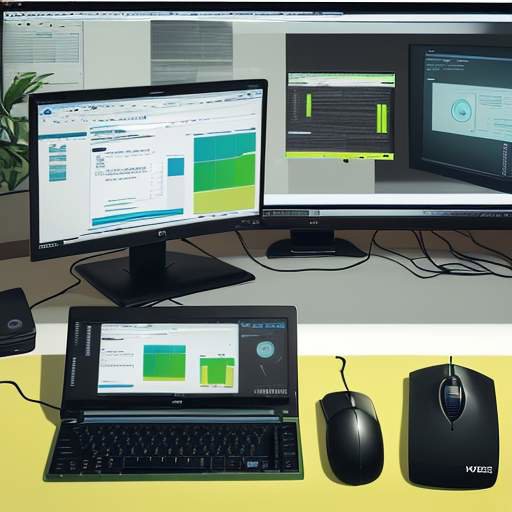
- Open the application and look for the "Drive Health" or "S.M.A.R.T." section.
- Locate the Percentage Used metric. If this number is high (e.g., over 80%), it may be time to consider a replacement.
Understanding S.M.A.R.T. Data and Wear Levels
When you use a tool to check your drive, you will encounter several technical metrics. It is important to know what these numbers actually mean for your daily usage.
One of the most critical values is the "Total Bytes Written" (TBW). Every SSD is rated with a specific TBW limit. For example, if an SSD has a rating of 150 TBW and you have written 75 TBW, your drive is at 50% of its rated lifespan.
If you are concerned about the longevity of your storage, you can learn how to increase hard drive life by optimizing how data is distributed across the cells.
Example Calculation: If an SSD has a rated lifespan of 100 TBW and your current "Total Bytes Written" is 20,000 GB:
- Convert GB to TB: 20,000 / 1,000 = 20 TB.
- Calculate the percentage used: (20 / 100) * 100 = 20%.
- Remaining Life: 100% – 20% = 80%.

How to Check SSD Health on macOS
macOS does not provide a detailed S.M.A.R.T. dashboard in the standard "About This Mac" section, but you can still check the status using the Terminal.
- Open the "Terminal" application (found in Applications > Utilities).
- Type the following command to see the S.M.A.R.T. status:
diskutil info disk0
(Note: Replace "disk0" with your actual drive identifier if you have multiple drives.) 3. Look for the "SMART Status" line. It will typically say "Verified" or "Failing."
For a more detailed visual interface, many Mac users use third-party tools like "DriveDx" or "SmartReporter." These tools will show you the exact percentage of life remaining and the number of read/write cycles.
Identifying Warning Signs and Common Issues
Sometimes, an SSD won’t give you a clear "percentage" until it is almost completely failed. You should watch out for these specific symptoms:
- Frequent Freezes: If your computer hangs for a few seconds while opening folders, the drive may be struggling to read a damaged block.
- Read-Only Mode: If your OS suddenly prevents you from saving files or deleting them, the drive has likely entered a "fail-safe" mode because it detected a critical hardware failure. If this happens, you should learn how to fix ssd is read only mode immediately to attempt data recovery.
- Slow Transfer Speeds: A sudden drop from 500 MB/s to 50 MB/s can indicate a failing controller or failing NAND cells.

Common Mistakes to Avoid
When checking your drive’s health, there are a few common pitfalls that can lead to confusion or even damage:
- Over-testing: Running heavy benchmarking software every day can actually contribute to the wear of the NAND cells. Check your health once a month rather than every day.
- Ignoring "Reserved" Space: Some users try to fill their SSD to 100% capacity. This prevents the "Wear Leveling" algorithm from working effectively, as it needs empty space to move data around to even out the wear. Always leave at least 10-15% of your drive empty.
- Confusing HDD and SSD Wear: If you are using a hybrid system, remember that HDDs do not have "wear" in the same sense; they fail due to mechanical fatigue.
If you accidentally run a command that seems to hang your system, simply restart your computer. Most S.M.A.R.T. queries are read-only and won’t damage the drive, but a sudden power loss during a heavy write operation can cause file system corruption.
Proactive Maintenance Tips
To ensure your SSD lasts as long as possible, follow these three rules:
- Use a File System that Supports TRIM: Ensure TRIM is enabled in Windows (type
fsutil behavior query DisableDeleteNotifyin CMD; a result of "0" means TRIM is enabled). - Avoid Overheating: High temperatures degrade the controller and the flash memory over time.
- Regular Backups: No matter how healthy your drive looks today, hardware can fail instantly. Use a cloud service or an external drive for your most important files.
If you are planning to move from an old system to a new one, you might want to learn how to clone hdd to ssd for free to ensure a smooth transition while preserving your data.
Conclusion
Checking your SSD health isn’t just for tech experts; it’s a vital part of maintaining your digital life. By regularly checking the S.M.A.R.T. data and monitoring the "Percentage Used" metric, you can stay ahead of potential hardware failures. Remember that while modern SSDs are incredibly durable, they are not immortal. A proactive approach—combining regular health checks with consistent backups—ensures that your data stays safe and your system remains fast. Keep an eye on those wear levels, and you’ll enjoy a much smoother experience with your storage.



















Recent Comments