
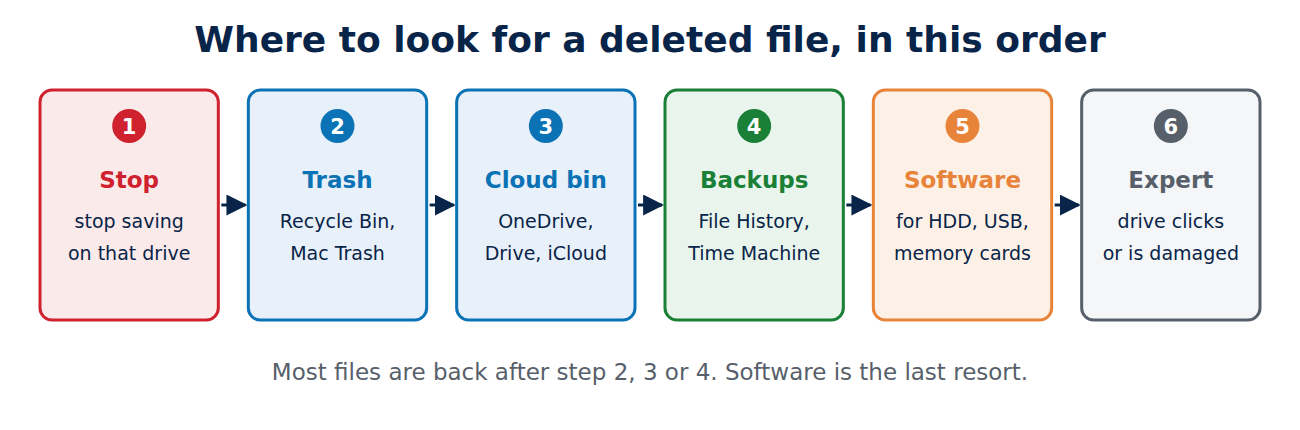
You deleted a file and need it back. Do not panic, and above all do not keep working on that device as if nothing happened: in many cases the file is still there, in a trash folder, a backup or a cloud history. The faster and calmer you act, the better your chances.
This guide shows where to look first on Windows, Mac, iPhone and Android, how to use recovery tools, and how to make sure you never lose important files again.
First: stop and check the obvious places
- Stop saving new files on the drive where the file was. New data can overwrite the space the deleted file still occupies.
- Check the trash: the Recycle Bin on Windows, the Trash on a Mac, “Recently deleted” in phone apps.
- Search for the file name in case it was only moved, renamed or saved somewhere else.
- Check your cloud services and backups before you install any recovery software.
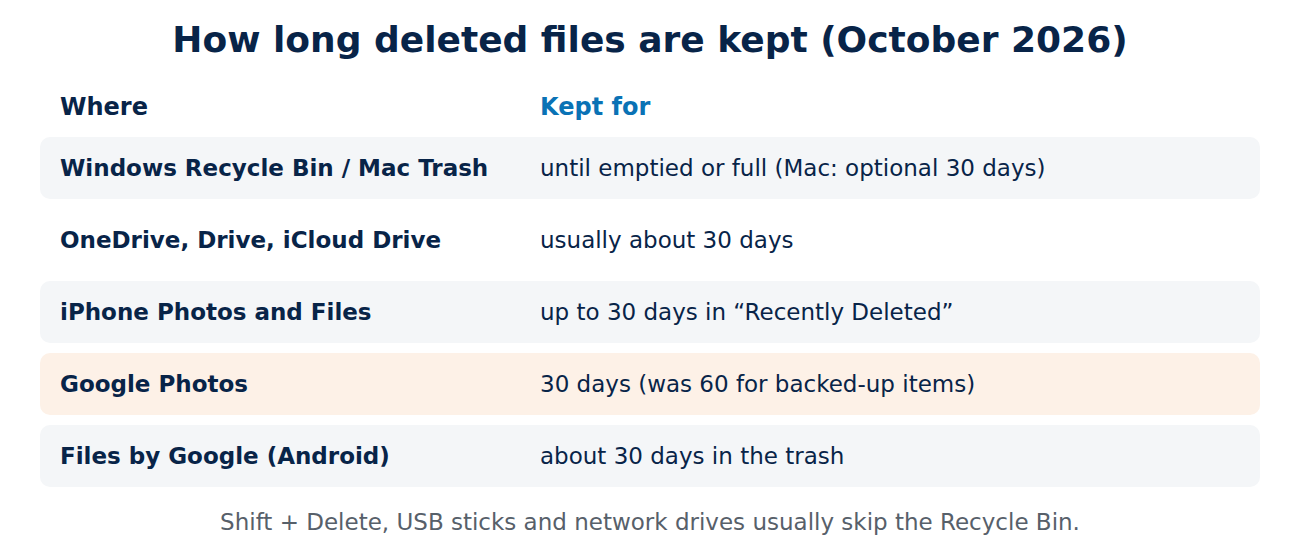
How long deleted files stay in the trash
- Windows Recycle Bin and Mac Trash: until you empty them or they reach their size limit (on a Mac you can set the Trash to empty itself after 30 days). Files deleted with Shift + Delete on Windows, from USB sticks or network drives usually skip the Recycle Bin.
- OneDrive, Google Drive and iCloud Drive: deleted files go to their own recycle bin or “Recently deleted” folder, usually for about 30 days.
- iPhone Photos and Files: “Recently Deleted” keeps items for up to 30 days.
- Google Photos: since September 2026, deleted photos and videos stay in the trash for 30 days, also when they were backed up (it used to be 60 days for backed-up items).
- Android Files by Google: its trash also keeps files for about 30 days.
Recover files on Windows
- Recycle Bin: open it, right-click the file and choose Restore.
- File History or previous versions: if File History was turned on, right-click the folder that contained the file, choose Properties > Previous Versions (or open File History in the Control Panel) and restore an older copy.
- OneDrive: if the folder syncs to OneDrive, open the OneDrive website and check its Recycle Bin. With a Microsoft 365 subscription, OneDrive can also restore your whole OneDrive to an earlier point in time.
- Windows File Recovery: Microsoft’s free command-line tool from the Microsoft Store can scan internal drives, external drives and USB sticks for deleted files. It needs a second drive or partition as the destination, and it cannot recover files from cloud storage or network shares.
Recover files on a Mac
- Trash: open it, select the file and choose Put Back.
- Time Machine: open the folder in Finder, start Time Machine, go back to a date before the deletion and click Restore.
- iCloud Drive: check “Recently Deleted” in Finder or on iCloud.com, where you can also restore files deleted in the last 30 days.
- App versions: Pages, Numbers, Keynote and many other apps keep earlier versions under File > Revert To > Browse All Versions.
Recover photos and files on a phone
- iPhone: in Photos, scroll down to Utilities > Recently Deleted (in iOS 26 under Collections; Albums on versions before iOS 18) and unlock with Face ID, and Files > Browse > Recently Deleted. If the items are gone from there, an iCloud or computer backup made before the deletion is the remaining option, but restoring it replaces what is on the phone now.
- Android: Google Photos > Collections > Trash, the gallery app’s own trash (for example on Samsung phones), and the trash in Files by Google.
- Messaging apps: WhatsApp chats can be restored from the last chat backup when you reinstall the app, but only what the backup contains.
Make sure this does not happen again with our guide on how to back up your phone.
Using data recovery software
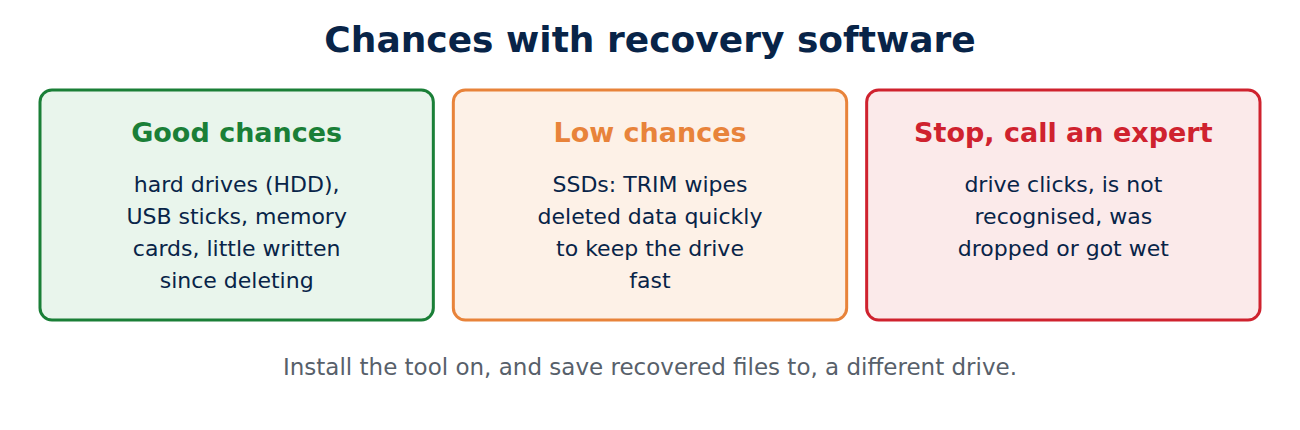
When a file is gone from the trash and there is no backup, recovery software can sometimes find it, because deleting a file normally only marks its space as free. Your chances depend on the drive:
- Hard drives (HDD), USB sticks and memory cards: good chances if little has been written since the deletion.
- SSDs in modern computers: low chances. SSDs use a feature called TRIM that wipes deleted data quickly to keep the drive fast.
Install the recovery tool on a different drive and save recovered files to a different drive too, so you do not overwrite what you are trying to rescue. Avoid tools that only show you the results and want payment before you can see whether your file is really intact.
When to go to a professional
If the drive clicks, is not recognised, was dropped or got wet, switch it off and do not run recovery software. Every attempt can make the damage worse. A professional data recovery service can work on the hardware in a clean room, but it is expensive, so ask for a free diagnosis and a fixed quote first.
How to never lose files again
- Turn on automatic backups: File History or a backup tool on Windows, Time Machine on a Mac, and cloud backup on your phone.
- Sync important folders such as Documents and Desktop with OneDrive, iCloud Drive or Google Drive, which keep deleted files and older versions for a while.
- Follow the 3-2-1 backup rule: three copies, on two different media, one of them off-site.
- Test a restore once in a while, so you know the backup works before you need it.
Conclusion
Most deleted files can be recovered if you act quickly: stop using the drive, check the trash, then your cloud service and backups. On Windows, File History, OneDrive and Windows File Recovery can help; on a Mac, the Trash, Time Machine and iCloud Drive. Phones keep deleted photos and files for about 30 days. Recovery software is a last resort that works best on hard drives and memory cards, not SSDs. The real fix is a backup that runs automatically.
Sources and further reading
- Windows File Recovery (Microsoft Support)
- Restore all files from a Time Machine backup (Apple Support)
- Delete and restore photos and videos (Google Photos Help)



















Recent Comments