
Your battery drains faster than usual, strange apps appear, or friends get messages you never sent. Is your phone hacked? Often there is a harmless explanation, but some signs do point to malware, a stolen account or spyware. The good news: you can check most of it yourself in a few minutes, and fix it without special tools.
This guide lists the warning signs, shows how to check an Android phone and an iPhone step by step, and explains what to do if you find something.
Warning signs that something is wrong
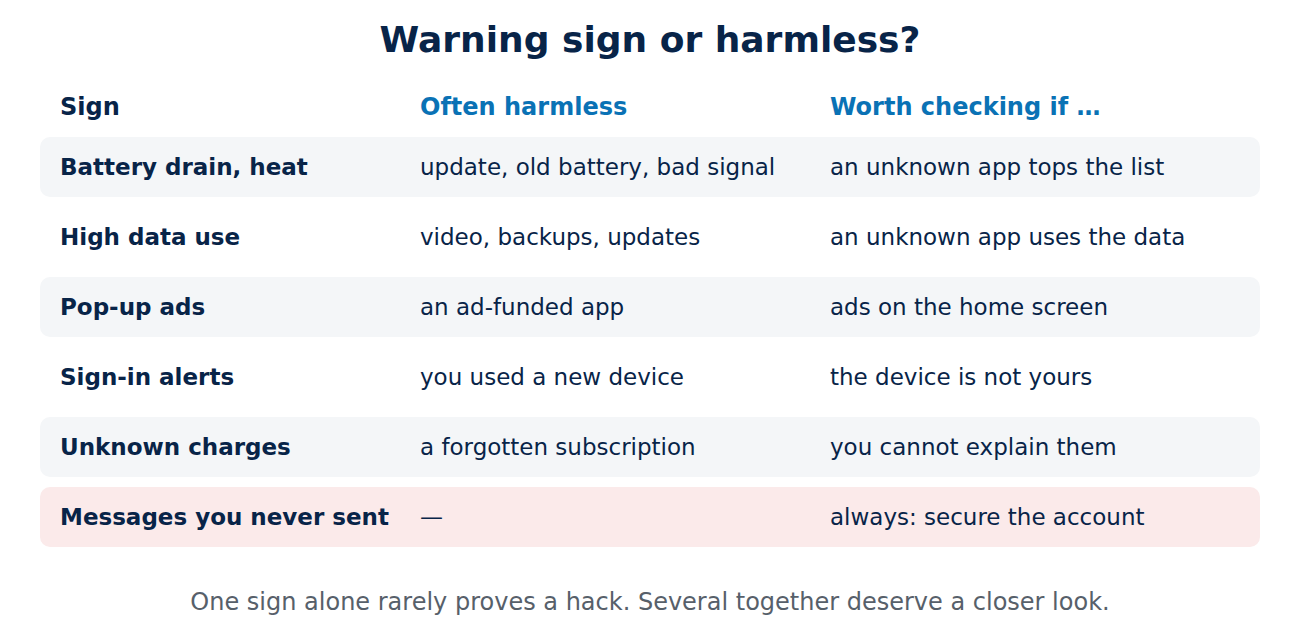
One sign on its own rarely proves a hack. Several of them together deserve a closer look:
- Apps you did not install, or apps with generic names and no icon.
- Pop-up ads everywhere, even outside the browser or on the home screen.
- Accounts you cannot log in to, password-reset e-mails you did not request, or new devices in your account’s sign-in list.
- Messages, posts or e-mails you did not send.
- Unknown charges on your phone bill or in your app store purchase history.
- Much higher data use or battery drain than before, without a change in how you use the phone.
- Settings that changed by themselves, for example a new device administrator, an unknown VPN or a disabled security feature.
Battery drain and heat alone are usually caused by an update, an old battery, a bad signal or one busy app. Check the battery usage list first before you assume the worst.
What “hacked” usually means
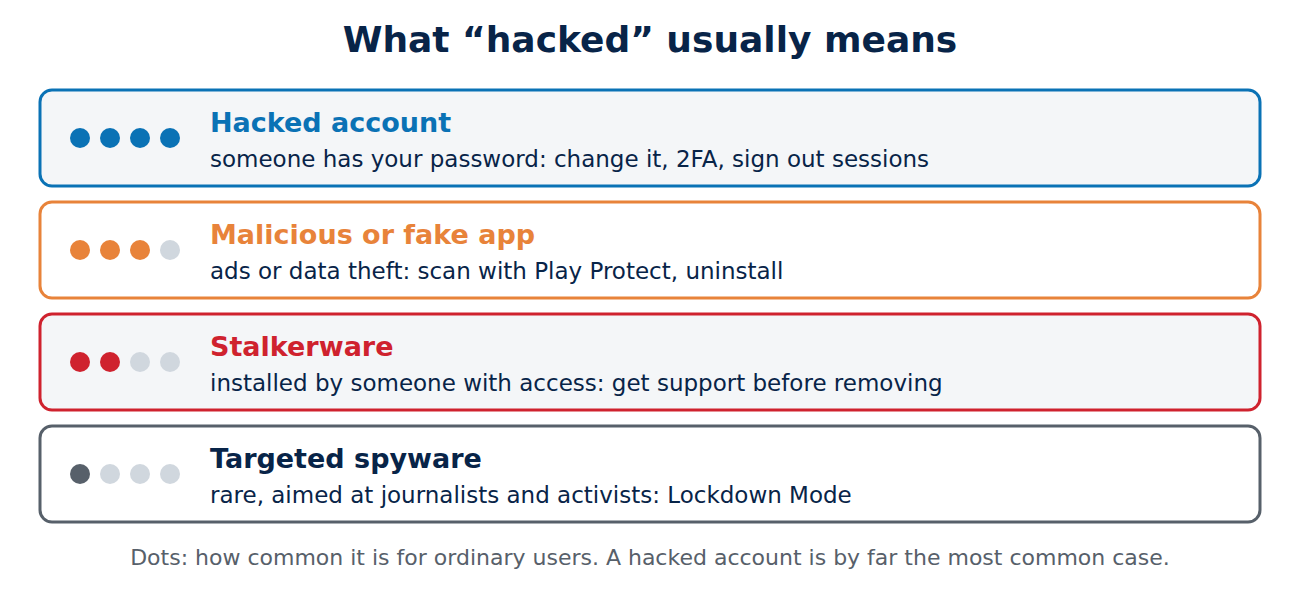
- A hacked account, not the phone itself. Someone has your Google, Apple, WhatsApp or e-mail password. This is by far the most common case.
- A malicious app installed from outside the app store, or a fake app that slipped through, showing ads or stealing data.
- Stalkerware: monitoring apps installed by someone with access to your phone, often a partner or ex-partner.
- Targeted spyware used against journalists, activists and politicians. Rare for ordinary users, but iPhones have a special Lockdown Mode for people at risk.
How to check an Android phone
- Run Google Play Protect: open the Play Store, tap your profile picture, then Play Protect and Scan. It checks installed apps for known malware.
- Review your apps: Settings > Apps. Remove anything you do not recognise or no longer use.
- Check special access: in Settings, search for “device admin apps” and “special app access”. Apps with device administrator, accessibility or notification access can read a lot. Only trusted apps belong there.
- Look at battery and data usage per app for unusual entries.
- Check your Google account: on myaccount.google.com, open Security and look at “Your devices” and recent security activity.
How to check an iPhone
- Update iOS in Settings > General > Software Update. Updates close the security holes that spyware uses.
- Check your Apple Account devices: Settings > [your name]. Every device listed there can access your account. Remove ones you do not know.
- Use Safety Check (Settings > Privacy & Security > Safety Check). It shows who you share location and data with and which apps have access, and it can stop sharing with everyone at once.
- Look for unknown profiles: Settings > General > VPN & Device Management. A configuration profile you did not install can redirect traffic.
- Review apps and battery usage in Settings > Battery.
What to do if you think you are hacked
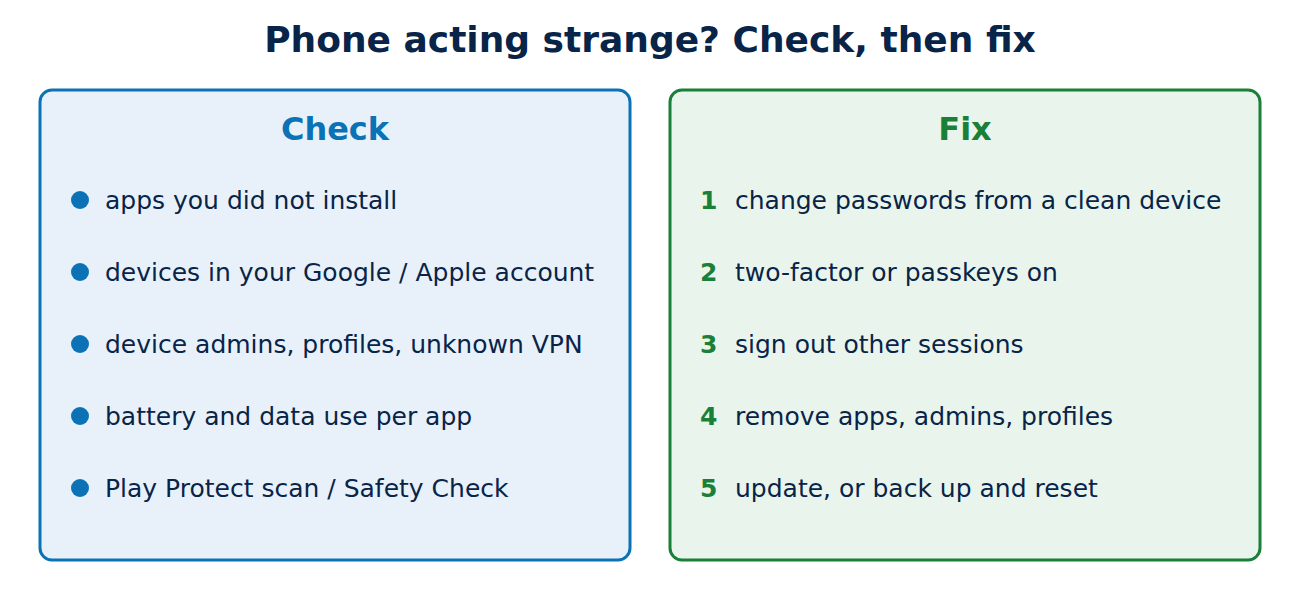
- Change your passwords from a different, clean device, starting with your main e-mail account, then Google or Apple, banking and social media. Use a different password for every account.
- Turn on two-factor authentication or switch to passkeys. See our guide to setting up two-factor authentication.
- Sign out all other sessions in your important accounts and remove unknown devices.
- Uninstall suspicious apps and remove unknown device administrators or profiles.
- Update the phone to the latest system version.
- Call your mobile carrier if you see unknown charges or the phone suddenly loses signal: that can be a SIM-swap attack. Ask for a SIM PIN or port-out protection.
- If problems continue, reset the phone to factory settings. Back up your photos and contacts first, but do not restore apps you do not trust.
If you suspect stalkerware
If you think someone you know is monitoring your phone, be careful: removing the app can alert that person. Organisations such as the Coalition Against Stalkerware explain safe next steps and point to local support services. If you are in danger, contact a support line or the police first, ideally from a device the other person has no access to.
How to prevent it
- Install apps only from Google Play or the App Store, and check the developer and reviews.
- Install system updates promptly, and replace phones that no longer get them.
- Use a screen lock with a PIN of at least six digits and do not share it.
- Do not tap links in unexpected messages, even if they seem to come from your bank or a parcel service.
- Keep a backup of your phone, so a reset is not a disaster.
Conclusion
Most “hacked phone” cases are really hacked accounts or a bad app, and you can fix both: check your apps and account devices, change passwords from a clean device, turn on two-factor authentication and update the phone. If something still looks wrong, back up and reset. Treat suspected stalkerware differently and get support before you remove it.
Sources and further reading
- Use Google Play Protect to help keep your apps safe (Google Play Help)
- How Safety Check works (Apple Personal Safety User Guide)
- About Lockdown Mode (Apple Support)
- Coalition Against Stalkerware
















Recent Comments