
Your phone probably holds more of your life than your computer: photos, chats, contacts, two-factor apps and notes. Losing it without a backup means losing all of that at once. The good news is that both Android and iPhone have a free, automatic backup built in. You only have to switch it on and check that it really runs.
This guide shows step by step how to back up an Android phone and an iPhone, what the backup includes and what it leaves out, and how to keep a second copy on your computer.
What a phone backup includes
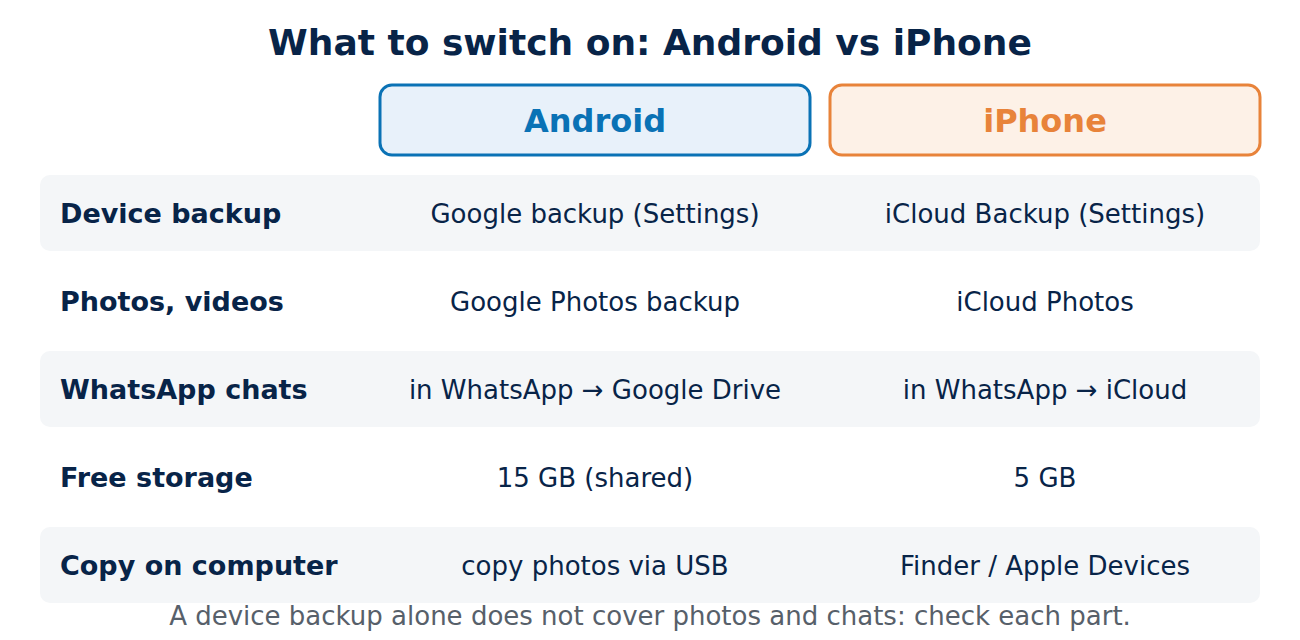
A phone backup is not one single file. It usually consists of several parts that are stored in different places:
- Device backup: settings, app list and app data, call history, contacts and text messages.
- Photos and videos: usually handled separately by Google Photos or iCloud Photos, because they take up the most space.
- Chats: messengers such as WhatsApp have their own backup that you must switch on inside the app.
- Accounts and passwords: synced through your Google account or iCloud Keychain, or kept in a password manager.
Keep this in mind when you check your backup: a green tick in the settings does not mean that your photos or chats are included.
How to back up an Android phone
Android phones back up to your Google account. The exact menu names vary by manufacturer and Android version, but the steps are similar:
- Open Settings.
- Tap Google (on newer versions Google services > All services) and then Backup. On some phones it is under System > Backup.
- Turn on Backup by Google One (or just Backup) and tap Back up now.
According to Google, the backup includes apps and app data, call history, contacts, device settings and SMS/MMS messages. Google Messages adds RCS chats, and Google Photos adds photos and videos if backup is enabled in the Photos app. Not every app saves all of its data, so check important apps such as authenticators and banking apps separately.
Two limits are worth knowing:
- Storage: the free Google account includes 15 GB, shared between Gmail, Google Drive and Google Photos. Photos fill this up quickly. If the storage is full, the backup stops.
- Screen lock: Google encrypts the device backup with your screen lock PIN, pattern or password. Use one of those, not just swipe to unlock.
Samsung phones also offer Samsung Cloud for some data, and many Android phones can copy data directly to a new phone with a cable. These are useful additions, but the Google backup is the one that works across manufacturers. For text messages there are also several apps, see how to back up text messages on Android.
How to back up an iPhone
On the iPhone you can choose between iCloud and a computer, or use both.
iCloud Backup
- Open Settings and tap your name at the top.
- Tap iCloud > iCloud Backup.
- Turn on Back Up This iPhone and tap Back Up Now.
The iPhone then backs up automatically every day when it is connected to power, locked and on Wi-Fi. The backup contains the data and settings that are not already synced to iCloud. Photos are included only if iCloud Photos is off, because with iCloud Photos they are already stored in iCloud.
The free iCloud plan offers only 5 GB, which is rarely enough for a full backup plus photos. Either upgrade to iCloud+ or keep photos elsewhere and back up the rest.
Backup on a computer
A backup on your Mac or PC needs no cloud storage and is the fastest to restore. On a Mac, connect the iPhone and select it in the Finder sidebar. On Windows, use the Apple Devices app (on older Windows versions iTunes). Choose to back up all data to this computer and tick Encrypt local backup: only encrypted backups include saved passwords, Health and Activity data. Apple explains the details in Backup methods for iPhone or iPad.
Moving to a new iPhone? See how to transfer data from iPhone to a new iPhone.
Do not forget WhatsApp and other chats
WhatsApp chats are end-to-end encrypted and not part of the normal phone backup. In WhatsApp, open Settings > Chats > Chat backup and choose a daily or weekly backup to Google Drive (Android) or iCloud (iPhone). Turn on the end-to-end encrypted backup and keep the password or 64-digit key safe. Other messengers such as Signal and Threema have their own backup or transfer functions.
The same applies to authenticator apps for two-factor login. Some sync to your account, others do not. Save the recovery codes of your important accounts, or switch to passkeys, which are synced by Google Password Manager and iCloud Keychain.
Check that the backup actually works
- Look at the date of the last backup. Both Android and iOS show it on the backup screen. If it is older than a few days, the backup is stuck, often because the storage is full.
- Check the photos. Open Google Photos or Photos on a computer and see whether recent pictures are there.
- Keep a second copy. Following the 3-2-1 backup rule, copy your photos and videos to your computer or an external drive now and then, so the cloud is not your only copy.
Conclusion
Switch on the built-in backup (Google backup on Android, iCloud Backup on the iPhone), check that photos and chats are covered by their own backups, and make sure there is enough storage. Add an encrypted backup on your computer from time to time, and losing or replacing your phone becomes a matter of signing in and waiting.
Sources and further reading
- Back up or restore data on your Android device (Android Help)
- Back up photos and videos (Google Photos Help)
- Backup methods for iPhone or iPad (Apple Support)
- How to back up your iPhone or iPad with your Mac (Apple Support)


















Recent Comments