
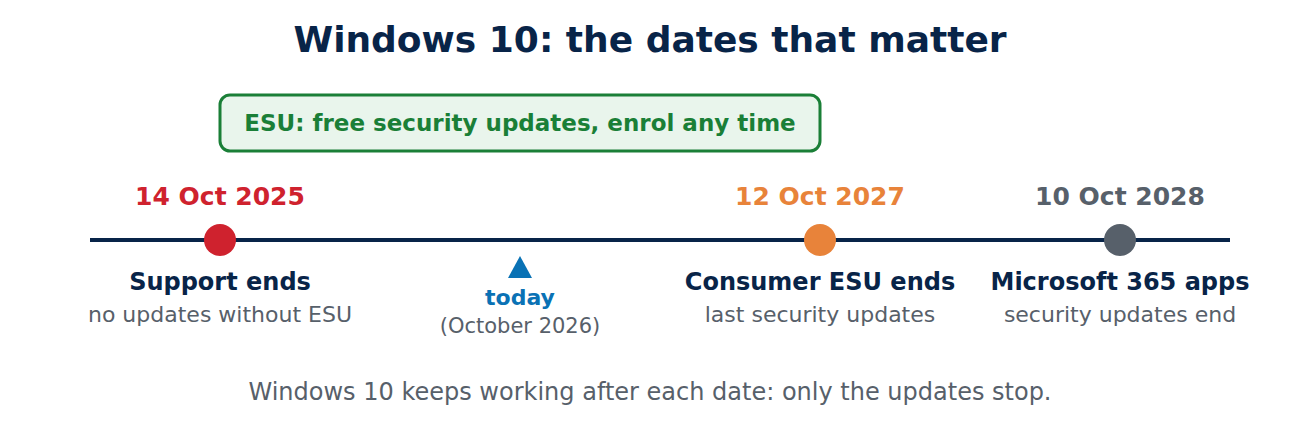
Microsoft ended support for Windows 10 on October 14, 2025. Since then, millions of PCs still run it, and many owners are unsure what that means: does the PC stop working, is it unsafe, and do you really need a new computer? The short answers are no, it depends, and often not.
This guide explains what end of support means, how to keep getting free security updates until October 2027, how to check whether your PC can run Windows 11, and what to do if it cannot.
What “end of support” means
Windows 10 keeps working after the end of support. Your files, programs and settings stay where they are. What stops is the regular flow of updates from Microsoft:
- No more security updates through normal Windows Update, unless the PC is enrolled in Extended Security Updates (ESU).
- No new features or non-security fixes.
- No technical support from Microsoft for Windows 10 problems.
Without security updates, newly discovered vulnerabilities stay open. That matters most for a PC that you use online every day for banking, shopping and e-mail.
Option 1: free security updates until October 2027 (ESU)
For home users, Microsoft offers a consumer Extended Security Updates program. Microsoft has extended it: enrolled PCs now receive security updates until October 12, 2027, and you can still enrol at any time before that date. Many older articles still say October 2026, which was the original end date.
You can enrol in one of three ways:
- Free: sync your PC settings to your Microsoft account with Windows Backup.
- With Microsoft Rewards: redeem 1,000 points.
- Paid: a one-time payment of 30 US dollars (or the local equivalent).
Your PC must run Windows 10 version 22H2 (Home, Pro, Pro Education or Workstations) with the latest updates, and you need to sign in with a Microsoft account that has administrator rights. Open Settings > Update & Security > Windows Update and look for the “Enroll now” link. ESU only buys time: plan your move before October 2027.
Option 2: upgrade to Windows 11 for free
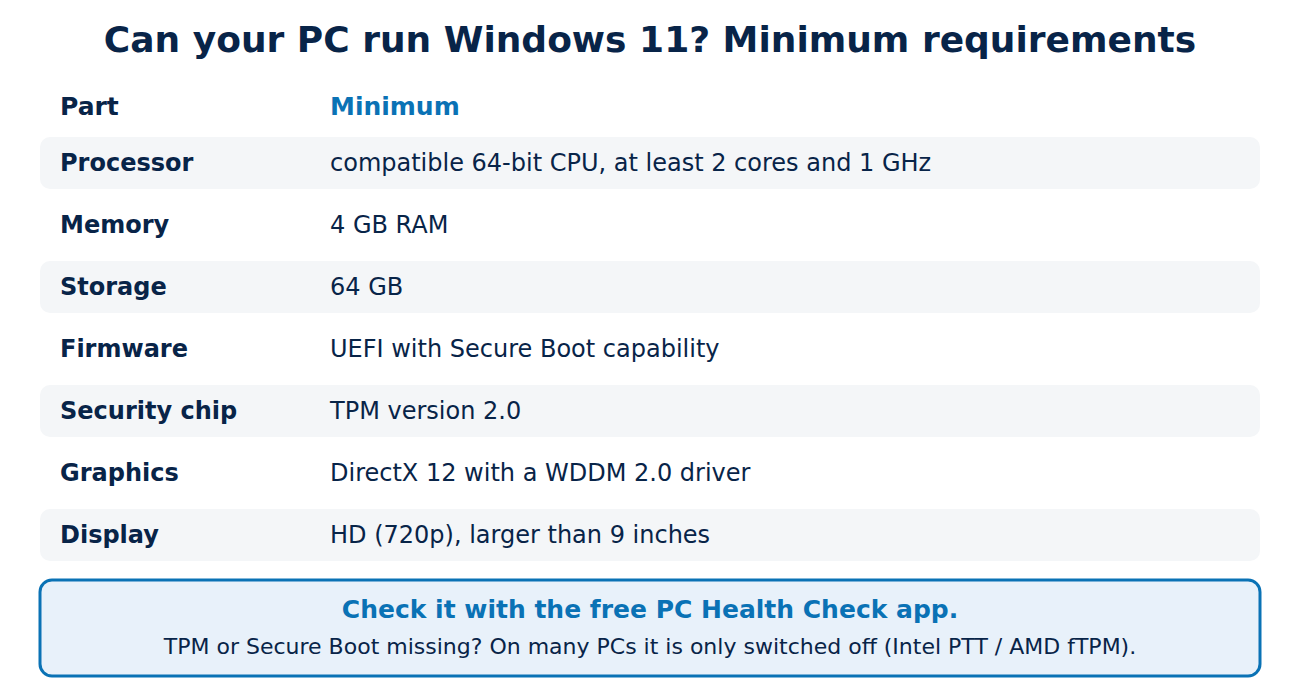
If your PC meets the requirements, the upgrade from Windows 10 to Windows 11 is free through Windows Update. The minimum requirements are:
- a compatible 64-bit processor with at least 2 cores and 1 GHz
- 4 GB of RAM and 64 GB of storage
- UEFI firmware with Secure Boot capability
- TPM version 2.0
- DirectX 12 graphics with a WDDM 2.0 driver and an HD display larger than 9 inches
The easiest check is Microsoft’s free PC Health Check app, which tells you which requirement is missing. On many PCs from 2018 or later, TPM 2.0 and Secure Boot are only switched off in the firmware settings (often called Intel PTT or AMD fTPM) and can be turned on.
How to prepare the upgrade
- Back up first. Copy your documents and photos to an external drive and a cloud service. Our guide to the 3-2-1 backup rule shows how.
- Check free space: keep at least 20 to 30 GB free on drive C:.
- Update drivers and programs, especially security software.
- Note your licences: make sure you know the login for Microsoft 365 and other paid software.
- Upgrade via Windows Update: Settings > Update & Security > Windows Update. Windows keeps your files and apps.
If something goes wrong, Windows 11 lets you go back to Windows 10 for 10 days after the upgrade (Settings > System > Recovery).
Option 3: when your PC cannot run Windows 11
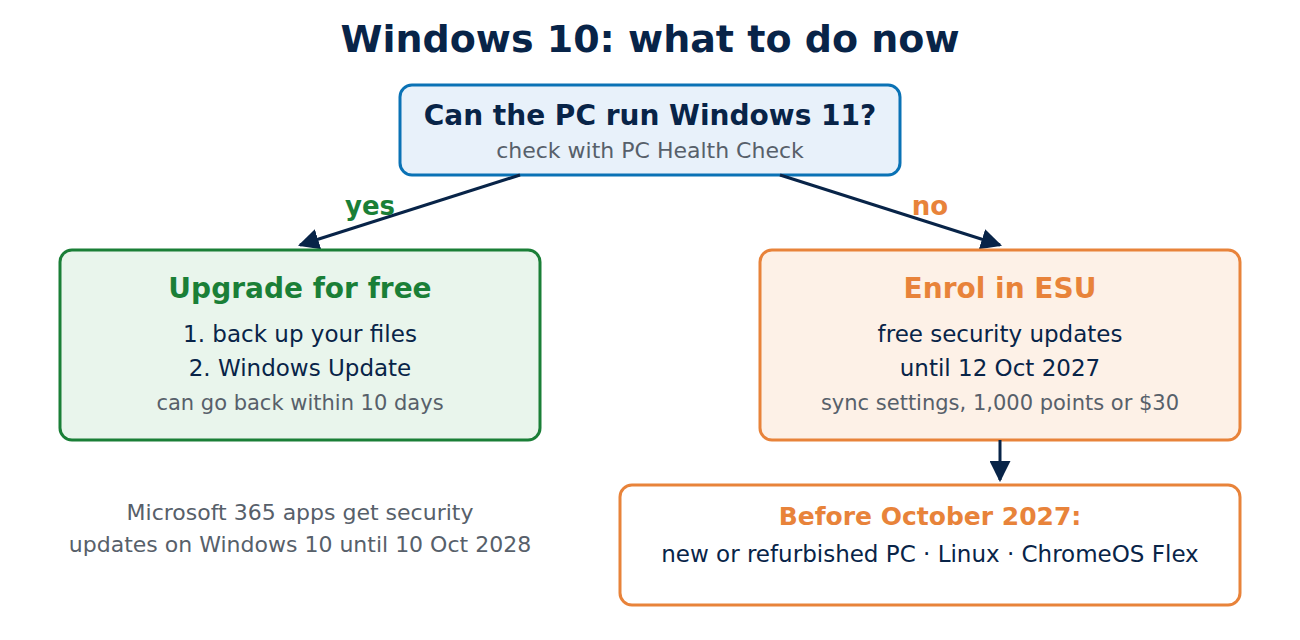
- Use ESU until 2027 and replace the PC when it suits you, for example during sales.
- Switch to Linux. Beginner-friendly distributions such as Linux Mint or Ubuntu run well on older hardware and are free. Test them from a USB stick before installing.
- ChromeOS Flex: Google’s free system turns many older laptops into a Chromebook-like device for browsing and online apps.
- Buy a new or refurbished PC. A refurbished business laptop with Windows 11 is often cheaper than a new budget model and better built.
Avoid unofficial tricks that install Windows 11 on unsupported hardware for a PC you rely on: Microsoft says such devices are not guaranteed to receive updates.
Apps and browsers on Windows 10
Some software keeps supporting Windows 10 for a while. Microsoft has said that Microsoft 365 apps (Word, Excel, Outlook and others) receive security updates on Windows 10 until October 10, 2028, although only with limited support. Browsers and antivirus programs set their own dates. Keep them updated, but remember that they cannot fix holes in Windows itself.
Staying safe in the meantime
- Enrol in ESU or upgrade: an unpatched PC is the biggest risk.
- Use a standard user account for daily work, not an administrator account.
- Turn on two-factor authentication for e-mail, banking and shopping, or use passkeys.
- Keep a current backup, so ransomware or a failed upgrade cannot cost you your files.
Conclusion
Windows 10 still works, but it needs a plan. If your PC can run Windows 11, back up and upgrade for free. If it cannot, enrol in the free Extended Security Updates program to stay protected until October 12, 2027, and use that time to choose between a new PC, Linux or ChromeOS Flex. A slow old PC may only need a clean-up: see our quick fixes for slow devices.
Sources and further reading
- Windows 10 Consumer Extended Security Updates (Microsoft)
- Windows 10 support has ended on October 14, 2025 (Microsoft Support)
- Windows 11 specifications and system requirements (Microsoft)



















Recent Comments