
When a small business outgrows its notebook or spreadsheet, the first signs are always the same: products run out without warning, money is tied up in stock nobody buys, and nobody knows exactly what is in the storeroom. Inventory software fixes that, and for a small shop, workshop or online store, a free plan is often enough to start.
This guide compares the best free inventory software in 2026, explains the limits of each free plan, and helps you decide when a spreadsheet is still fine and when it is time to upgrade.
What inventory software should do
- Track stock levels per item and location, updated automatically when you sell or receive goods.
- Low-stock alerts and reorder points, so you order before you run out.
- Barcodes or QR codes to count and move stock with a phone camera or scanner.
- Purchase and sales orders, ideally linked to your online shop or point of sale.
- Reports: stock value, best and worst sellers, and stock history.
Best free inventory software compared
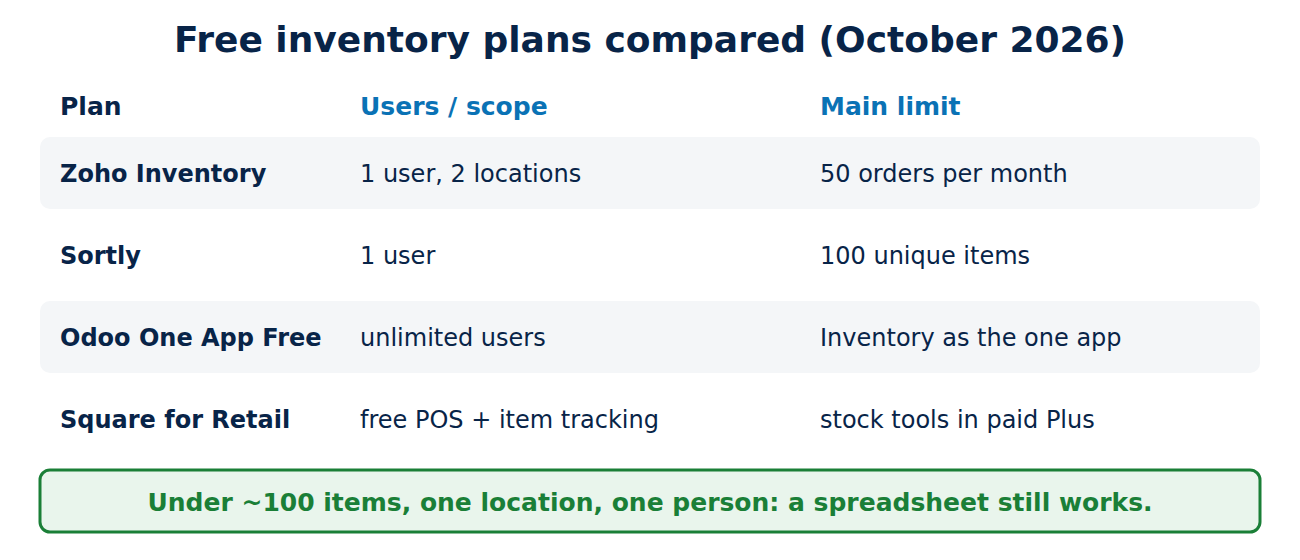
Free plans change often, so check the limits on each provider’s pricing page before you commit. At the time of writing (October 2026):
- Zoho Inventory, free plan: 1 user, 2 locations and up to 50 orders per month, with integrations into the wider Zoho ecosystem (Books, CRM). Best for small online sellers who expect to grow.
- Sortly, free plan: 100 unique items and 1 user, with a mobile app built around photos and QR codes. Quantities of an item do not count towards the limit. Best for tools, equipment, supplies and small storerooms.
- Odoo, One App Free: choose Odoo Inventory as your one app and use it free for unlimited users, hosted on Odoo Online. The full warehouse features are powerful; installing a second app moves you to a paid plan. Best for businesses that need multiple users and real warehouse processes.
- Square for Retail, free plan: a free point-of-sale system with item and SKU tracking; you pay card processing fees. Purchase orders, stock intake and inventory reporting need the paid Plus plan. Best for physical shops that sell over the counter.
- Odoo Community and other open-source tools: free to install on your own server. No licence costs, but you need the skills (or a partner) to host, update and back it up.
Is a spreadsheet enough?
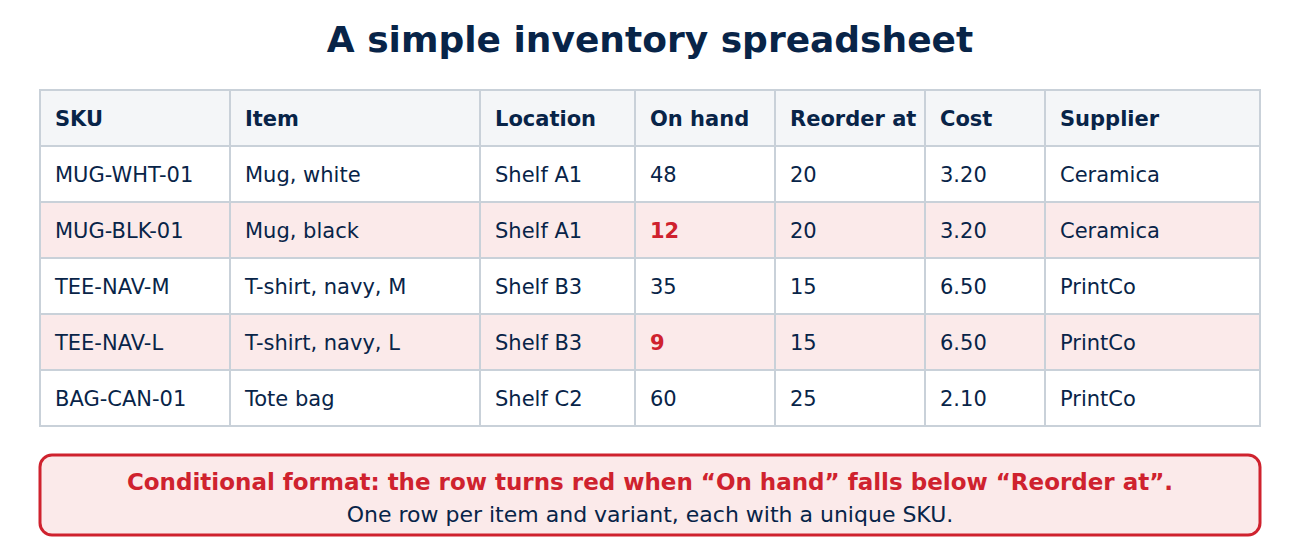
For fewer than about 100 products, one location and one person updating stock, a well-built spreadsheet in Google Sheets or Excel works fine. Use one row per item with columns for SKU, name, location, quantity on hand, reorder point, cost and supplier, and add a conditional format that turns the row red when stock falls below the reorder point.
A spreadsheet stops working when several people sell and update stock at the same time, when you sell on several channels (shop, website, marketplace), or when you need batch or serial numbers. That is the point to move to software.
How to choose
- Count your items, users and locations today and in a year. Free plans usually limit one of them.
- List your sales channels: the software should connect to your shop system or marketplace, or you will be typing numbers twice.
- Test the mobile app with your real products: scanning, counting and moving stock should take seconds.
- Check the export: you should be able to export all items and history as CSV, so you can move later.
- Look at the first paid tier, not just the free one. If you grow, that is what you will pay.
Setting up inventory software
- Clean your item list first: one name per product, consistent units, and a unique SKU for every item and variant.
- Do a full stock count on a quiet day and import the counts as your starting point.
- Label shelves and items with barcodes or QR codes.
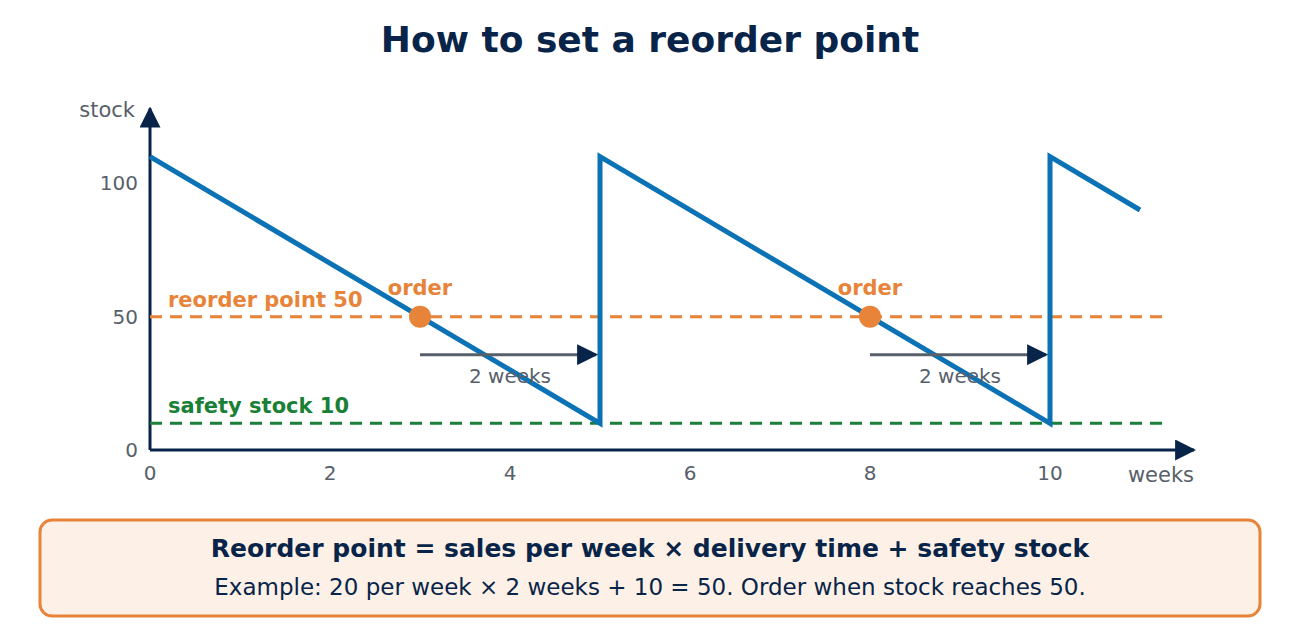
- Set reorder points based on how long your supplier needs to deliver and how much you sell per week.
- Count regularly: a short cycle count of a few items every week catches errors earlier than one big count per year.
Security and backups
Your stock and supplier data are business-critical. Use a separate login for each employee, turn on two-factor authentication and export your data regularly as a backup. If you host open-source software yourself, follow the 3-2-1 backup rule for the database.
Conclusion
For a small business, free inventory software is a real step up from a notebook: Sortly for simple item tracking, Zoho Inventory for small online sellers, Odoo for multi-user warehouses and Square for physical shops. Start with a clean item list and a full count, check the limits of the free plan against your growth, and make sure you can export your data. If you have fewer than 100 items and work alone, a good spreadsheet is still a fine place to start.
Sources and further reading
- Zoho Inventory pricing (Zoho)
- Sortly pricing (Sortly)
- Odoo pricing (Odoo)
- Square for Retail pricing (Square)



















Recent Comments