
“Storage almost full” is one of the most annoying messages on a phone: photos stop saving, updates fail and apps slow down. Before you delete things at random or buy a new phone, find out what actually fills the storage. On most phones the culprits are the same: photos and videos, messaging apps, downloads and app caches.
This guide shows how to check and free up storage on Android and iPhone, which tricks free the most space, and how to keep it from filling up again.
Step 1: see what is using your storage
- Android: open Settings > Storage. You see a breakdown by category (images, videos, apps, documents, system) and, on newer versions, a “Free up space” button. Menu names vary a little by manufacturer.
- iPhone: open Settings > General > iPhone Storage. The bar shows categories, below it are recommendations, and then every app sorted by size.
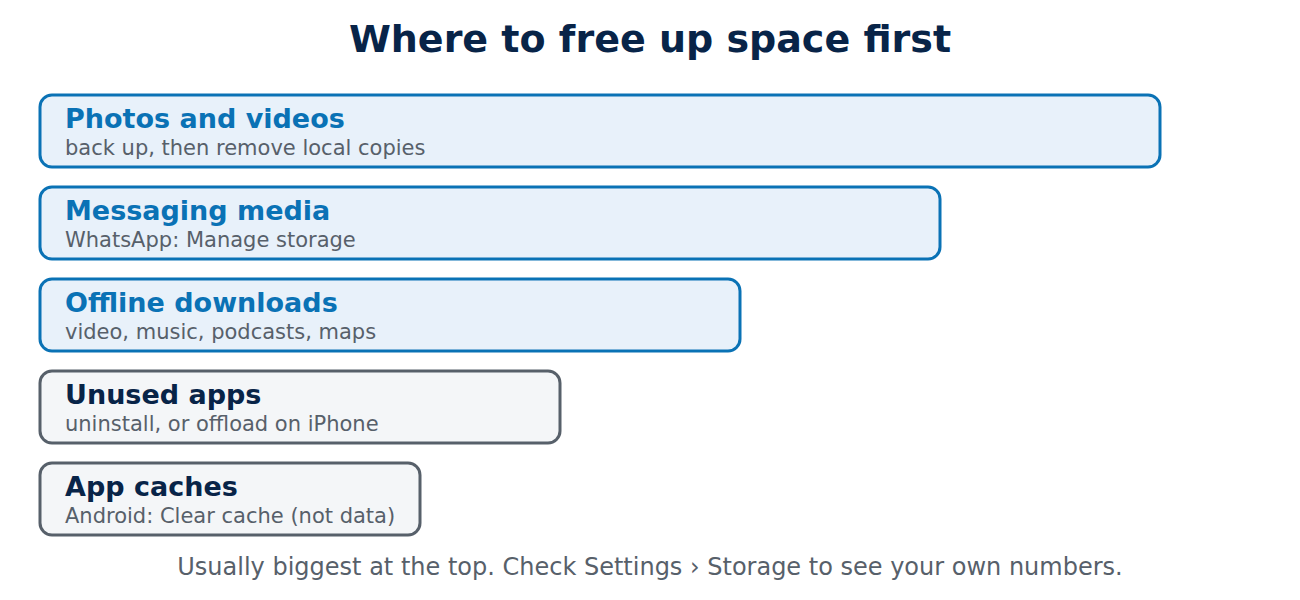
Start with the biggest items. Deleting a few large videos or one bloated chat often frees more than removing dozens of small apps.
Photos and videos: the biggest win
On most phones, the camera roll is the largest category, and 4K videos are the main reason.
- Back them up first. Turn on Google Photos backup on Android or iCloud Photos on the iPhone, or copy them to a computer. Our guide on how to back up your phone explains the options.
- Remove the local copies: in Google Photos, use “Free up space” to delete photos from the phone that are already backed up. On the iPhone, turn on Optimize iPhone Storage (Settings > Photos), which keeps full versions in iCloud and smaller ones on the phone.
- Empty the trash: deleted photos stay in “Recently deleted” or the trash for about 30 days and still use space.
- Delete duplicates, screenshots and failed shots. Long videos you never watch again are the quickest win.
Messaging apps
WhatsApp, Telegram and other messengers save every photo, video and voice note you receive, often in large group chats.
- WhatsApp: Settings > Storage and data > Manage storage shows large files and the chats that use the most space. Delete forwarded videos and old media in bulk.
- Turn off automatic media downloads for groups, or at least for mobile data.
- iPhone Messages: in the Messages settings, set “Keep Messages” to 1 year or 30 days instead of forever, and review large attachments in iPhone Storage > Messages.
Apps, caches and downloads
- Uninstall apps you do not use. Sort the app list by size and be honest.
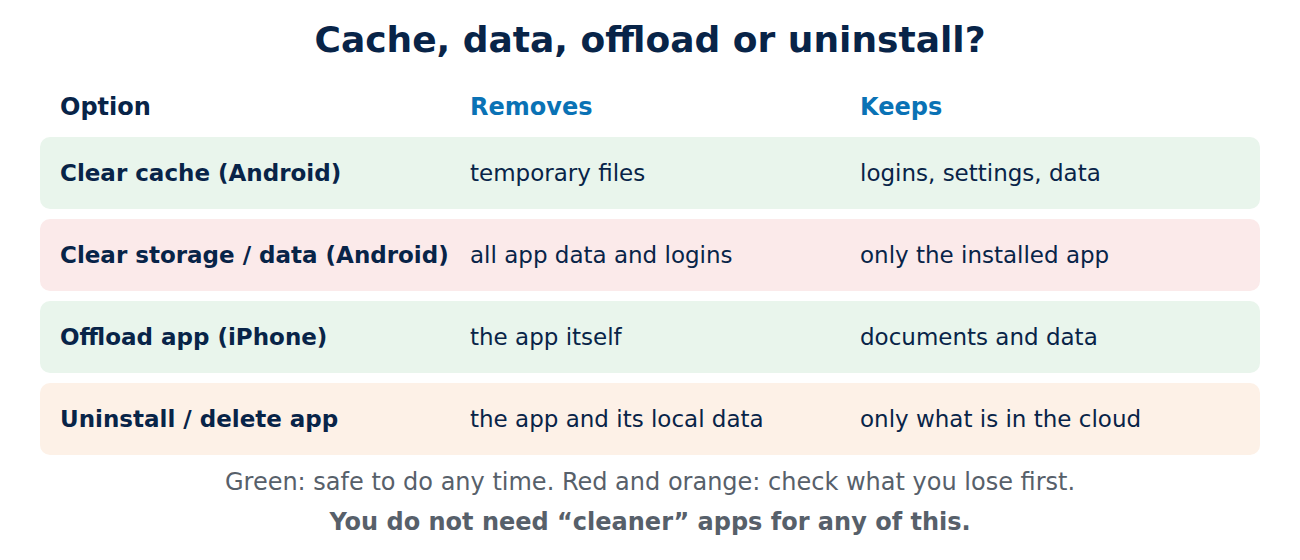
- Offload on iPhone: “Offload App” removes the app but keeps its documents and data, so you can reinstall it later and continue where you left off. “Offload Unused Apps” (Settings > App Store) does this automatically.
- Clear cache on Android: Settings > Apps > [app] > Storage > Clear cache. This is safe; “Clear storage” or “Clear data” also deletes the app’s data and logins.
- Remove offline content: downloaded episodes, playlists and maps in Netflix, Spotify, YouTube, podcasts and navigation apps can take several gigabytes.
- Clean the Downloads folder: on Android, the Files app (Files by Google on many phones) shows old downloads, large files and duplicates and suggests what to remove.
Move files off the phone
- Cloud storage: move documents and older photos to Google Drive, iCloud Drive, OneDrive or Dropbox. Most offer a few gigabytes free; compare them in our overview of free online backup options.
- Computer or external drive: copy photos and videos via USB cable, then delete them from the phone once you have checked the copy.
- microSD card: many Android phones still have a card slot. Set the camera to save to the card, and use a fast card (U3/V30) for video.
What not to do
- Do not install “cleaner” or “booster” apps from unknown developers. Android and iOS already have the tools you need, and many cleaner apps mainly show ads or collect data.
- Do not delete the “System” or “Other” category with tricks. It shrinks by itself after updates and restarts. If it stays huge on an iPhone, a backup and restore can help.
- Do not delete photos before you have checked the backup.
Keep it from filling up again
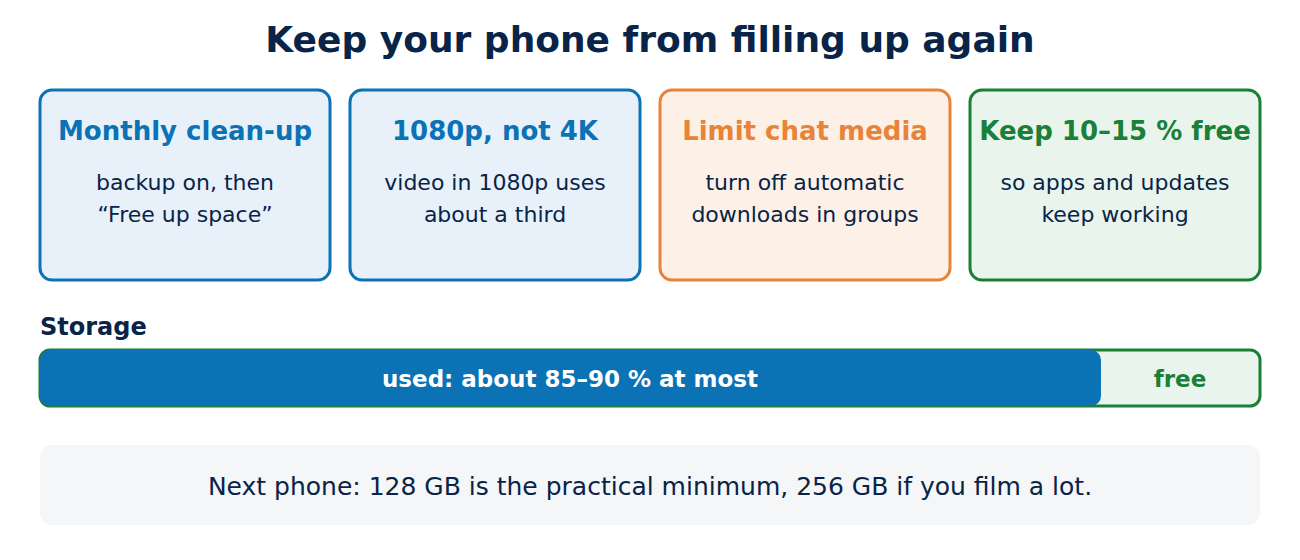
- Keep automatic photo backup on and free up space once a month.
- Record video in 1080p unless you really need 4K: it uses roughly a third of the space.
- Limit automatic media downloads in messengers.
- Leave 10 to 15 percent of the storage free: phones slow down and updates fail when storage is nearly full.
Next time you buy a phone, choose enough storage: 128 GB is the practical minimum today, and 256 GB is better if you film a lot. A slow phone may need more than space, though; see our quick fixes for slow devices.
Conclusion
To free up storage on a phone, check what fills it, back up and remove local copies of photos and videos, clean up messaging media, offload or uninstall unused apps and delete offline downloads. Use the phone’s own tools instead of cleaner apps, and keep some space free so the phone stays fast.
Sources and further reading
- Free up space on your Android device (Android Help)
- How to check the storage on your iPhone and iPad (Apple Support)



















Recent Comments