
Nobody can remember a different strong password for a hundred accounts, so most people reuse a few. That is exactly what criminals count on: when one website leaks its passwords, they try the same e-mail and password everywhere else. A password manager solves the problem. It creates a unique password for every account, remembers it and fills it in for you.
This guide explains how password managers work, compares the best free and paid options in 2026, and shows how to switch in an afternoon.
How a password manager works
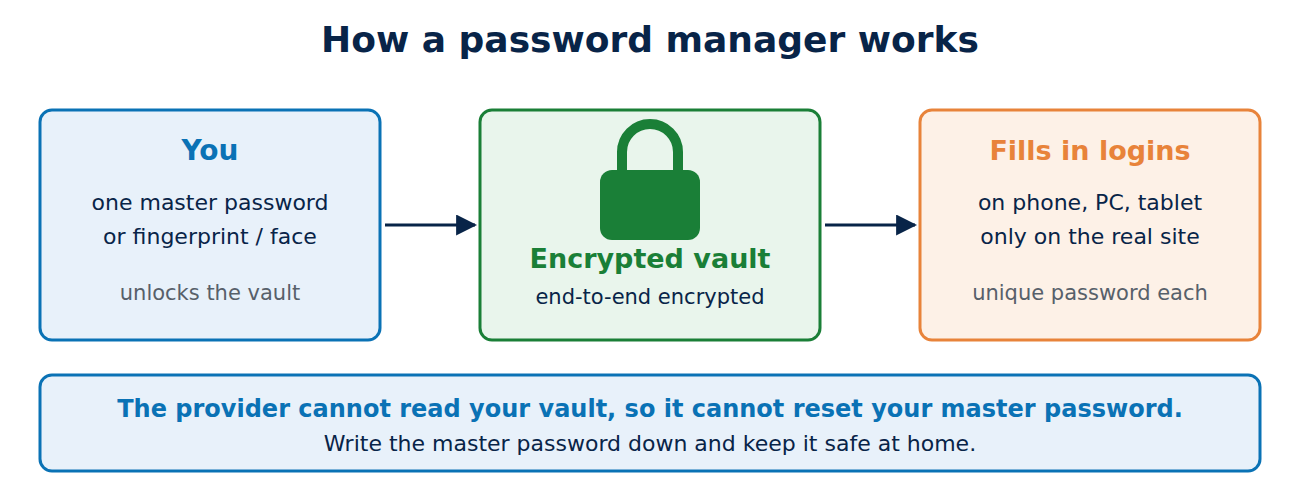
All your passwords are stored in an encrypted vault. You unlock it with one strong master password, or with your fingerprint or face on your phone. The vault syncs between your devices, and the app or browser extension fills in logins automatically.
Good password managers use end-to-end encryption: the vault is encrypted on your device, so the provider cannot read your passwords even if its servers are attacked. That also means the provider cannot reset your master password for you, so do not lose it.
Why it also protects you from phishing
A password manager links each login to the real web address. On a fake page with a slightly different address, it simply does not offer your password, which is a useful warning sign. See our guide on how to spot a phishing e-mail for the other signs.
The best password managers compared
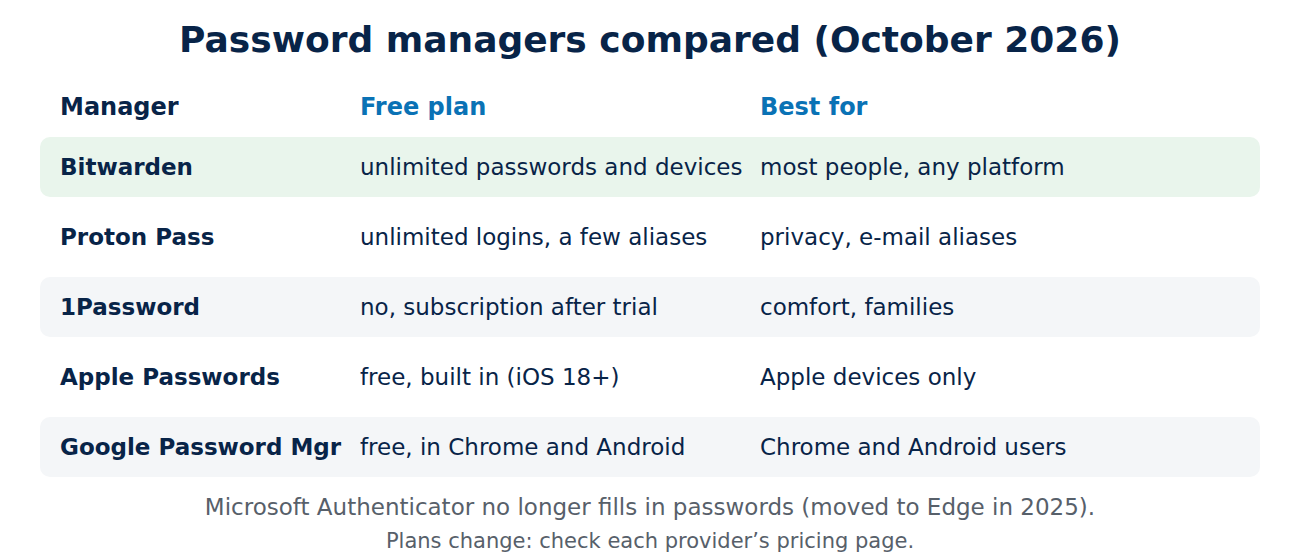
- Bitwarden: open source and independently audited, with a free plan that includes unlimited passwords on unlimited devices. The paid Premium plan adds features such as file attachments, emergency access, vault health reports and an integrated authenticator. Best free choice for most people on any platform.
- Proton Pass: from the Swiss company behind Proton Mail. The free plan has no limit on logins and includes a small number of hide-my-email aliases, which give each website a different forwarding address. Good if you care about privacy and want e-mail aliases.
- 1Password: polished apps, Travel Mode, Watchtower security alerts and excellent family sharing. There is no free plan; you pay a subscription after a trial. Best if you want the most comfortable experience and are happy to pay.
- Apple Passwords: built into iPhone, iPad and Mac (iOS 18, macOS Sequoia and later), free, with passkeys, verification codes and shared groups. On Windows it works through iCloud for Windows and browser extensions. Best if you only use Apple devices.
- Google Password Manager: built into Chrome and Android, free and automatic. Best if you live in Chrome and Android, but less convenient on an iPhone or in other browsers.
Note: Microsoft Authenticator no longer stores or fills in passwords. Microsoft moved that function to the Edge browser in 2025, so if you used Authenticator as a password manager, export your passwords or use Edge.
Built-in or separate app?
The password managers in Apple devices, Chrome and Edge are free and much better than no password manager at all. A separate app such as Bitwarden, Proton Pass or 1Password is better when you use devices from different companies (for example a Windows PC and an iPhone), want to share passwords with your family across platforms, or want features like secure notes, attachments and breach alerts in one place.
How to switch in one afternoon
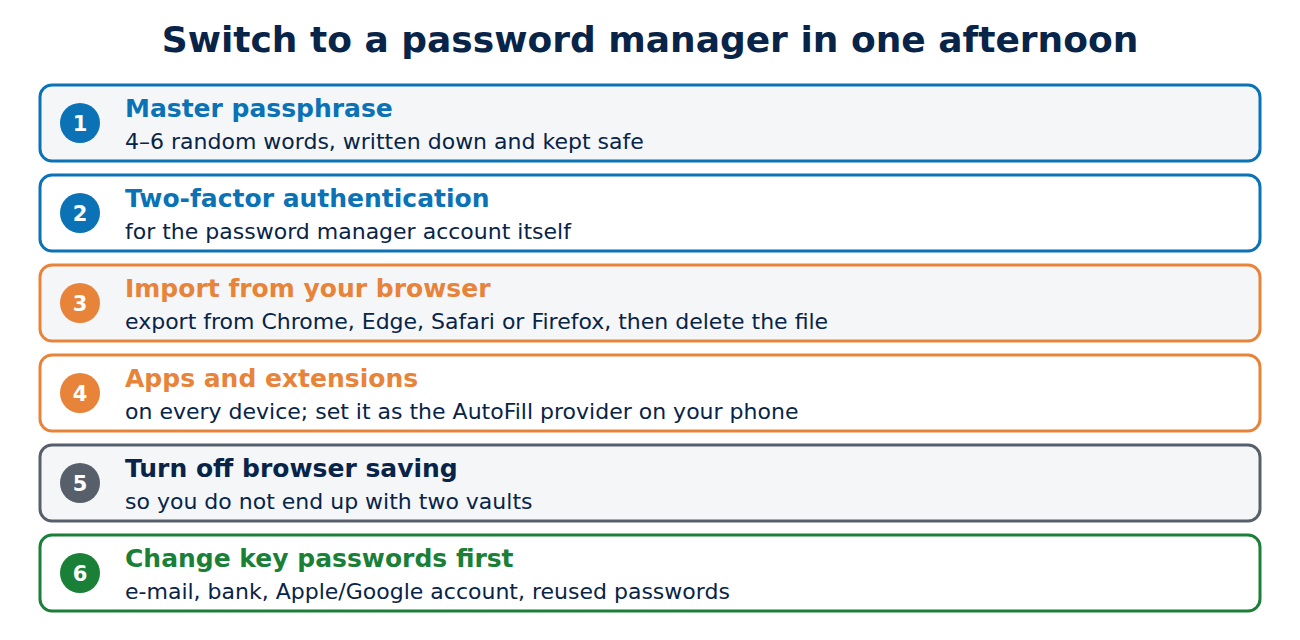
- Choose a strong master password: a passphrase of four to six random words is easy to remember and hard to guess. Write it down and keep it somewhere safe at home.
- Turn on two-factor authentication for the password manager account itself.
- Import your existing passwords from your browser: export them from Chrome, Edge, Firefox or Safari as a file, import it into the new manager and then delete the export file.
- Install the app and browser extension on every device, and set the password manager as the AutoFill provider on your phone.
- Turn off the browser’s own password saving if you use a separate app, so you do not end up with two vaults.
- Change your most important passwords first: e-mail, bank, Apple or Google account, and any password you reused. Let the manager generate them.
What about passkeys?
Passkeys replace passwords with a cryptographic key stored on your device and unlocked with your fingerprint, face or PIN. They cannot be phished or leaked in a data breach. All the password managers above can store passkeys and sync them between your devices. Our guide passkeys explained shows how to set them up.
Is it safe to put all passwords in one place?
For almost everyone, yes. A password manager with a strong master password and two-factor authentication is far safer than reused or weak passwords. Password managers have been attacked, but with end-to-end encryption a stolen vault can only be opened by guessing the master password. That is why it must be long and used nowhere else: a weak one can be cracked. Keep your devices updated and protected with a screen lock, and you remove the most likely risks. For your most important accounts, add two-factor authentication on top.
Tips for families and small teams
- Use shared vaults or groups for streaming, Wi-Fi, utilities and household accounts instead of sending passwords by message.
- Set up emergency access or store recovery codes so a family member can get in if something happens to you.
- For a small business, choose a plan with separate accounts per person, so you can remove access when someone leaves.
Conclusion
A password manager is the single biggest security upgrade most people can make. Bitwarden is the best free choice across all devices, Proton Pass suits privacy fans, 1Password offers the most comfort for a subscription, and Apple Passwords or Google Password Manager are fine if you stay in one ecosystem. Pick one, protect it with a strong passphrase and two-factor authentication, and replace your reused passwords one account at a time.
Sources and further reading
- Bitwarden plans (Bitwarden)
- Proton Pass plans (Proton)
- Passwords User Guide (Apple Support)
- Password managers: using a browser or an app (UK National Cyber Security Centre)


















Recent Comments