
Phishing is still the most common way criminals get into accounts. It does not need clever hacking: a convincing e-mail, text or message that makes you click a link, enter a password or pay an invoice is enough. Messages are now better written than ever, often with perfect spelling, so the old advice to “look for typos” no longer protects you.
This guide shows the warning signs that still work, how to check a link and a sender before you click, what to do if you already fell for it, and how to report phishing.
What phishing looks like today
A phishing message pretends to come from someone you trust and pushes you to act quickly. Common versions:
- Account alerts: “Unusual sign-in detected”, “Your mailbox is full”, “Your account will be closed”.
- Parcel and payment messages: a delivery fee, a failed payment, an unpaid toll or a refund you are “eligible” for.
- Fake invoices for subscriptions you never ordered, with a phone number to “cancel”.
- Messages from your boss or a colleague asking for gift cards, a quick bank transfer or a document login.
- QR codes in e-mails, letters or on parking meters that lead to fake payment pages.
It is not only e-mail: phishing by text message (smishing), phone call (vishing) and messaging apps follows the same pattern.
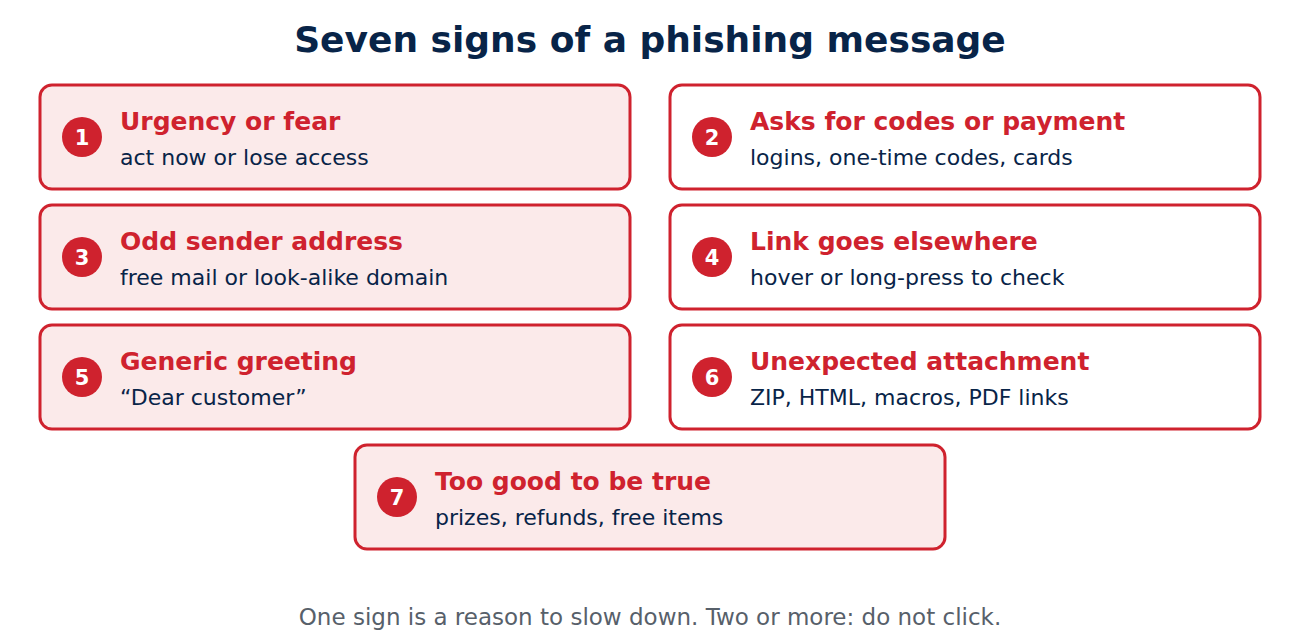
Seven warning signs
- Urgency or fear: act now, or your account is blocked, your parcel returned or your money lost.
- A request for login details, codes or payment, especially one-time codes. No real company asks you to read out a code it sent you.
- A sender address that does not match the company, for example a free mail address or a domain with an extra word or letter.
- A link that leads somewhere else than the text says.
- A generic greeting such as “Dear customer” from a company that knows your name.
- Unexpected attachments, especially ZIP files, HTML files, Office documents that ask you to enable macros, or “invoices” as PDFs with a link inside.
- Something that is too good to be true: a prize, a refund or a free item you did not ask for.
How to check a link before you click
- On a computer, hover the mouse over the link and read the address that appears at the bottom of the browser or mail program.
- On a phone, press and hold the link to see the address without opening it.
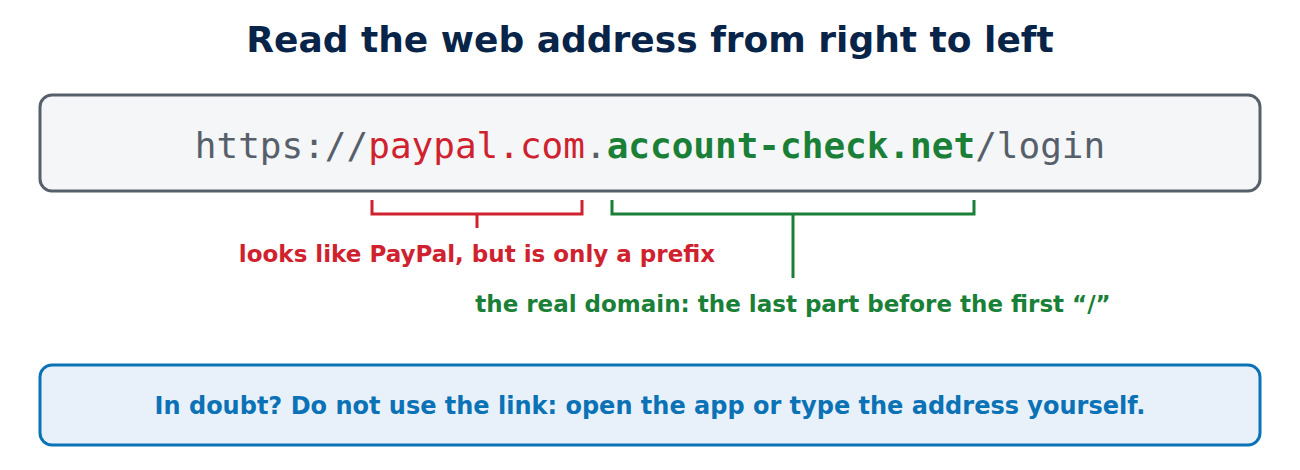
- Read the domain from right to left: in paypal.com.account-check.net the real domain is account-check.net, not PayPal.
- When in doubt, do not use the link at all. Open the company’s app or type its address yourself, and check your account there.
How to check the sender
The display name (“Amazon Support”) can be anything. Tap or click the name to see the real address. Look out for look-alike domains (rn instead of m, a zero instead of an o, extra words like “-secure” or “-billing”) and for replies that go to a different address. If a message claims to come from someone you know but asks for something unusual, confirm it through a different channel: call them on a number you already have, not the one in the message.
Phishing by text, phone and QR code
- Texts: parcel, toll and bank texts with a short link are the most common scams. Real banks do not text you a link to “unblock” your account.
- Calls: scammers spoof caller IDs and may already know some of your details. Hang up and call the official number on your card or the company’s website.
- QR codes: check the address your camera shows before opening it, and never pay a parking or utility bill through a QR code on a flyer or sticker.
What to do if you clicked or entered your password
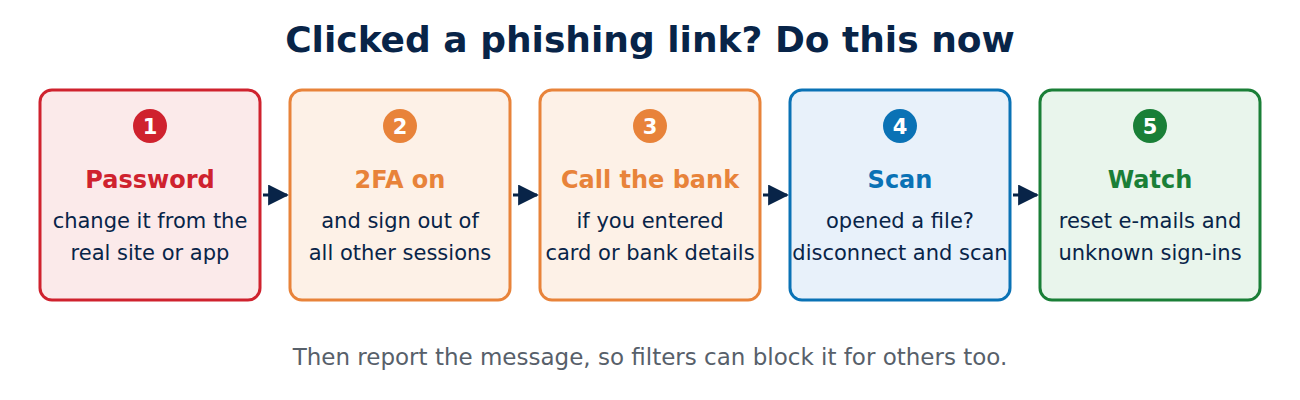
- Change the password of that account immediately, from the real website or app, and everywhere else you used the same password.
- Turn on two-factor authentication or passkeys and sign out of all other sessions.
- Call your bank straight away if you entered card or bank details, and ask them to block the card.
- If you opened an attachment, disconnect the device from the internet, run a full scan with your antivirus and update the system.
- Watch your accounts for password-reset e-mails and sign-ins you do not recognise over the next weeks.
If your phone behaves strangely afterwards, follow our guide on how to tell if your phone is hacked.
How to report phishing
- In your mail program: use “Report phishing” or “Report junk” in Gmail, Outlook or Apple Mail. This helps your mail provider improve its filters.
- United States: forward phishing e-mails to reportphishing@apwg.org, forward scam texts to 7726 (SPAM), and report fraud at ReportFraud.ftc.gov.
- United Kingdom: forward suspicious e-mails to report@phishing.gov.uk (National Cyber Security Centre) and scam texts to 7726.
- Other countries: your national cyber security agency or consumer protection office usually has a reporting address.
- The company being impersonated often has its own address, for example on its security or “report a scam” page.
How to protect yourself for good
- Use a password manager. It only fills in passwords on the real website, so it will not offer your login on a fake page. See our guide to the best password managers.
- Switch to passkeys where you can. They cannot be typed into a phishing site.
- Turn on two-factor authentication for e-mail, banking and shopping accounts.
- Keep your browser, phone and computer updated, so known security holes are closed.
Conclusion
Phishing works because it creates pressure. Slow down whenever a message asks you to log in, pay or share a code, check the real link and sender, and go to the company’s app or website yourself instead of using the link. If you did click, change the password and call your bank quickly. A password manager, passkeys and two-factor authentication stop most phishing attacks even when a fake message gets through.
Sources and further reading
- How to recognize and avoid phishing scams (US Federal Trade Commission)
- Phishing: spot and report scam e-mails, texts, websites and calls (UK National Cyber Security Centre)














Recent Comments