
On a home network, every device shares one Wi-Fi password. In companies, universities and hospitals that would be a risk: anyone who knows the password can get on the network, even after their last day at work. There, each device or user signs in individually under the IEEE 802.1X standard, most securely with a certificate using EAP-TLS. This guide explains the three roles in 802.1X, how EAP-TLS works, why the widespread PEAP with passwords is running into trouble, how to set up a client and which mistakes to avoid.
The three roles in 802.1X
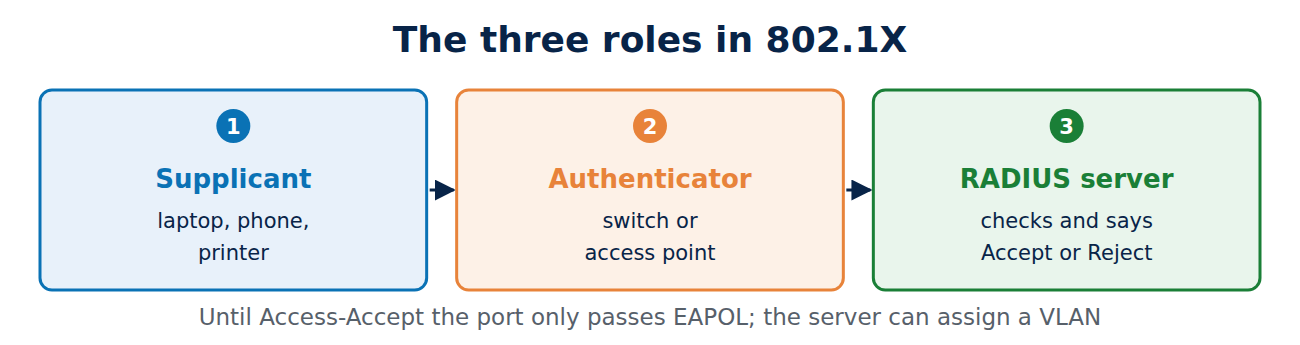
IEEE 802.1X controls access to a network, whether by cable at a switch or by Wi-Fi at an access point. Three parties work together:
- Supplicant: the device that wants to join, such as a laptop, phone or printer.
- Authenticator: the switch or access point. At first it only lets sign-in messages through (EAPOL, EAP over LAN) and passes them on.
- Authentication server: usually a RADIUS server such as FreeRADIUS, Microsoft NPS or a cloud service. It checks the sign-in and tells the authenticator whether to open the port.
Only when the RADIUS server replies with Access-Accept does the switch open the port or the access point let the device on to the Wi-Fi. The RADIUS server can also assign a VLAN, such as a separate network for guests or printers. In Wi-Fi this approach is called WPA2-Enterprise or WPA3-Enterprise; for home Wi-Fi security see how to secure your Wi-Fi router.
EAP-TLS step by step
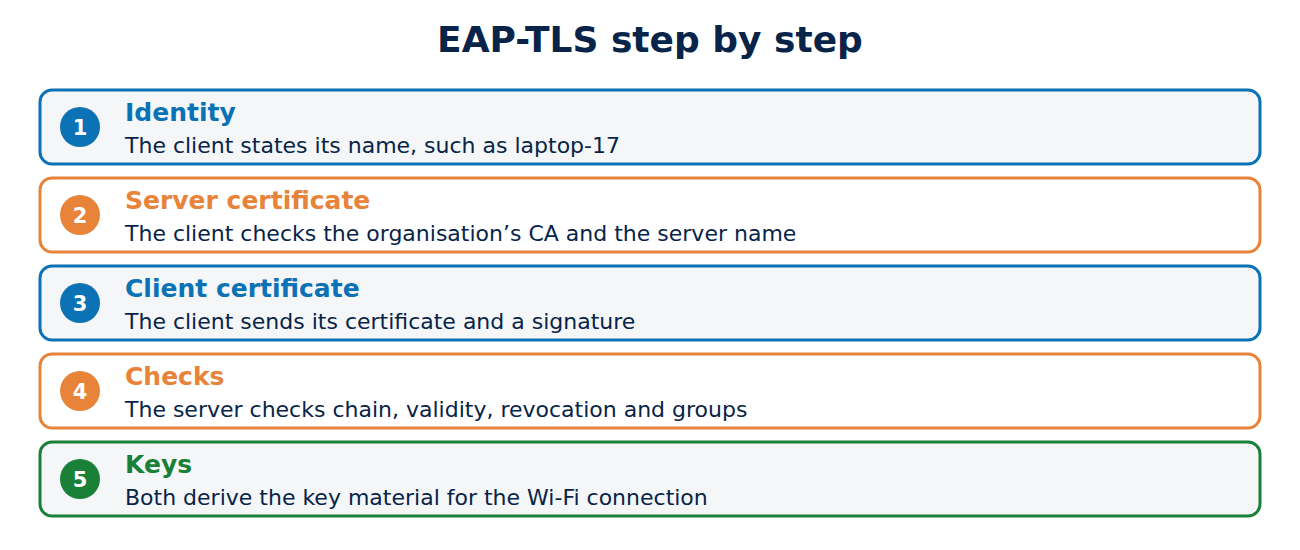
EAP is a framework for many sign-in methods. EAP-TLS (RFC 5216, and with TLS 1.3 under RFC 9190) runs a full TLS handshake with certificates on both sides:
- The client states its identity, such as the device name.
- The RADIUS server sends its server certificate. The client checks it against the organisation’s CA and the expected server name.
- The client sends its client certificate and proves with a signature that it holds the private key.
- The server checks the chain, validity, revocation status and, if required, groups in Active Directory.
- Both derive key material from the handshake, from which the access point creates the Wi-Fi keys.
The principle is the same as mutual TLS on the web; see what is mutual TLS. No password crosses the network, and an attacker cannot capture anything they could use later.
Why PEAP with passwords is reaching its limits
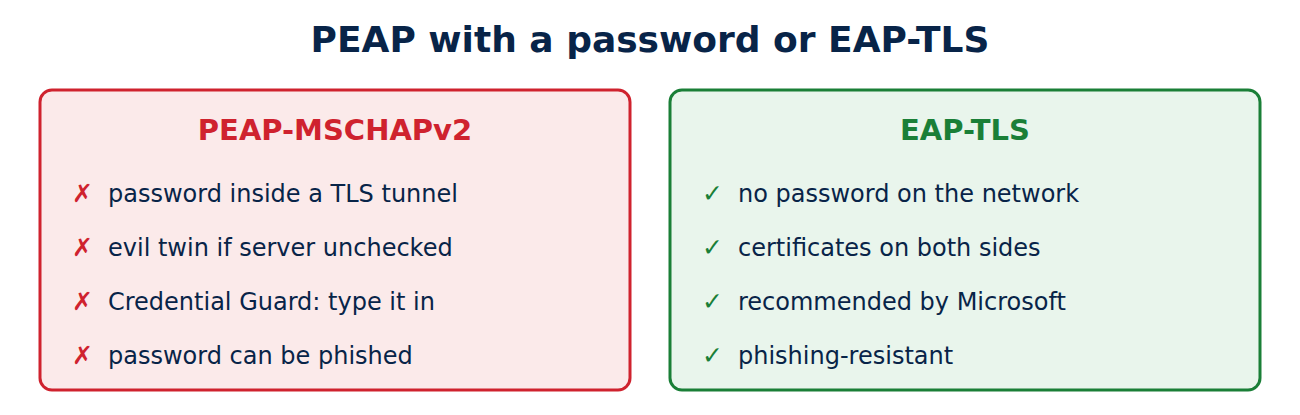
Many networks use PEAP-MSCHAPv2: the client builds a TLS tunnel to the server and signs in inside it with a username and password. It is convenient but has weaknesses:
- If the client does not check the server certificate, a fake access point with the same network name (an evil twin) can capture the sign-in, and MSCHAPv2 can then be cracked.
- On Windows 11, Credential Guard has been on by default on eligible Enterprise and Education devices since version 22H2. It blocks automatic sign-in with Windows credentials over MSCHAPv2, so users have to type their password by hand. Microsoft recommends moving to certificate-based methods such as EAP-TLS.
- Passwords expire, get shared and end up on phishing pages; see how to spot a phishing email.
Where the certificates come from
EAP-TLS needs your own CA, because certificates from public web CAs no longer carry the client authentication purpose (a browser rule since 2026); see how to run a private certificate authority. The certificates are distributed automatically:
- Domain-joined Windows: through autoenrolment; see Windows certificate autoenrolment.
- Phones and laptops in MDM: through SCEP, PKCS or ACME profiles; see certificates on managed devices.
- Printers and IoT devices: through SCEP, EST or manufacturer certificates. Devices without 802.1X support are often admitted by MAC address (MAC Authentication Bypass), but into an isolated VLAN, because MAC addresses can be spoofed.
Setting up a Linux client
On Linux, wpa_supplicant handles the sign-in. A network entry for EAP-TLS looks like this (names and paths as examples):
network={
    ssid="Company-WiFi"
    key_mgmt=WPA-EAP
    eap=TLS
    identity="laptop-17.company.local"
    ca_cert="/etc/ssl/company-root.pem"
    domain_match="radius.company.co.uk"
    client_cert="/etc/ssl/laptop-17.pem"
    private_key="/etc/ssl/laptop-17.key"
}
ca_cert and domain_match are the crucial lines: they make sure the client only trusts the genuine RADIUS server. On Windows, macOS, iOS and Android the same values are set through Group Policy or an MDM profile.
Common mistakes
- Server validation switched off: the most common gap. Without checking the CA and server name, even EAP-TLS is vulnerable, because the client will sign in to any server.
- Expired RADIUS certificate: then nobody gets on the network. The server certificate belongs in expiry monitoring; see how to manage certificate expiry.
- Revocation lists unreachable: if the RADIUS server checks revocation and cannot reach the list, it may reject everyone, depending on its settings.
- Wrong purpose in the certificate: client certificates need the client authentication purpose, the server certificate needs server authentication.
Frequently asked questions
Do I need 802.1X at home?
No. For a home network, WPA3 with a long password is enough.
Can I use a Let’s Encrypt certificate for the RADIUS server?
Technically yes, but the client would then trust any server with a public certificate for that name. A certificate from your own CA is usual and safer.
What is eduroam?
A worldwide university Wi-Fi service built on 802.1X, in which universities’ RADIUS servers work together; in the UK it is run by Jisc. Many institutions still use passwords, some already use certificates.
Does 802.1X work on wired networks?
Yes. Switches speak 802.1X in the same way, which protects every network socket.
Conclusion
With 802.1X, a RADIUS server decides who may join the network, and the switch or access point enforces it. EAP-TLS uses certificates on both sides and needs no password. What matters is your own CA, automatic distribution of client certificates and clients that strictly check the server certificate. More guides in the hub Certificates, PKI and encryption.
Sources and further reading
- RFC 5216: The EAP-TLS Authentication Protocol (IETF)
- RFC 9190: EAP-TLS 1.3 (IETF)
- Credential Guard: considerations and known issues (Microsoft)
- wpa_supplicant.conf example (hostap)














Recent Comments