
On Windows networks, computers and users usually get their certificates without anyone clicking anything: the PC starts, fetches a certificate for Wi-Fi and VPN, and the user receives one for signing email when they sign in. This is made possible by Active Directory Certificate Services (AD CS), certificate templates and autoenrolment through Group Policy. This guide explains how the pieces fit together, which template settings matter, how to trigger and check enrolment, and what the CEP and CES web services are for.
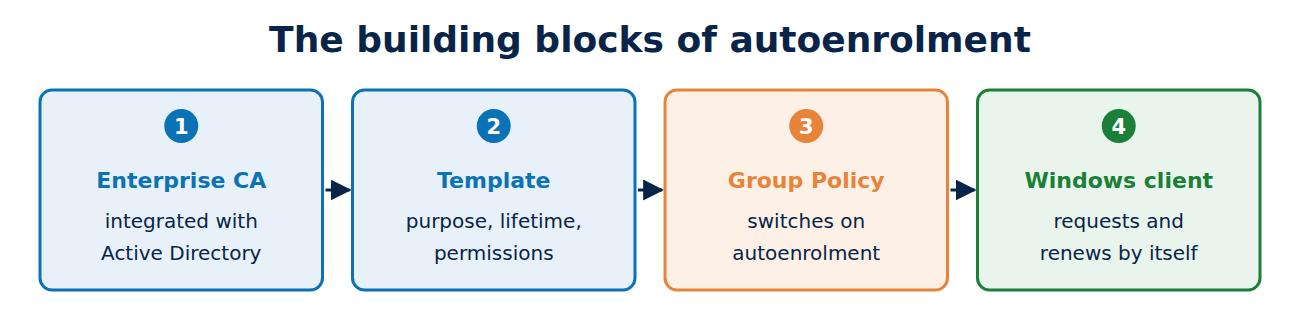
The building blocks
- Enterprise CA: a certificate authority integrated with Active Directory. Only an enterprise CA can work with templates and autoenrolment. For what a CA does, see how certificate authorities work.
- Certificate templates: blueprints for certificates, stored in the configuration partition of Active Directory. They set purpose, lifetime, key, names and permissions.
- Group Policy: switches on autoenrolment for computers and users.
- The Windows client: checks regularly which templates it is entitled to and requests missing or soon-to-expire certificates itself.
The basics of Active Directory are covered in understanding Active Directory.
Certificate templates: what they contain
A template has many tabs. The most important settings are:
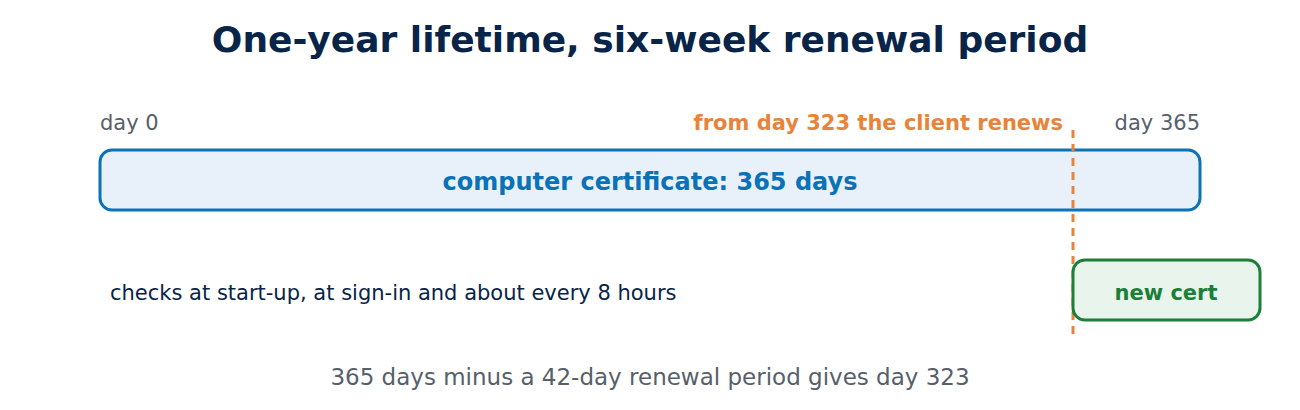
- Validity and renewal: for example a one-year lifetime and a renewal period of six weeks. When a certificate enters that period before expiry, the client renews it automatically.
- Purpose (application policies): for example client authentication for Wi-Fi and VPN, server authentication for web servers, or secure email.
- Subject name: either the CA builds the name from Active Directory data (safe), or the requester may supply it (risky, more on that below).
- Cryptography: algorithm, minimum key size, provider (such as the TPM’s key storage) and whether the private key can be exported.
- Issuance requirements: approval by a certificate manager, or a signature from an enrolment agent.
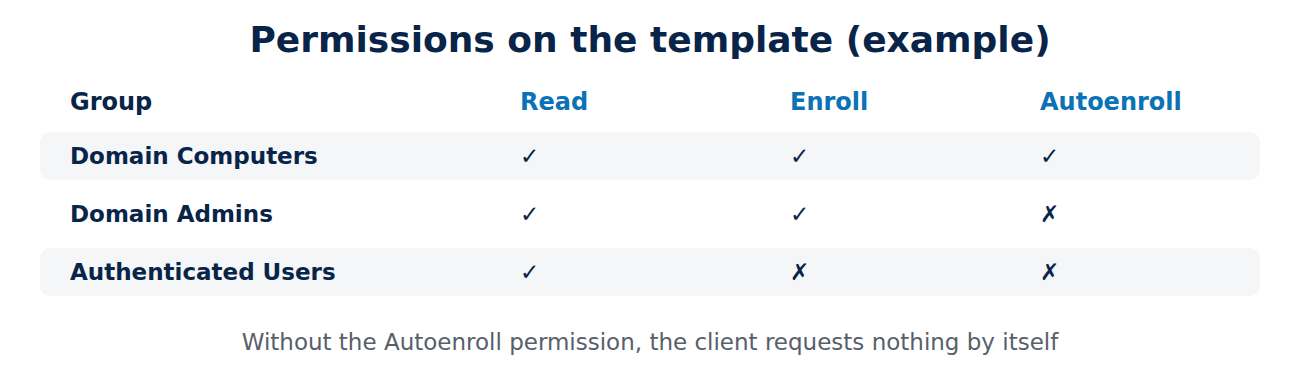
- Security: who may read the template, enrol with it (Enroll) and enrol automatically (Autoenroll).
Templates come in schema versions 1 to 4. The built-in version 1 templates, such as “Computer” and “User”, cannot be changed. The usual approach is to duplicate a template, adjust the copy and then publish it on the CA for issuance.
Turning on autoenrolment
For a computer to receive a certificate automatically, three things are needed:
- The template is published on the CA.
- The group (such as “Domain Computers”) has Read, Enroll and Autoenroll permissions on the template.
- A Group Policy enables the client: Computer Configuration, Policies, Windows Settings, Security Settings, Public Key Policies, then the Auto-Enrollment entry of the Certificate Services Client. There you set the configuration model to “Enabled” and tick the boxes for renewing, updating and removing revoked certificates and for updating certificates that use templates.
For users the same entry sits under User Configuration.
When Windows enrols, and how to check
The client checks at start-up, at sign-in and roughly every eight hours after that. If you do not want to wait, trigger it yourself:
gpupdate /force
certutil -pulse
certutil -pulse -user
The certificate stores show whether it worked. In PowerShell, this command lists the computer’s certificates with their expiry dates:
Get-ChildItem Cert:\LocalMachine\My | Format-List Subject, Issuer, NotAfterYou can also request a certificate for a particular template directly, here for the template with the internal name “Machine”:
certreq -enroll -machine -q MachineErrors appear in the Application log under the source CertificateServicesClient-AutoEnrollment. Common causes: missing permissions on the template, a template not published on the CA, or a CA certificate missing from the trusted store. How certificate chains are checked is explained in how the certificate chain of trust works.
Typical templates and uses
- Computer or Workstation Authentication: Wi-Fi with 802.1X, VPN, mutual TLS to internal services; see what is mutual TLS.
- Domain Controller Authentication and Kerberos Authentication: for domain controllers, for example to support smart card sign-in.
- User: signing and encrypting email with S/MIME; see what is S/MIME.
- Web Server: internal websites. The name is often free to choose here, so only a small group of administrators should be allowed to enrol.
CEP and CES: enrolment over HTTPS
Autoenrolment assumes the client can reach Active Directory and the CA directly over LDAP and RPC. For machines outside the domain, in other forests or on the internet, Windows Server 2008 R2 introduced two web services: the Certificate Enrollment Policy Web Service (CEP) supplies the templates, and the Certificate Enrollment Web Service (CES) accepts requests. Both work over HTTPS, and since Windows Server 2012 R2 clients can also renew with key-based renewal through them. For mobile and network devices, SCEP through NDES is the usual route instead; see what is SCEP.
Frequently asked questions
Why does my computer not get a certificate?
Usually the Autoenroll permission is missing on the template, the template is not published on the CA, or Group Policy has not been applied yet. gpupdate and certutil -pulse help when testing.
Should the private key be exportable?
Only if there is a reason, such as email encryption on several devices. For device certificates a non-exportable key, ideally in the TPM, is safer; see what is an HSM.
Can I edit the built-in “Computer” template?
No, it is schema version 1. Duplicate it and publish the copy.
Does autoenrolment work without a domain?
Not directly. That is what CEP and CES, or device management with SCEP, are for.
Conclusion
Autoenrolment combines an enterprise CA, certificate templates with the right permissions and a Group Policy. After that, computers and users fetch their own certificates and renew them in good time. The templates need care: names from Active Directory, tight permissions and non-exportable keys. How attackers exploit template mistakes is the subject of the next guide in this series. More guides in the hub Certificates, PKI and encryption.
Sources and further reading
- Certificate template concepts in Windows Server (Microsoft)
- Certificate Enrollment Web Service: key-based renewal (Microsoft)
- certutil (Microsoft)
- certreq (Microsoft)















Recent Comments