
This article was published in 2014 and updated in October 2026.
The Google Play Store offers millions of apps for news, messaging, shopping, banking and games. Most come from genuine developers, but fake apps — copycats of popular apps, bogus utilities and apps that hide malware — still slip through. They can bombard you with ads, steal passwords, subscribe you to expensive services or drain your bank account. Here’s how to spot a fake app before you install it.
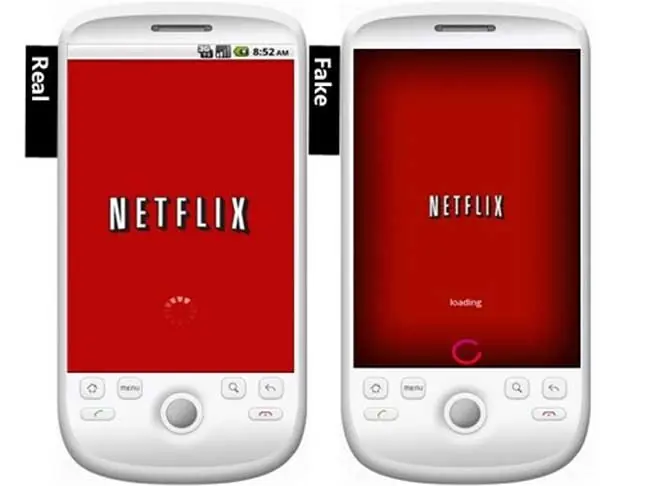
Fake apps: an old problem that hasn’t gone away
When BlackBerry Messenger (BBM) came to Android in 2013, dozens of fake versions appeared in the Google Play Store before the real one launched, and copycats of apps such as SlideShare and Wolfram Alpha followed. Google has since tightened its checks: Google Play Protect scans billions of apps every day, developers must verify their identity, and Google removes hundreds of thousands of policy-violating apps every year. Still, new fakes appear regularly — today often disguised as AI chatbots, PDF readers, VPNs, crypto wallets or banking apps.
How to spot a fake app
- Check the developer name: this is the most reliable sign. The official app comes from the company itself — “WhatsApp LLC”, “Google LLC”, your bank’s exact name. Tap the developer name to see their other apps and website. Watch out for slight misspellings.
- Look at the number of downloads: a popular app from a big company has millions of installs. A “WhatsApp” with 5,000 downloads is a fake.
- Read the reviews — critically: sort by most recent and look at negative reviews. Many short, generic five-star reviews posted at the same time are a warning sign.
- Compare logo, screenshots and description: fakes often use blurry logos, odd screenshots and descriptions full of spelling mistakes or exaggerated promises.
- Check the permissions and data safety section: a flashlight or calculator app doesn’t need access to your contacts, SMS or accessibility services. Be especially careful with apps that ask for accessibility access — it’s a favourite tool of banking malware.
- Use the official link: the safest way to find an app is via the official website of the company or your bank, which links directly to the correct Play Store page.
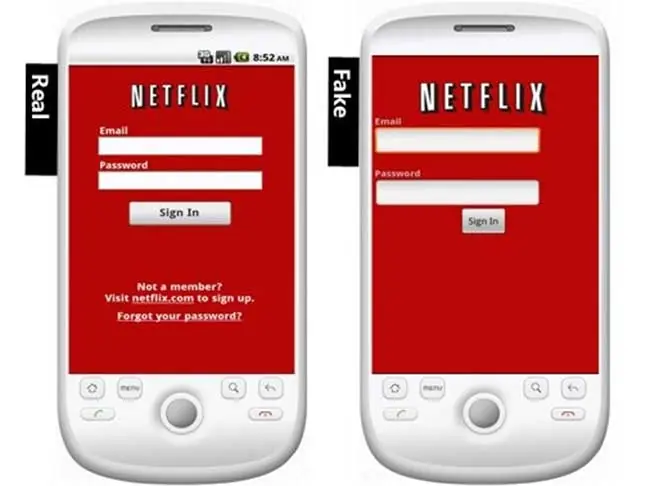
Extra protection
- Make sure Google Play Protect is switched on (Play Store → profile icon → Play Protect).
- Avoid installing apps from outside the Play Store (APK files from websites or links in messages) unless you fully trust the source.
- Keep Android and your apps up to date.
- Never pay for “premium versions” of free apps via links in ads or messages.
Installed a fake app?
Uninstall it immediately, run a Play Protect scan and change the passwords of any accounts you used while it was installed. If it was a banking or payment app, contact your bank straight away. You can report the app in the Play Store via the three-dot menu on its page.
Read also: Buying and selling with Android apps.


















Waheed Mughal
Jan 16. 2014
Apple has similar problem problems with keywords. Search for Skype and you’ll get all kinds of apps that have nothing to do with Skype. Their review process is supposed to catch this stuff but those app marketers are quite the savvy individuals.
Kay
Jan 22. 2014
Not only apple, every brand is facing such problems. There are many sites today that promote fake apps.
Ralph
Jan 29. 2014
That’s a modern cat and mouse between the companies (Apple, Google, Samsung and co.) and the consumer/B2B side for marketing purposes
Jenn Farmer
Jan 30. 2014
Great post! I love my Android phone, but these fake apps in google play store kinda worry me
Jenn Farmer