
This article was published in 2011 for Windows XP and updated in October 2026 for Windows 11 and 10.
If more than one person uses a computer, everyone should have their own user account. Each account has its own desktop, files, browser, settings and passwords, so nobody accidentally changes someone else’s things — and children can get an account with parental controls. Here’s how to create a new user account in Windows 11 and Windows 10.
Suggested reading: Uses for an external hard drive
Create a new user account in Windows 11
- Open Settings (Windows + I) and go to Accounts → Other users (called “Family & other users” in some versions).
- Next to Add other user, click Add account.
- Enter the person’s Microsoft account email address — or, to create a local account without a Microsoft account, click I don’t have this person’s sign-in information and then Add a user without a Microsoft account.
- For a local account, enter a user name and password and answer the security questions.
- Click Next. The new account appears in the list and can be selected on the sign-in screen.
In Windows 10 the steps are almost the same: Settings → Accounts → Family & other users → Add someone else to this PC.
Accounts for children
To add a child, use Accounts → Family and the free Microsoft Family Safety app. It lets you set screen-time limits, filter websites and approve app purchases.
Change the account type
New accounts are standard users by default — which is the safer choice for everyday use. To give someone administrator rights, select the account under Other users, click Change account type and choose Administrator. Ideally, keep only one or two administrator accounts on a computer.
Change the name, password or picture
Each user can change their own picture and password under Settings → Accounts (Your info and Sign-in options). Sign-in options also let you set up a PIN, fingerprint or face recognition with Windows Hello.
Remove an account
Go to Settings → Accounts → Other users, select the account and click Remove. This deletes the account’s files and settings on this PC, so back up anything important first.
Still using Windows XP?
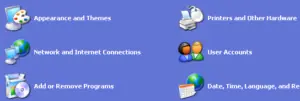
In Windows XP, accounts were created via Control Panel → User Accounts → Create a new account. However, Windows XP hasn’t received security updates since 2014 and shouldn’t be used on the internet any more.
Suggested reading: Slow internet connection: possible reasons



















Mukundan Srinivasan
Apr 21. 2011
Well written. I just tried creating an account as per your steps and it worked fine.
admin
Apr 23. 2011
Good to know that 🙂
TechCrates
Apr 21. 2011
thks for the tutorial.. good one salman
admin
Apr 23. 2011
you’re welcome
Tony
May 16. 2011
This is a very simple method that you should to know when using Windows OS.
admin
May 16. 2011
Truly….said 🙂
Kristi
Jan 15. 2020
Creating user accounts in Windows became easy these days 🙂
Danilo Peyser
Mar 27. 2020
I really like how you wrote about Creating New User Account in Windows XP. Enjoy! 🙂
maghaz
May 09. 2020
Good details
Whitney
Sep 12. 2020
Nice post. I was checking constantly this blog and I’m impressed!
Very helpful info specifically the last part
🙂 I care for such info a lot. I was seeking this certain info for a long time.
Thank you and good luck.
Shiela
Sep 22. 2020
This topic is still relevant for me. Thank you TC guys 🙂
Floyd Adams
Apr 22. 2021
Thanks very interesting blog!
Judy
Apr 23. 2021
Good post. Thank you!
Taylor
Nov 15. 2021
Keep on writing, great job!