
This article was published in 2011 and updated in October 2026.
Is the text cursor in your documents blinking too fast, too slowly — or do you find the blinking distracting? Windows lets you change the cursor blink rate and even make the cursor thicker so it’s easier to see. Here’s how to do it in Windows 11 and Windows 10.
Change the cursor blink rate
- Press Windows + R, type
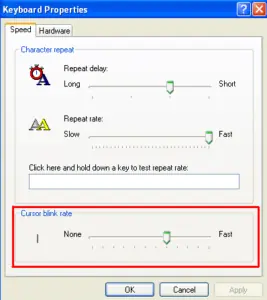
control keyboardand press Enter. The Keyboard Properties window opens. (You can also search for “Keyboard” in Control Panel.) - On the Speed tab, find Cursor blink rate.
- Move the slider to the left for slower blinking or to the right for faster blinking. The preview cursor next to it shows the result. Moving the slider all the way to the left (None) stops the cursor from blinking.
- Click Apply and then OK.
Make the text cursor easier to see
In Windows 11, go to Settings → Accessibility → Text cursor (in Windows 10: Settings → Ease of Access → Cursor & pointer). There you can make the text cursor thicker and turn on a coloured text cursor indicator that makes the cursor much easier to find on the screen.
Why change the blink rate?
A slower or non-blinking cursor can reduce distraction and is recommended for some people with visual sensitivities or photosensitive conditions, while a faster rate can make the cursor easier to spot. Note that some programs, such as certain code editors, use their own cursor settings.
Suggested reading: How to turn on ClickLock · Guide to using keyboard shortcuts



















RealTimeTricks
May 27. 2011
I have tried it, its fun. When you increase the speed of the cursor and then decrease, it gives the slow fast version of XP.
I enjoyed when i speed it up!
admin
May 27. 2011
Even I enjoyed it… BTW thanks for stopping by and commenting 🙂
liaqat
May 28. 2011
lol
i never thought this could be possible as well 😀
great share! 😀
admin
May 28. 2011
Thanks for stopping by and commenting 🙂