
This article was published in 2011 and updated in October 2026.
A slow PC is one of the most common complaints of Windows users. In 2011, a popular tip was to disable “unnecessary” Windows services to free up memory. Several services on that original list — including Automatic Updates and the Background Intelligent Transfer Service that Windows Update relies on — are essential for security, and turning them off can leave your PC vulnerable. So, should you still disable Windows services to speed up your PC? Here’s what makes sense today.
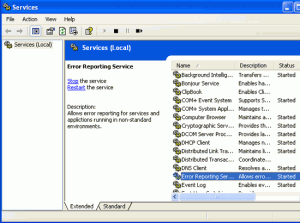
What are Windows services?
Services are programs that run in the background without a window, often starting with Windows. They handle tasks such as networking, printing, updates, security, audio and search. Some belong to Windows itself; others are installed by apps — for example updaters, licensing tools or game launchers.
Why disabling Windows services rarely helps today
Modern Windows versions start most services only when they’re needed and manage memory far more efficiently than Windows XP did. On a computer with an SSD and enough RAM, disabling built-in services saves very little — but it can break features such as Wi-Fi, printing, Bluetooth, search or the Microsoft Store, and cause problems that are hard to trace later.
Services you should never disable
- Windows Update and Background Intelligent Transfer Service (BITS) — needed for security updates.
- Microsoft Defender Antivirus and Windows Security services.
- Windows Firewall (Windows Defender Firewall).
- Networking, audio and power-management services.
What to do instead
- Disable startup apps: open Task Manager (Ctrl + Shift + Esc) → Startup apps and disable programs you don’t need right after logging in. This usually brings the biggest improvement.
- Review third-party services: press Windows + R, type
msconfig, open the Services tab and tick Hide all Microsoft services. The remaining list shows services installed by other software — updaters for programs you rarely use are candidates to disable. Better still: uninstall software you don’t use at all. - Check what’s actually using resources: the Processes tab in Task Manager shows which apps and services use the most CPU, memory and disk.
- Upgrade the hardware: more RAM or a switch from a hard disk to an SSD speeds up an older PC far more than any service tweak.
If you still want to change a service
Open the Services app (search for “services”), right-click a service, choose Properties and set the startup type to Manual rather than Disabled — then Windows can still start it when it’s needed. Change one service at a time, note what you changed, and create a system restore point first so you can undo it if something stops working.
A few that are sometimes adjusted
- Print Spooler: can be set to Manual or disabled if you never print — but you’ll need it again for any printer.
- Windows Search (indexing): uses some resources while indexing. If you rarely search, you can limit which folders are indexed in Settings → Privacy & security → Searching Windows instead of disabling it.
- Connected User Experiences and Telemetry: sends diagnostic data to Microsoft. You can reduce data collection more safely under Settings → Privacy & security → Diagnostics & feedback.
Do check: Securing your Wi-Fi network and setting up a home network.


















junaid
Nov 04. 2011
really good post.this post will surely help to increase the speed of the desktop…
hifu specialist
Nov 05. 2011
Thanks for sharing this cool software. What i usually do is configure it by using MSCONFIG. However, having a software is more convenient than doing it manually.
Rebecca
Nov 05. 2011
Good reason, I agree with you, really remains every one your post.
Praveen Kumar
Nov 05. 2011
Wow, Amazing post man, I really appreciate your content this article has really peaks my interest. all tips is very good & effective, Thanks for sharing.
admin
Nov 05. 2011
Thanks to Matt for the contribution
Ronald Smith
Nov 05. 2011
The post helped me alot, my PC is now working better then before. thanks for sharing.
admin
Nov 05. 2011
Glad to know that it helped you … Anyways thanks for stopping by my blog
Grace
Nov 07. 2011
Great reason, I agree with you, really stays every one your publish. I really value your content material this write-up has truly peaks my curiosity. all tips is extremely great & efficient, Many thanks for sharing.
Orange County DJ
Nov 07. 2011
I really appreciate your content this article has really peaks my interest.
Thanks for sharing such a valuable tips with us and valuable post please do keep posting.
Eric Murphy
Nov 07. 2011
Yes for faster computer we should close all the unnecessary services. So that we can enjoy smoother experience of computer surfing.
Chris
Nov 07. 2011
Wow, i never knew i could even do most of these things. I just always went to Control Panel / Internet Options and cleaned out the cookies, etc. and thought that sped things up.
Thanks for sharing this.. I’m going to share with friends and family.
admin
Nov 08. 2011
Glad that you found it interesting …. Anyways thanks for stopping by my blog 🙂
Janis
Nov 08. 2011
oh great, glad i saw this very helpful information. i need this to speed up my pc. thanks a lot!
shashank chinchli
Nov 09. 2011
Seriously this is awesome! background windows services which we never use eat up lot of resources.I tried it n seriously liked it.
thanks for the share.
admin
Nov 09. 2011
You’re welcome …
Peter
Nov 09. 2011
Will it affect anything if i deleted some of this in my PC?Will it not affect the performance of my PC?
admin
Nov 09. 2011
Disabling the unnecessary services doesn’t harm your PC …
Aakash gupta
Nov 09. 2011
Finally i have got the way to speed up my desktop speed. I was facing this problem for a very long time. by following some of these steps i am very satisfied. Thanks for the information.
admin
Nov 09. 2011
Glad that you found it useful
sandraw2580
Nov 11. 2011
Thank you so much for sharing these great tips! I’ll go ask my brother to do this on my pc.. I’m not tech savvy, so I’ll need help! Again thank you so much!
admin
Nov 11. 2011
Thanks for stopping by and commenting Sandraw …
KateW81
Nov 16. 2011
It’s kinda cool software.Thank you for sharing this kind of words.It could help a lot.
admin
Nov 17. 2011
thanks for stopping by and commenting
mattscradle
Nov 23. 2011
Thanks for the share it is also applicable for laptop users. Question now is how can I disable those probably it would be better to share also the steps.
admin
Nov 23. 2011
Thanks for your views … Will look into this matter !!
Acharya
Nov 30. 2011
Hi,
Nice post as usual,A good blog always comes with new and exciting information like this.
I was looking for such useful sites.
Thanks.
Thesis customization
Nov 30. 2011
Nice post dude..Thanks.Hope this will improve my computers speed.
admin
Nov 30. 2011
Thanks for stopping by and commenting …. Use name @ your keywords to get the luv buddy !!
Rose
Jan 02. 2012
Hey thanks for this useful post
Joseph
Jan 03. 2012
Very informative and useful post. This will help a lot to speed up my pc. Thanks for sharing this and its a very big help for me..
admin
Jan 03. 2012
Glad to know that you found it helpful !! Thanks for stopping by
James
Feb 06. 2012
Good tips, latest antivirus software with updated definition is a great help in defending your computer system against viruses to make it even more faster. You can increase your pc performance by just getting rid of dirty trojans and malwares.
JDiaz
Mar 13. 2012
Good tips man.Another option I’d suggest is to edit the unwanted programs and services that run at start up. This will definitely improve you computer start up time.
admin
Mar 13. 2012
Thanks for your comment …
Brain
Apr 10. 2012
Computer with Windows operating system works on many services and this is good thinking to disable unnecessary services for increase PC speed. I already know about Automatic updates but I have not information about other services. Thanks for such a great information.
fatema
Apr 16. 2012
Thanks it helped to improve speed by turning off some of them…Jst had a query when I chk the task manager processes the svchost.exe shows the max usage. How can I identify what services are being run on a particular svchost.exe instance since unknowingly I dnt want to turn down some relevant dlls.
CompuTech
May 19. 2012
I would just like to mention, if your computer has a good antivirus program, disable Windows Defender service as well. All windows defender does is provide a false sense of security, while slowing down your computer.
Becca
May 30. 2012
Well,its nice tips to us.It gives an idea to know whats more about the speedup the pc.
Meridith
Aug 28. 2013
Anything that I can do to speed up my computer, I’ll do. Thanks for the great tips. I went through my computer and turned off or uninstalled a lot of applications I no longer needed (some I even forgot that I had) and it’s helped my PC a lot.
Tech Crates
Aug 28. 2013
Nice tip, thanks Meridith
Sam
May 06. 2014
This was something I hadn’t thought about to speed up a PC, but makes perfect sense. Nothing could be more annoying than having most of your computer’s resources going to launch applications that are just going to be running in the background anyway. I depend on a good registry cleaning software to keep most of the invalid and corrupted files I accumulate from downloading and installing programs from the Internet out of my Windows registry.
Jayden
Aug 14. 2014
It’s going to be ending of mine day, except before ending I am reading this impressive
piece of writing to improve my experience.