
This article was published in 2011 and updated in October 2026.
With ClickLock turned on, you can highlight text or drag files and windows without holding down the mouse button the whole time. Just press and hold the button briefly, let go, move the mouse — and click again to release. It’s a little-known Windows feature that is especially helpful with a touchpad, for long text selections or if holding the button is painful, for example because of a hand injury or RSI. Here’s how to turn it on in Windows 11 and Windows 10.
How to turn on ClickLock in Windows 11 and 10
- Open Settings (press Windows + I).
- In Windows 11, go to Bluetooth & devices → Mouse. In Windows 10, go to Devices → Mouse.
- Click Additional mouse settings (in Windows 11 under “Related settings”). The classic Mouse Properties window opens.
- On the Buttons tab, tick Turn on ClickLock.
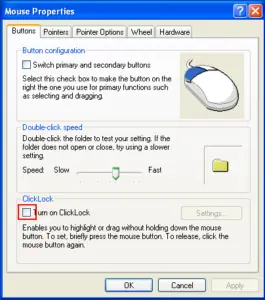
Shortcut: you can also open Mouse Properties directly by pressing Windows + R, typing main.cpl and pressing Enter.
Adjust how long you need to hold the button
- Next to the ClickLock checkbox, click Settings.
- Move the slider towards Short or Long to set how long you need to hold the mouse button before the click “locks”.
- Click OK to close the settings, then OK again to close Mouse Properties.
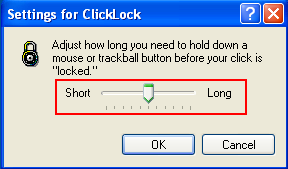
A longer setting avoids accidentally locking a click during normal use; a shorter setting makes ClickLock quicker to trigger.
How to use ClickLock
- To select text: click at the start of the text and hold the button for a moment, then let go. Move the mouse to the end of the text and click once to finish the selection.
- To drag a file or window: press and hold on it briefly, release, move it to the new place and click to drop it.
If ClickLock gets in your way, simply untick the checkbox again. In the Windows Accessibility settings you’ll find more options that make the mouse easier to use, such as a larger pointer or controlling the pointer with the keyboard (Mouse Keys).



















Mukundan Srinivasan
May 08. 2011
Nice tutorial! I haven’t tried using clicklock. I will check whether it’s comfortable for me to operate with that.
I want to tell u something. Yesterday my monitor display just went upside down.
I found how to fix that. It’s ctrl+alt+up arrow or ctrl+alt+down arrow.
You can make a post on “Monitor display reverse” . You’ll get many views. Just a suggestion.
admin
May 08. 2011
You must try using click lock……. and thanks for the suggestion.. 🙂
shahriar
Jul 23. 2011
i have updated my click lock to read this post. helpful tips.
international hifu
Oct 12. 2011
I was surprised that such functionality exists. I’m computer literate but i guess i don’t know everything about computer.