
This article was published in 2011 and updated in October 2026.
Did you know that you save energy and money when your monitor switches off while you’re away? A screen that stays on during long breaks uses power for nothing and can even shorten the life of OLED displays. Here’s how to turn off the monitor automatically after a period of inactivity in Windows 11 and Windows 10.
Windows 11
- Open Settings (Windows + I) and go to System → Power & battery (on desktop PCs simply Power).
- Expand Screen, sleep & hibernate timeouts (called Screen and sleep in older versions).
- Choose after how many minutes the screen should turn off when plugged in — and, on laptops, on battery. 5–10 minutes works well for most people.
- Optionally set a time after which the whole computer goes to sleep, which saves even more energy.
Windows 10
- Open Settings → System → Power & sleep.
- Under Screen, choose when the display turns off on battery and when plugged in.
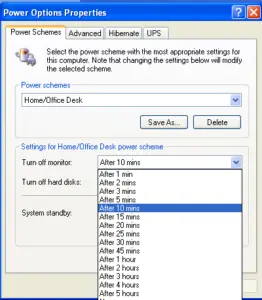
The power options in Windows XP, from our original 2011 article.
More energy-saving tips
- Lock your PC with Windows + L when you leave your desk — the screen then turns off after a short time.
- Lower the monitor brightness; it’s one of the biggest factors in a display’s power use.
- Avoid animated screensavers — they keep the monitor running. Turning the display off saves far more power.
- Turn monitors and speakers off completely, or use a switchable power strip, at the end of the day.
That’s it — you’re saving energy and money every day without even noticing.
More guides
Was this article helpful?



















subash chndra
Jun 17. 2011
thats cool..i would prefer powering off the monitor rather then using screensaver,..thanks for the tip
admin
Jun 17. 2011
You’re welcome…. 🙂 Even I prefer the same
Ifham khan
Jun 20. 2011
Its really helpful if you save electricity by powering off monitor. Nice post salman thanks for sharing
admin
Jun 20. 2011
You’re welcome and thanks for stopping by my blog 🙂
Gautam Doddamani
Jun 22. 2011
thats is a great tutorial. i have switched it to 10 minutes as you said…thanx for sharing! 🙂
admin
Jun 22. 2011
You’re welcome and thanks for stopping by my blog :-)..
TechGopal
Jun 22. 2011
really nice message every techie person should follow it ….
save energy save planet….
admin
Jun 23. 2011
Yep truly … 🙂
Felicia
Jun 23. 2011
I only have a desktop which I assembled to form my gaming rig on a budget. Although I often turn my monitor off manually, this tip of yours is useful when you accidentally leave your station for and forgot to turn off your monitor.
admin
Jun 23. 2011
Good to know that you found it useful….Anyways thanks for stopping by my blog 🙂
adnan
Jul 08. 2011
I always apply this and it does help save energy..
admin
Jul 08. 2011
Good to know that … Adnan 🙂
Bill Gates Photomontage
Aug 10. 2022
I simply want to mention I am very new to blogging and site-building and really liked this web blog. Very likely I’m likely to bookmark your blog . You actually come with good writings. Appreciate it for sharing with us your blog site.
William
Dec 02. 2023
This article is a true work of art, a testament to the power of quality journalism to inform and educate readers on important issues. The author’s ability to present complex issues with nuance and sensitivity is truly remarkable, and their commitment to presenting balanced and unbiased perspectives on each topic is commendable. What I appreciate most about this article is its ability to tackle complex issues and present them in a way that is accessible and engaging for readers of all levels, making it a valuable resource for anyone looking to stay informed on important social and political issues.