
Using folder options, you can change the way folders and files open normally. This article instructs you how to open each folder in its new window rather than the parent one.
How to open Folder Options ?
Suggested Reading: Creating new user account in Win XP
To open folder options:
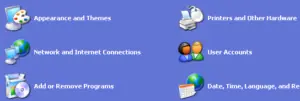
- Click start button, select control panel and then click on “Appearance and Themes”
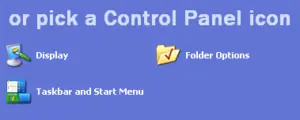
- Now click on folder options, a window opens
Suggested Reading: Mouse Properties: How to enable Click Lock
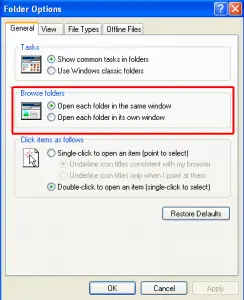
- In the general tab, you’ll see “Browse folders” option below which there are two radio buttons.
- To open each folder in a new window, you need to opt for the second radio button saying “Open each folder in its new window”
- That’s it !! Click OK and you’re done.
Suggested Reading: Guide to using keyboard shortcuts
If you want to switch back to the previous settings, just click “Restore Defaults” in the general tab.
That’s all for now, stay tuned with Tech Crates.
Was this article helpful?



















Atish
May 23. 2011
nice tips dude..I enjoy pc hacks and tricks
admin
May 23. 2011
Good to know that …. 🙂