
Scheduled Tasks enables you to schedule any script, program or document to run at any time convenient to you. So how to schedule a task ?
Pretty simple, just follow the instructions below to schedule a task.
Suggested Reading: Creating New User Account – Windows XP
Scheduled Task
Click Start -> All Programs -> Accessories -> System Tools and then click on Scheduled Tasks.
(or) you can go to the control panel, click on ‘Performance and Maintenance’ and then Scheduled tasks.
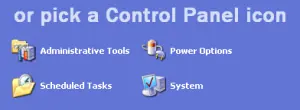
To schedule a new task:
- Double-click “Add Scheduled Task” to start the Scheduled Task Wizard.
- Click Next in the first dialog box.
- The next dialog box that appears displays a list of installed programs.
- Click the program that you want to schedule and then click next.
- Give your task a name and then choose one of the following options:
Suggested Reading: Improve your Computers Performance
- Daily
- Weekly
- Monthly
- One time only
- When my computer starts
- When I log on
- Click next, specify the information about the day and time to run the task and then click next.
- Type the name and password of the user.
- Click next and then click finish.
That’s it … Simple, isn’t it ?
Suggested Reading: Mouse Properties: Switching Mouse Buttons
That’s all for now, stay tuned with Tech Crates.
Was this article helpful?


















TechCrates
Jun 08. 2011
Hey thats a nice step by step procedure to schedule a task in windows
admin
Jun 08. 2011
Thanks Sandeep … 🙂
Mukundan Srinivasan
Jun 09. 2011
Well written tutorial. Haven’t tried scheduling tasks as i didnt know about it. wil try to check whether it works for me.
admin
Jun 09. 2011
Sure … 🙂
subhash chandra
Jun 14. 2011
oh yes, thats a good way.. now i can schedule much things…cool man..thanks for the tip 🙂
admin
Jun 14. 2011
You’re welcome and thanks for stopping by my blog 🙂