
Slow Wi-Fi in the bedroom, video calls that freeze in the garden office, a smart TV that buffers every evening: weak Wi-Fi is one of the most common tech annoyances at home. The good news is that most problems have simple causes, and many can be fixed in an afternoon without buying anything.
This guide shows how to measure your Wi-Fi properly, where to put the router, which settings make the biggest difference, and when a mesh system or a new router is really worth it.
First: is it the Wi-Fi or the internet connection?
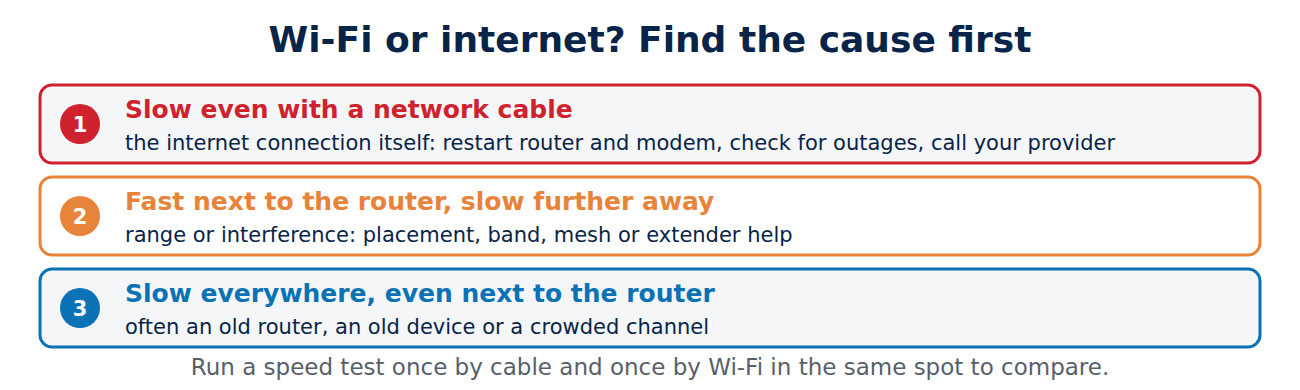
Before you change anything, find out where the bottleneck is. Connect a laptop to the router with a network cable and run a speed test. Then run the same test over Wi-Fi next to the router, and again in the rooms where it is slow.
- Slow even with a cable: the problem is the internet connection itself. Restart the router and modem, check for outages, and contact your provider.
- Fast next to the router, slow further away: a range or interference problem. The tips below will help.
- Slow everywhere, even next to the router: often an old router, an old device or a crowded channel.
Put the router in the right place
Placement matters more than almost anything else. Wi-Fi signals get weaker with distance and with every wall and floor they pass through.
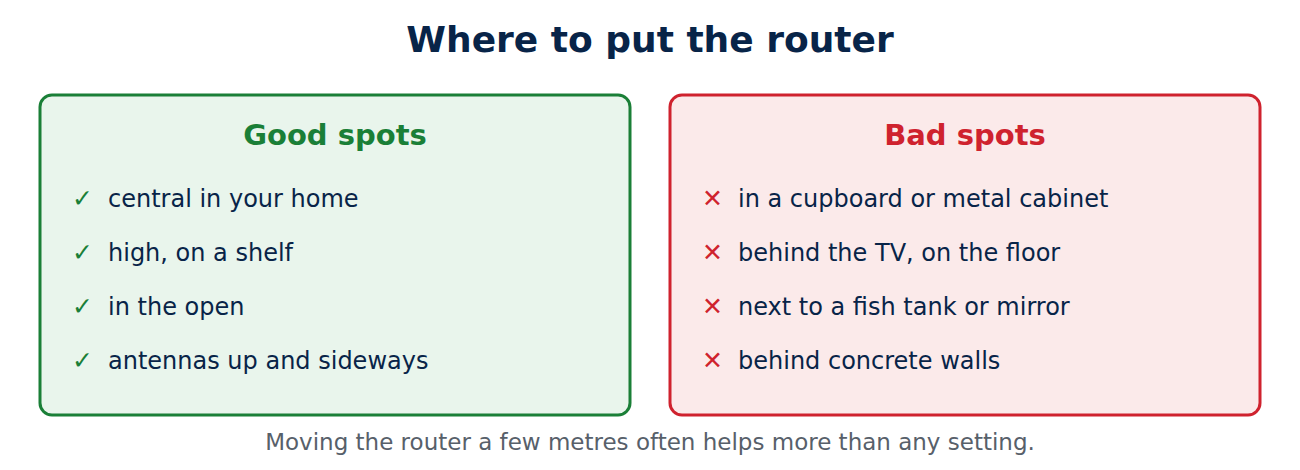
- Central and high: place the router in the middle of your home, on a shelf rather than on the floor.
- In the open: not in a cupboard, behind the TV or inside a metal cabinet.
- Away from obstacles: concrete walls, floor heating, mirrors, fish tanks and large appliances weaken the signal.
- Antennas: if your router has external antennas, point some upwards and some sideways.
If the router has to stay where the line enters the house, a longer network cable to a better spot, or a second access point, often solves the problem.
Use the right frequency band
Modern routers send on several bands at once:
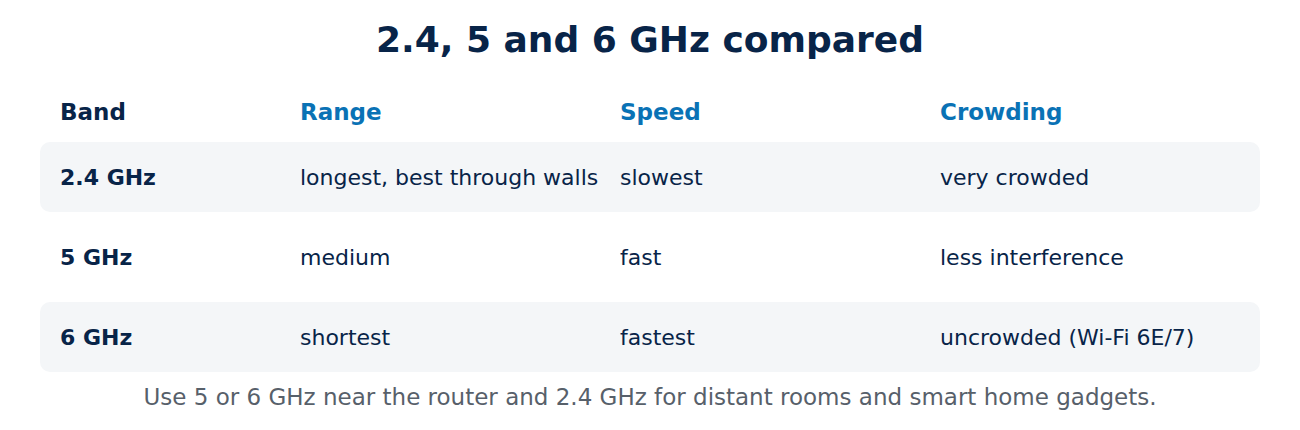
- 2.4 GHz: longer range and better through walls, but slower and more crowded by neighbours, Bluetooth and microwaves.
- 5 GHz: much faster, less interference, but shorter range.
- 6 GHz (Wi-Fi 6E and Wi-Fi 7): very fast and uncrowded, but the shortest range.
Most routers combine the bands under one network name and move devices automatically (“band steering”). If a device keeps clinging to slow 2.4 GHz, a separate name for the 5 GHz band lets you choose manually. For a deeper look at the standards, see Wi-Fi 6, 6E and 7 explained.
Change the Wi-Fi channel
In flats and dense neighbourhoods, many routers share the same channels and slow each other down. Most routers choose the channel automatically, but it is worth checking:
- Use a Wi-Fi analyser app on an Android phone, or the router’s own channel overview, to see which channels nearby networks use.
- On 2.4 GHz, use only channels 1, 6 or 11, because they do not overlap with each other.
- On 5 GHz, pick a less crowded channel, or let the router choose again after a restart.
Update and restart the router
- Install firmware updates: they fix bugs, improve performance and close security holes. Many routers update automatically; check the setting in the router’s web interface or app.
- Restart regularly: a restart every few weeks clears memory problems on older routers.
- Disconnect what you do not use: old devices on slow standards can slow down the whole network for everyone else.
Check your devices too
An eight-year-old laptop with a Wi-Fi 4 adapter will never be fast, no matter how good the router is. Update the Wi-Fi drivers on Windows PCs, install system updates on phones, and for desktop PCs consider a modern USB or PCIe Wi-Fi adapter. Anything that does not move, such as a smart TV, games console or desktop PC, is best connected by cable if possible.
Extend the coverage
If one router simply cannot cover your home, you have three options:
- Mesh Wi-Fi: several units that form one network with one name and hand devices over smoothly. The best option for larger homes and several floors.
- Range extender (repeater): cheap, but it usually halves the speed it repeats and often creates a second network.
- Powerline adapters or a cabled access point: carry the connection through the electrical wiring or a network cable to another room, with a second access point there.
We compare the options in mesh Wi-Fi vs range extender.
When a new router is worth it
Consider replacing your router if it is more than five or six years old, supports only Wi-Fi 4 or Wi-Fi 5, no longer receives updates, or your provider supplied a basic model. A Wi-Fi 6 or Wi-Fi 7 router with up-to-date firmware handles many devices at once much better. While you are at it, secure it properly; see how to secure your Wi-Fi router.
Conclusion
Most Wi-Fi problems come down to distance, walls, interference and old hardware. Test with a cable first, put the router high and central, use 5 GHz where you can, check the channel, keep the firmware updated and connect stationary devices by cable. If one router is not enough, a mesh system covers the whole home far better than a cheap extender.
Sources and further reading
- Wi-Fi Alliance
- Install the latest software and app updates (UK National Cyber Security Centre)

















Recent Comments