
A short screen recording often explains a problem or a process better than a page of text: show a colleague how a tool works, send support a video of an error, record a presentation or save a tutorial for later. You do not need extra software for that. Windows, macOS, iPhone, Android and Chromebooks all have a screen recorder built in.
This guide shows how to start a screen recording on each system, how to include your voice and system sound, and how to keep the files small and private.
Windows 11: Snipping Tool
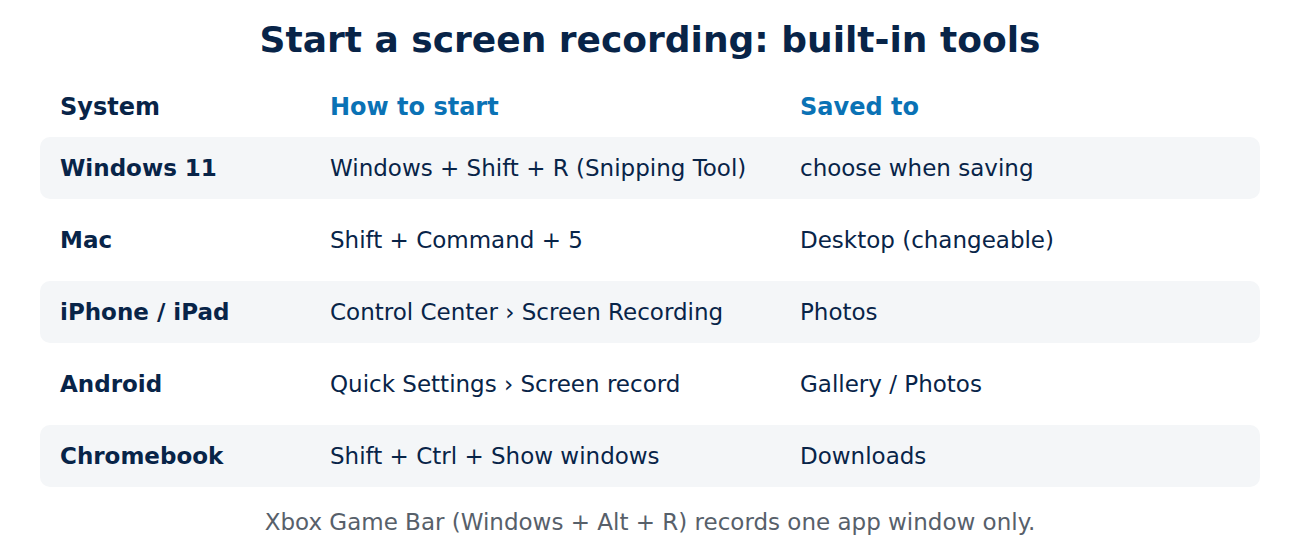
- Press Windows + Shift + R, or open the Snipping Tool and choose the video camera icon (Record) and New.
- Drag a rectangle around the area you want to record, or select the whole screen.
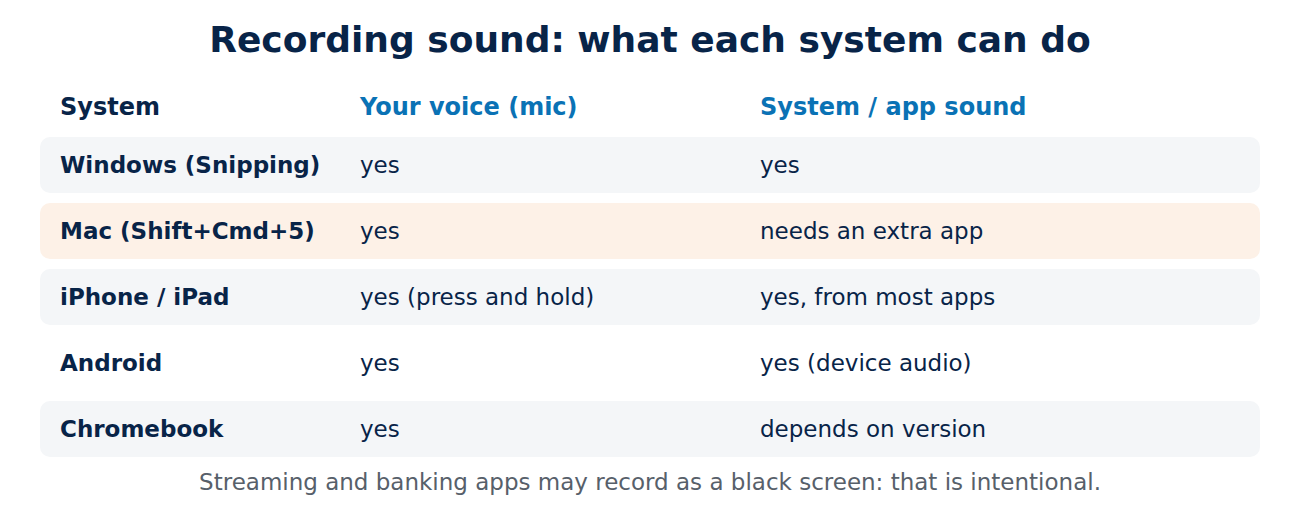
- Choose whether to record your microphone and the system audio, then click Start.
- Click Stop when you are done. The recording opens in a preview where you can save it as an MP4 file or open it in Clipchamp for editing.
If the shortcut does nothing, update the Snipping Tool from the Microsoft Store.
Windows: Xbox Game Bar
The Game Bar (Windows + G) can record the active app or game with Windows + Alt + R. It is meant for games and records one app window only, not the desktop or File Explorer, so for general tutorials the Snipping Tool is the better choice. Recordings are saved in Videos > Captures.
Mac: Screenshot toolbar
- Press Shift + Command + 5 to open the Screenshot toolbar.
- Choose Record Entire Screen or Record Selected Portion.
- Under Options, choose the microphone, where to save the file, a timer and whether to show mouse clicks.
- Click Record, and stop with the stop button in the menu bar or Command + Control + Esc.
QuickTime Player (File > New Screen Recording) uses the same tool. macOS does not record system audio out of the box; for that you need a recording app or an audio tool that adds a virtual sound device.
iPhone and iPad
- If the button is missing, add Screen Recording to Control Center: open Control Center, tap + (or Settings > Control Center on older versions) and add the control.
- Open Control Center and tap the record button. Recording starts after a three-second countdown.
- To record your voice, press and hold the record button and turn on the microphone.
- Stop by tapping the red indicator at the top of the screen. The video is saved in the Photos app.
Android
- Swipe down twice from the top of the screen to open Quick Settings and tap Screen record. If it is missing, tap the pencil icon to add it.
- Choose whether to record audio (microphone, device audio or both) and whether to show touches on the screen.
- On newer Android versions you can record a single app instead of the whole screen, so notifications from other apps stay out of the video.
- Stop from the notification or the recording indicator. The file is saved in your gallery or Google Photos.
Menu names vary by manufacturer; on Samsung phones the tile is called “Screen recorder”.
Chromebook
Press Shift + Ctrl + Show windows (the key with the rectangles), or open Quick Settings and choose Screen capture. Switch to the video icon, choose full screen, a window or an area, and turn on the microphone in the settings if needed. Recordings are saved in the Downloads folder.
Tips for better recordings
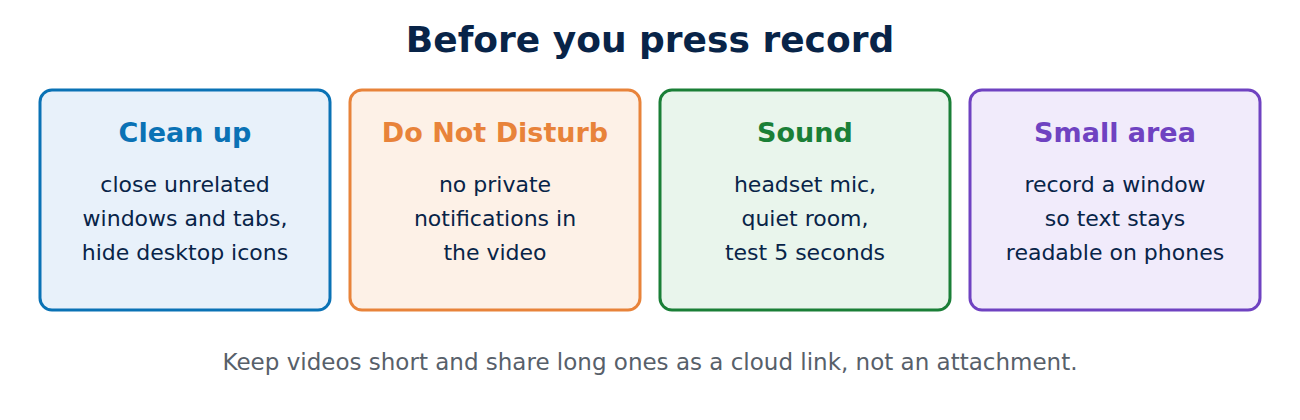
- Clean up first: close unrelated windows and tabs, hide desktop icons and turn on Do Not Disturb, so no private messages pop up.
- Use a headset microphone or a quiet room for clearer voice.
- Record a smaller area instead of a large screen, so text stays readable on phones.
- Keep it short: several two-minute videos are easier to follow than one long one.
- Make the pointer visible: turn on click highlighting where the recorder offers it.
File size and sharing
Screen recordings quickly reach hundreds of megabytes. Share them as a link from OneDrive, iCloud or Google Drive instead of an e-mail attachment, or shorten and compress them in an editor such as Clipchamp, iMovie or Google Photos. If your phone storage fills up, see our guide on how to free up storage on your phone.
Privacy and legal points
- Do not record video calls or meetings without telling the other people. In many places recording a conversation without consent is illegal.
- Streaming apps and some banking apps block screen recording, so the video shows a black screen. That is intentional copy and privacy protection.
- Check recordings before you share them: passwords, e-mail addresses and notifications are easy to miss.
Conclusion
Every modern system can record the screen without extra software: Windows + Shift + R in the Snipping Tool on Windows 11, Shift + Command + 5 on a Mac, the Screen Recording control on iPhone, the Screen record tile on Android and Shift + Ctrl + Show windows on a Chromebook. Turn on the microphone if you want to explain as you go, hide notifications first, and share long videos as a cloud link.
Sources and further reading
- Use Snipping Tool to capture screenshots and recordings (Microsoft Support)
- How to record the screen on your Mac (Apple Support)
- Record the screen on your iPhone or iPad (Apple Support)
- Take a screenshot or record your screen on your Android device (Android Help)


















Recent Comments