
A child’s first phone or tablet opens the whole internet: great videos and learning apps, but also adult content, in-app purchases, strangers in chats and games that are hard to put down. Parental controls cannot replace talking with your children, but they set sensible limits while children learn to handle the online world.
This guide shows how to set up parental controls on iPhone and iPad, Android, Windows and game consoles, and which settings matter most for different ages.
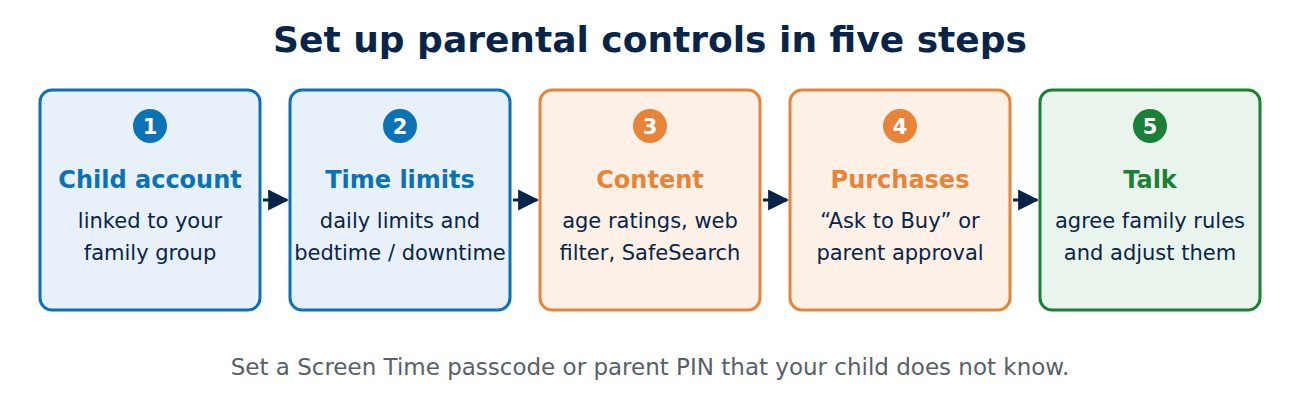
Start with a child account
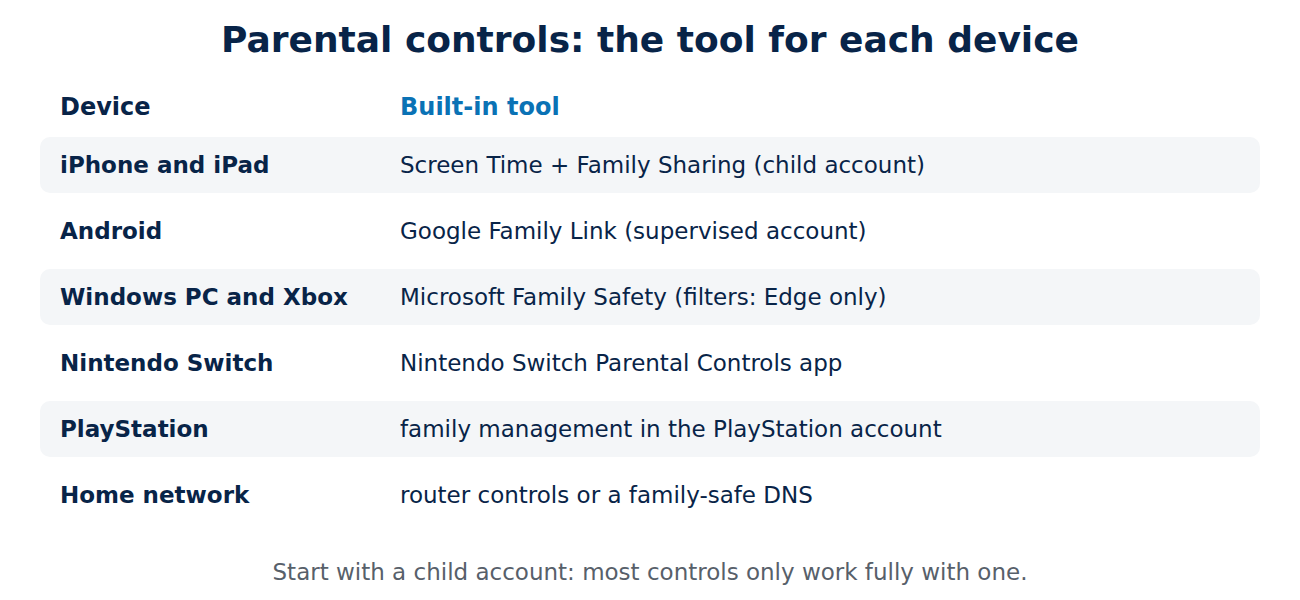
Most parental controls only work fully when the child has their own account linked to yours: a child account in Apple Family Sharing, a supervised Google account through Family Link, or a child account in Microsoft Family Safety. With a child account you can approve app downloads, set screen time and see activity reports, and the child’s settings cannot simply be changed on the device.
iPhone and iPad: Screen Time
- On your iPhone, set up Family Sharing (Settings > Family; on versions before iOS 18 Settings > [your name] > Family Sharing) and create or add a child account.
- Open Settings > Screen Time on your device, select your child and turn on Screen Time.
- Set Downtime (for example at night), App Limits for categories such as games or social media, and Communication Limits.
- Under Content & Privacy Restrictions, limit adult websites, explicit music and age ratings for apps, films and TV.
- Turn on Ask to Buy, so every purchase and download needs your approval.
- Set a Screen Time passcode that your child does not know.
Apple’s Communication Safety feature, on by default for children’s accounts, blurs nude images in Messages and other apps and offers help.
Android: Google Family Link
- Install the Google Family Link app on your phone, or open Settings > Google > Parental controls on the child’s Android device.
- Create a Google account for your child or add supervision to an existing one, and link the device.
- Set daily limits and bedtime, and approve or block apps.
- Set content filters for Google Play (age ratings), Google Chrome (block explicit sites, allow only approved sites for young children) and Google Search (SafeSearch).
- Use location sharing if you want to see where the device is.
For YouTube, choose YouTube Kids for younger children or a supervised YouTube experience with a content level for older ones.
Windows and Xbox: Microsoft Family Safety
- Create a family group at family.microsoft.com and add a child account.
- Sign in to the Windows PC or Xbox with the child account.
- Set screen time schedules for devices, apps and games, and age limits for apps and games from the Microsoft Store.
- Turn on web and search filters. These filters only work in the Microsoft Edge browser, so block other browsers in the app and game settings if you rely on them.
- Turn on “Ask a parent” for purchases, or add a small amount to the child’s account instead of linking a credit card.
Game consoles
- Nintendo Switch: the free Nintendo Switch Parental Controls app sets play-time limits, age restrictions and chat limits.
- PlayStation: family management in your PlayStation account sets age levels, play time, spending limits and communication settings.
- Xbox: uses Microsoft Family Safety, as above, including who your child can chat and play with.
Check the chat and friend-request settings in particular: online games are where children most often meet strangers.
Network-wide filters
Many routers have built-in parental controls with time limits per device and content filters. A family-safe DNS service set in the router can block adult websites on every device in the house, including friends’ phones on your Wi-Fi. These filters stop working when the device uses mobile data or a VPN, so combine them with the device controls above.
Settings by age
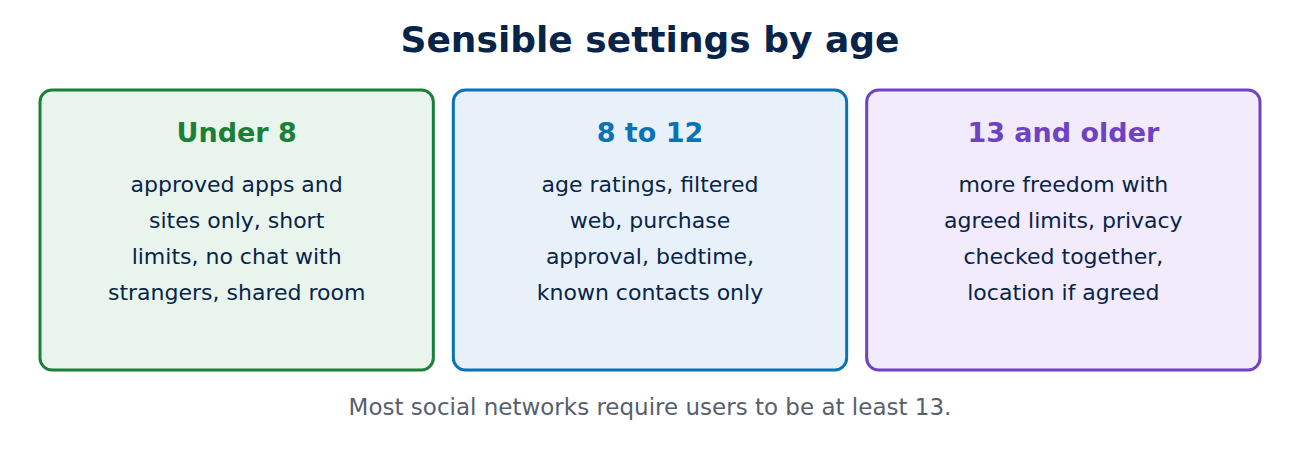
- Under 8: only approved apps and websites, short daily limits, no chat with strangers, devices used in shared rooms.
- 8 to 12: age ratings for apps and games, filtered web, purchase approval, bedtime limits, limited messaging to known contacts.
- 13 and older: gradually more freedom, with agreed limits instead of strict blocking, privacy settings on social media checked together, and location sharing if the family agrees. Most social networks require users to be at least 13.
Talk, do not only block
- Agree on family rules together: when, where and how long devices are used, and what happens when something goes wrong.
- Explain why limits exist, and adjust them as your child shows they can handle more.
- Make sure your child knows they can come to you when they see something upsetting or get a strange message, without fearing that the device will be taken away.
- Teach them to recognise scams and fake messages; our guide on how to spot a phishing e-mail works for teenagers too.
Conclusion
Set up a child account first, then use Screen Time on Apple devices, Family Link on Android and Microsoft Family Safety on Windows and Xbox to set time limits, age ratings, web filters and purchase approval. Add console controls and router filters, and loosen the rules as your child grows. The most important parental control is still an open conversation about what they do online.
Sources and further reading
- Use parental controls on your child’s iPhone or iPad (Apple Support)
- Google Family Link (Google)
- Filter websites and searches using Microsoft Family Safety (Microsoft Support)
- Parental controls guides (Internet Matters)



















Recent Comments