
Robocalls, fake delivery calls, “your bank’s security department” and endless sales calls: spam calls are more than annoying, because some of them are scams that try to get your money or your account codes. You cannot stop every call, but with the right phone settings, your carrier’s tools and a few habits you can cut them down dramatically.
This guide shows how to silence and screen unknown callers on iPhone and Android, which free services help, and how to handle a suspicious call safely.
Why you get spam calls
Your number may have been leaked in a data breach, sold by a website or app, or simply generated by software that dials numbers in sequence. Answering, pressing a key or calling back confirms that the number is active, which can lead to even more calls. Caller ID can also be faked (spoofed), so a call may show a local number or even your bank’s name.
iPhone: silence and screen unknown callers
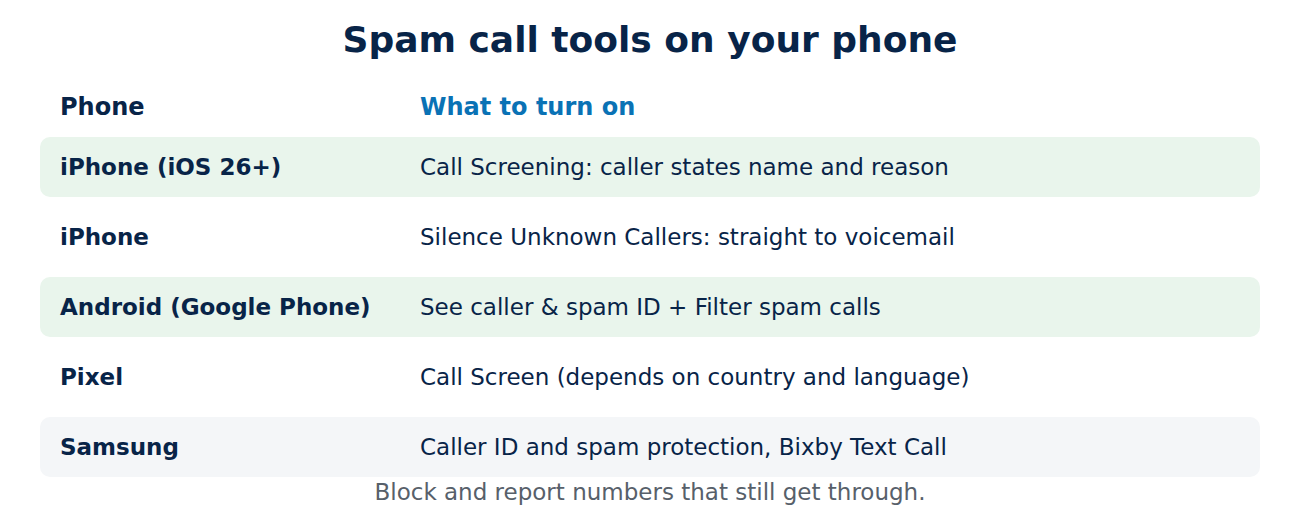
- Call Screening (iOS 26 and later): when a number that is not in your contacts calls, the iPhone asks the caller for their name and reason, shows you the answer as text and lets you decide whether to pick up. Turn it on in the Phone settings under calls from unknown numbers (“Ask Reason for Calling”). The exact menu path depends on the iOS version.
- Silence Unknown Callers: sends all calls from numbers that are not in your contacts, recent calls or Siri suggestions straight to voicemail. Effective, but you might miss a doctor or a delivery driver.
- Block a number: in the Phone app, tap the info icon next to a call and choose Block Caller.
- Call blocking apps: apps from the App Store can add spam lists under Settings > Apps > Phone > Call Blocking & Identification.
Android: spam protection and Call Screen
- Google Phone app: open Settings > Spam and Call Screen (on older versions Caller ID & spam) and turn on “See caller & spam ID” and “Filter spam calls”. Suspected spam then goes straight to the call history without ringing.
- Call Screen on Pixel phones: the Google Assistant answers unknown calls, asks what the call is about and shows you a live transcript. Availability and the automatic mode depend on your country and language.
- Samsung phones: the Samsung Phone app has its own caller ID and spam protection under Settings > Caller ID and spam protection, and Bixby Text Call can answer calls for you in supported languages.
- Block a number: tap the call in your history and choose Block / report spam.
Free help from carriers and registries
- Your mobile carrier often offers free spam blocking, sometimes as an app (for example AT&T ActiveArmor, Verizon Call Filter or T-Mobile Scam Shield in the US). Check your carrier’s website or app.
- United States: register your number on the National Do Not Call Registry at donotcall.gov. It stops legitimate telemarketers, not scammers, but makes sales calls easier to spot as fraud.
- United Kingdom: register free with the Telephone Preference Service (TPS) to stop most unsolicited sales calls.
- Other countries have similar opt-out lists; ask your consumer protection authority.
How to handle a suspicious call
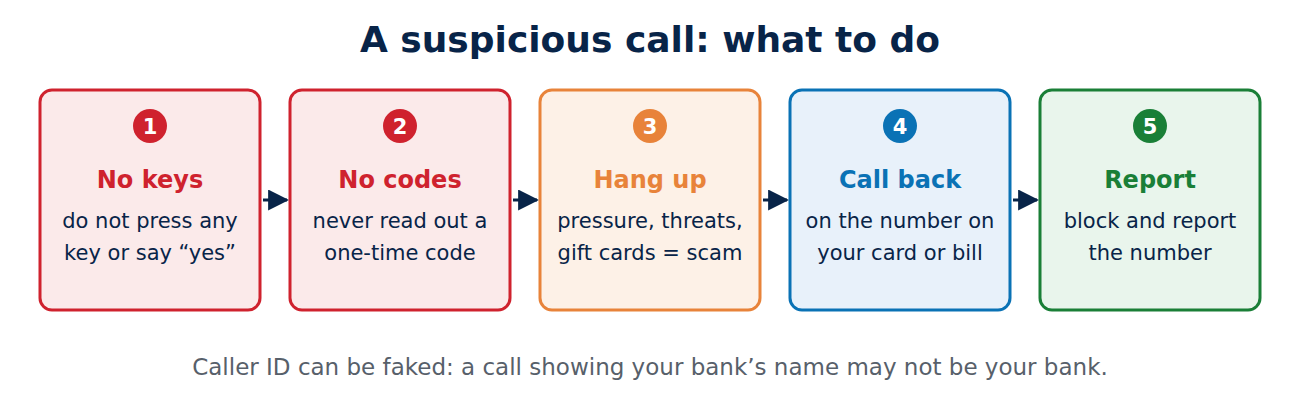
- Do not press any keys and do not say “yes” to questions like “Can you hear me?”.
- Never share one-time codes sent to you by text. A caller who asks for one is trying to take over your account, even if they claim to be from your bank or a delivery company.
- Hang up and call back yourself on the number printed on your card, bill or the official website, if the call claimed to be from your bank, a company or a government office.
- Be suspicious of pressure: threats of arrest, account closure or fines, or requests to pay by gift card, crypto or bank transfer, are signs of a scam.
- Block and report the number afterwards.
Scam texts follow the same tricks as phishing e-mails; see how to spot a phishing e-mail.
How to report spam calls and texts
- US: report unwanted calls at donotcall.gov and scams at ReportFraud.ftc.gov. Forward scam texts to 7726.
- UK: report scam calls to Ofcom or Action Fraud, and forward scam texts free to 7726.
- Everywhere: use the “Report spam” option in your phone app, which improves the spam lists for everyone.
Protect your number
- Do not publish your phone number on social media or public listings.
- Use a second number or an e-mail address for online shopping, competitions and loyalty cards where possible.
- Check the privacy settings of apps that ask for your contacts or phone number.
- Set a SIM PIN on your phone and ask your carrier for port-out protection, so nobody can move your number to their SIM card.
What if you already gave information away?
If you shared a code, a password or card details, act quickly: call your bank using the number on your card, change the passwords of affected accounts from a safe device, turn on two-factor authentication, and contact your carrier if your phone suddenly loses signal, which can be a sign of a SIM-swap attack.
Conclusion
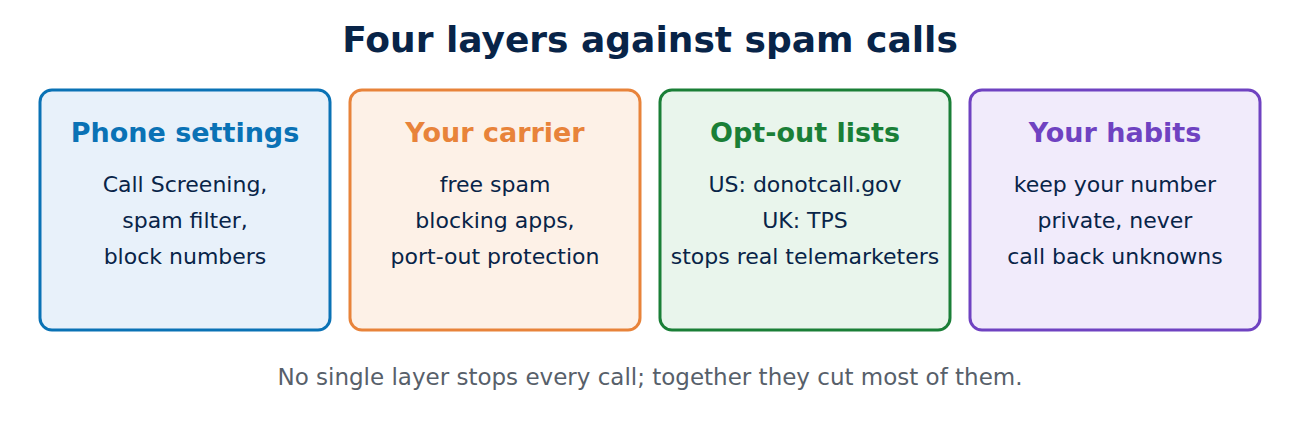
Turn on Call Screening or Silence Unknown Callers on your iPhone, and spam filtering or Call Screen on Android. Add your carrier’s free spam tools, register on your country’s do-not-call list, and block and report numbers that still get through. When a call asks for codes or money, hang up and call the organisation back on a number you trust.
Sources and further reading
- How to block unwanted calls (US Federal Trade Commission)
- National Do Not Call Registry (FTC)
- Telephone Preference Service (TPS, UK)
- Use caller ID & spam protection (Phone by Google Help)


















Recent Comments