
Holiday photos, a YouTube video, a presentation or a game look better on the big screen. Getting your phone’s content onto the TV is easy once you know which of the three methods your devices support: casting, screen mirroring or a cable.
This guide explains the difference, shows how to connect an Android phone and an iPhone to a TV, and helps you fix the most common problems.
Casting, mirroring or cable?
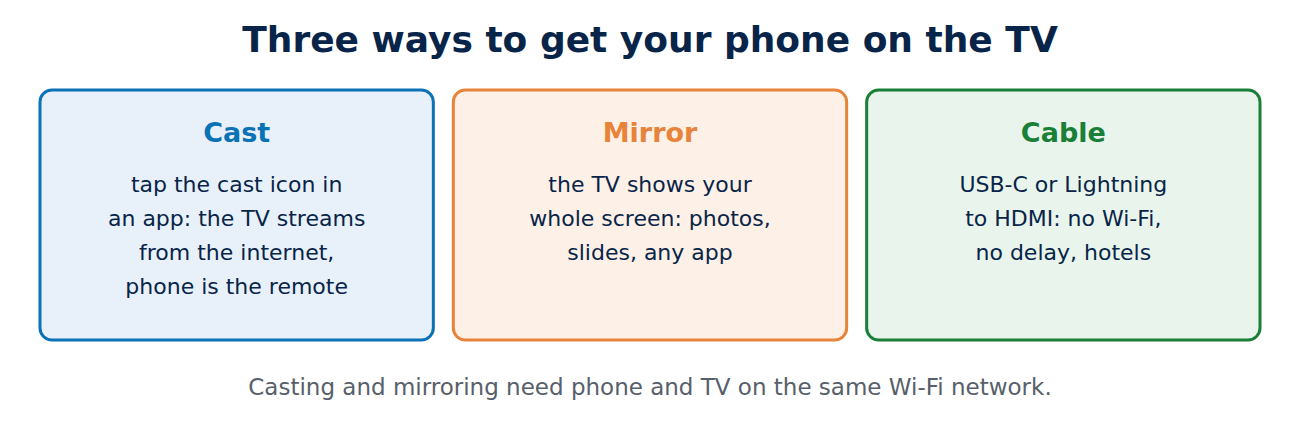
- Casting (Google Cast, AirPlay from an app): you tap the cast icon in an app such as YouTube, and the TV streams the video directly from the internet. The phone works as a remote; you can use it for other things or lock it, and the battery lasts longer.
- Screen mirroring (AirPlay mirroring, Android screen cast, Miracast): the TV shows exactly what is on your phone’s screen, including notifications. Good for photos, presentations and apps without a cast button.
- Cable (USB-C or Lightning to HDMI): no Wi-Fi needed, no delay, ideal in hotels and for presentations, but you need the right adapter.
What your TV needs
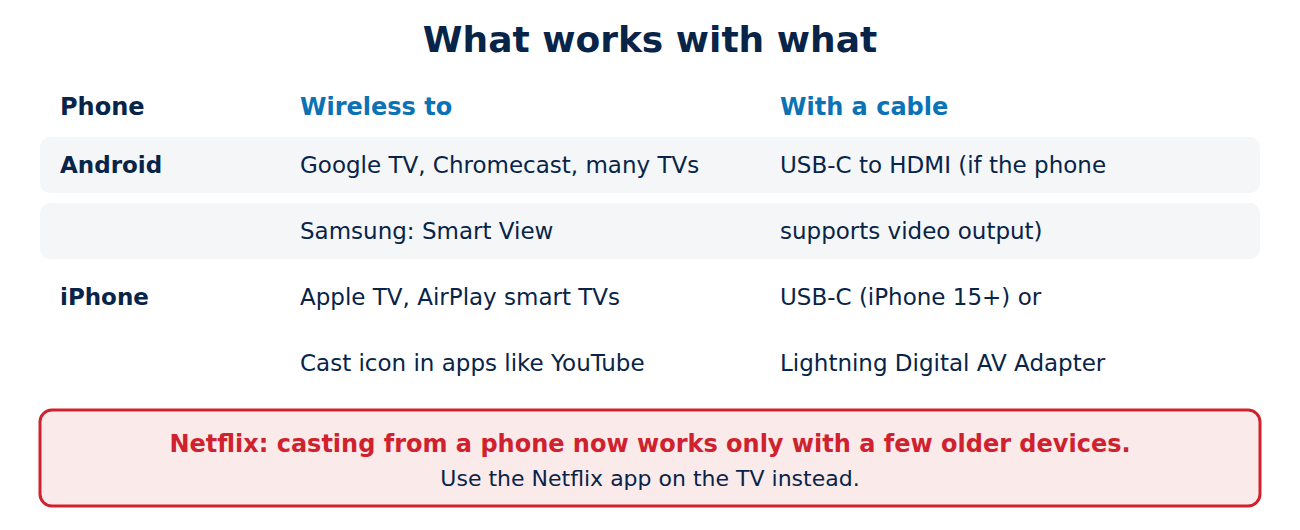
- Google Cast works with Google TV and Android TV televisions, the Google TV Streamer and older Chromecast devices, and many smart TVs from other brands.
- AirPlay works with Apple TV and many recent smart TVs from Samsung, LG, Sony, Vizio and others.
- Miracast is supported by many Windows PCs, some Android phones and some TVs, but less common on phones today.
- Any TV with an HDMI port works with a cable or a streaming stick.
Phone and TV must be on the same Wi-Fi network for casting and wireless mirroring.
Android phone to TV
- Casting from an app: open YouTube, Google Photos or another app with the cast icon (a rectangle with Wi-Fi waves), tap it and choose your TV.
- Mirroring the whole screen: open Quick Settings and tap Screen cast, Cast or, on Samsung phones, Smart View, then select the TV. On some phones you find it in the Google Home app under your TV > Cast my screen.
- Stop from the same tile or the notification.
iPhone to TV
- From an app: tap the AirPlay icon (a rectangle with a triangle) in the Photos app, a video player or a streaming app and select the Apple TV or AirPlay-compatible TV. Enter the code that appears on the TV the first time.
- Mirroring the whole screen: open Control Center, tap Screen Mirroring and choose the TV.
- Google Cast from an iPhone: apps like YouTube also show the cast icon for Google TV and Chromecast devices. Full screen mirroring to a Chromecast is not supported by iOS itself.
With a cable
- Android and iPhone 15 or newer with USB-C: many phones output video over USB-C (DisplayPort Alternate Mode). A USB-C to HDMI adapter or cable is enough. Not all Android phones support it, so check the specifications for “DisplayPort” or “video output”. Samsung phones can also start Samsung DeX for a desktop-like view.
- iPhone with Lightning: use Apple’s Lightning Digital AV Adapter or a certified equivalent. Cheap uncertified adapters often fail.
- Charging while connected: choose an adapter with a USB-C charging port for long presentations or films.
Why Netflix and some apps do not work
Netflix has dropped casting from phones to most TVs and streaming devices: it now works only with a few older devices, such as Chromecasts without a remote, and only on its Standard and Premium plans. On other TVs, use the Netflix app on the TV itself. Many streaming apps also block screen mirroring and cable output for copyright reasons, so you see a black screen or only sound. In that case, open the app directly on the smart TV or a streaming stick and sign in there.
Troubleshooting
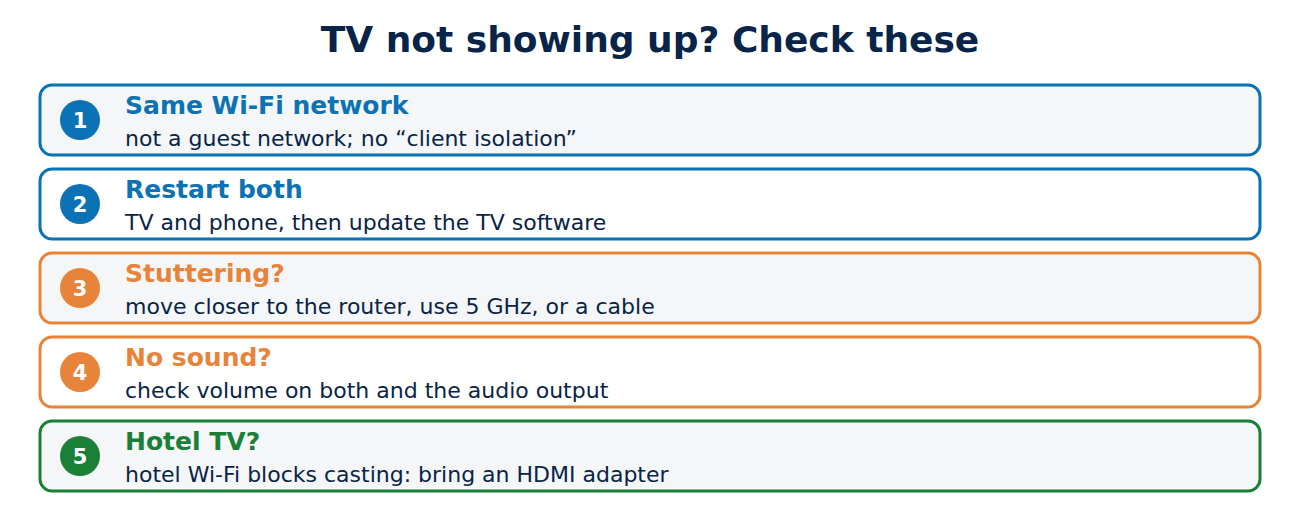
- TV not found: check that both devices are on the same Wi-Fi (not a guest network, and not a network with “client isolation” turned on), restart the TV and the phone, and update the TV’s software.
- Stuttering or delay: move closer to the router, use 5 GHz Wi-Fi, close other apps, or use a cable for games and live presentations. For a faster home network, see Wi-Fi 6, 6E and 7 explained.
- No sound: check the volume on the TV and the phone, and in mirroring mode make sure the TV is selected as the audio output.
- Hotel TVs: hotel Wi-Fi usually blocks casting. Bring a USB-C or Lightning to HDMI adapter.
Privacy tips
- Turn on Do Not Disturb before mirroring, so private messages do not appear on the big screen.
- For photos, use the cast button in the Photos app instead of mirroring, so only the pictures you choose are shown.
- On shared TVs, remove your phone from the TV’s list of devices and sign out of apps when you leave.
Conclusion
Use the cast or AirPlay button in apps for videos, screen mirroring for photos, presentations and apps without a cast button, and a USB-C or Lightning to HDMI adapter when there is no shared Wi-Fi or you need zero delay. Android phones cast to Google TV and Chromecast, iPhones mirror to Apple TV and AirPlay TVs. For Netflix and many other streaming services, use the app on the TV itself.
Sources and further reading
- Cast your Android screen from the Google Home app (Google Help)
- Use AirPlay to stream video or mirror the screen of your iPhone or iPad (Apple Support)
- Cast device or cast icon isn’t showing in the Netflix app (Netflix Help Center)













Recent Comments