
Laptop shopping can feel overwhelming: hundreds of models, confusing processor names and marketing terms like “AI PC” on every box. Yet most of the decision comes down to a handful of questions: what you will use it for, which operating system you prefer, and which three or four specifications really matter.
This guide walks you through choosing a laptop in 2026, from the operating system and processor to memory, storage, screen and battery, plus the mistakes to avoid.
Step 1: what will you use it for?
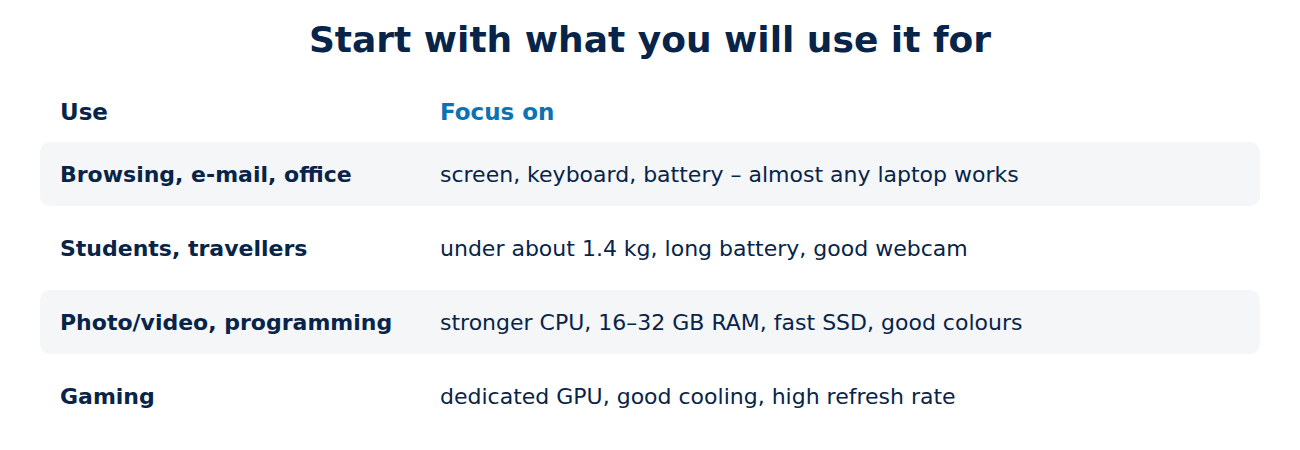
- Browsing, e-mail, streaming, office work: almost any current laptop works. Focus on screen, keyboard, battery life and weight.
- Students and frequent travellers: light (under about 1.4 kg), long battery life, good webcam and microphone.
- Photo and video editing, programming: a stronger processor, 16–32 GB of RAM, a fast SSD and a colour-accurate screen.
- Gaming: a dedicated graphics card, good cooling and a high refresh rate screen; heavier and shorter battery life.
Step 2: Windows, macOS or ChromeOS?
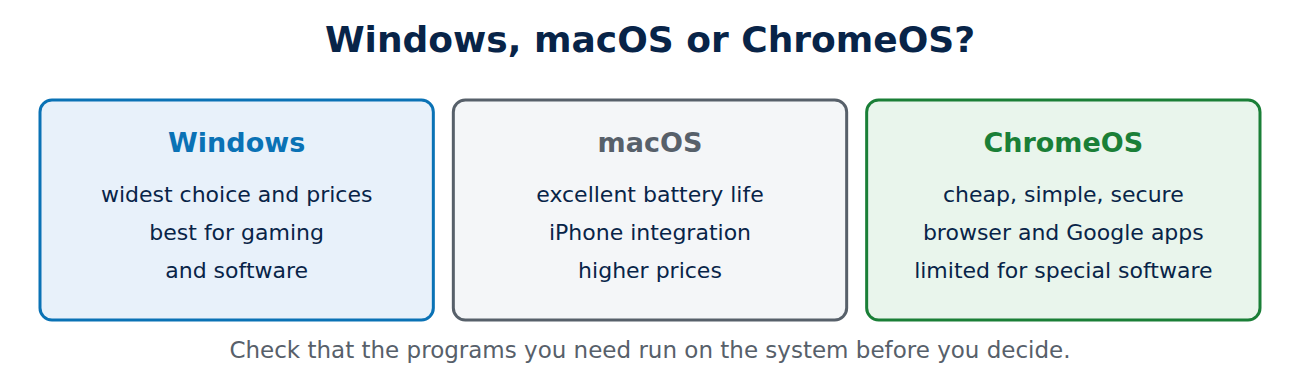
- Windows: the widest choice and price range, best for gaming and software compatibility.
- macOS (MacBook): excellent battery life, build quality and integration with the iPhone; higher prices and limited gaming.
- ChromeOS (Chromebook): cheap, simple and secure for browsing and Google apps; limited for specialised software.
Step 3: the processor
For everyday use, every current mid-range processor is fast enough. As a rough guide:
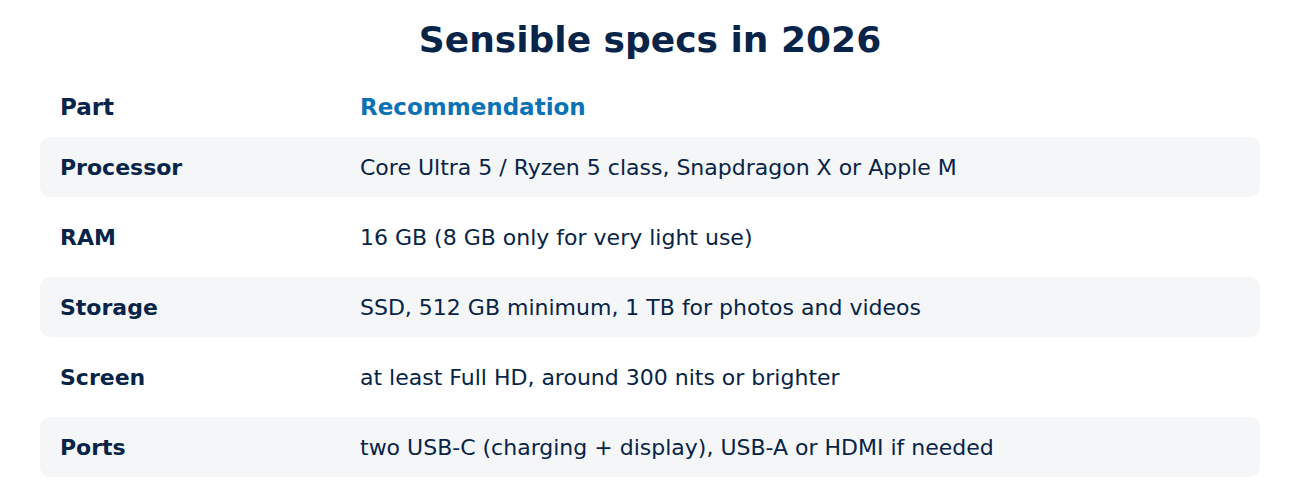
- Intel Core Ultra, AMD Ryzen AI: current Windows laptops; the 5-series is enough for most people, the 7-series for heavier work.
- Snapdragon X (Arm): Windows laptops with very long battery life; most programs run, but check specialised software, games and drivers.
- Apple M-series: fast and very efficient; the base chip suits almost everyone.
Avoid very old or entry-level chips sold in bargain laptops (for example Celeron, Pentium or old Core i3 models) if you plan to keep the laptop for years.
Step 4: memory and storage
- RAM: 16 GB is the sweet spot in 2026; 8 GB only for very light use. Many thin laptops have soldered memory that cannot be upgraded later. Details in how much RAM do you need.
- Storage: an SSD is a must; 512 GB is a good minimum, 1 TB if you keep photos or videos locally.
Step 5: screen, keyboard and ports
- Size: 13–14 inches for portability, 15–16 inches for more screen space.
- Resolution and brightness: at least Full HD (1920 × 1080), ideally a bit higher on 14 inches, and around 300 nits or more of brightness; OLED for deep blacks and vivid colours.
- Keyboard and touchpad: test them in a shop if you can; you will use them every day.
- Ports: at least two USB-C ports, ideally with charging and display output, plus USB-A or HDMI if you still use them. In the EU, new laptops must charge via USB-C since April 2026; see USB-C explained.
Step 6: battery life and weight
Manufacturer battery claims are measured under ideal conditions. Look for independent reviews that test real-world use such as web browsing and video calls. As a guide, a good thin laptop lasts a full working day of 8 hours or more of light use. Weight, charger size and USB-C charging matter if you carry it every day.
Do you need an “AI PC”?
“AI PC” and Copilot+ PC laptops have an NPU, a chip for AI tasks such as background blur in video calls, live captions and some photo features. They also come with at least 16 GB RAM. You do not need an NPU for chatbots in the browser, which run in the cloud. Treat it as a bonus, not the main reason to buy.
Mistakes to avoid
- Buying 8 GB of soldered RAM to save a little money.
- Choosing a dim, low-resolution screen on an otherwise good laptop.
- Paying for a gaming GPU you will never use, at the cost of weight and battery life.
- Ignoring the warranty and repairability: check the warranty length, and whether the battery and SSD can be replaced.
- Forgetting refurbished laptops: a business laptop with a warranty is often better built than a new budget model at the same price.
Conclusion
Choose the operating system first, then look at four things: a current mid-range processor, 16 GB RAM, a 512 GB or larger SSD and a bright, sharp screen. Add good battery life and USB-C charging if you travel, and a dedicated graphics card only for gaming or video work. Read independent reviews, test the keyboard if you can, and consider a quality refurbished model. When it arrives, protect it with a backup from day one; see the 3-2-1 backup rule.
Sources and further reading
- Copilot+ PCs and NPU devices (Microsoft Learn)
- Windows 11 specifications and system requirements (Microsoft)



















Recent Comments