
If an older laptop or PC still has a hard drive, replacing it with an SSD is the single best upgrade you can make. Start-up drops from a minute or more to a few seconds, programs open almost instantly, and the computer feels new again. The upgrade costs little, and with the right preparation you keep Windows, your programs and all your files.
This guide shows which SSD fits your computer, how to clone your old drive or install Windows fresh, and what to check afterwards.
Is the upgrade worth it?
Yes, if your computer still runs from a hard disk (HDD). Open Task Manager (Ctrl + Shift + Esc) > Performance and look at the disk type: if it says HDD, an SSD will make a dramatic difference. If the computer already has an SSD, a faster one helps less; then more RAM or a clean-up may be the better upgrade.
Also consider the age: a very old computer may not be worth the effort, especially if it cannot run Windows 11. See Windows 10 end of support for the options.
Which SSD fits?
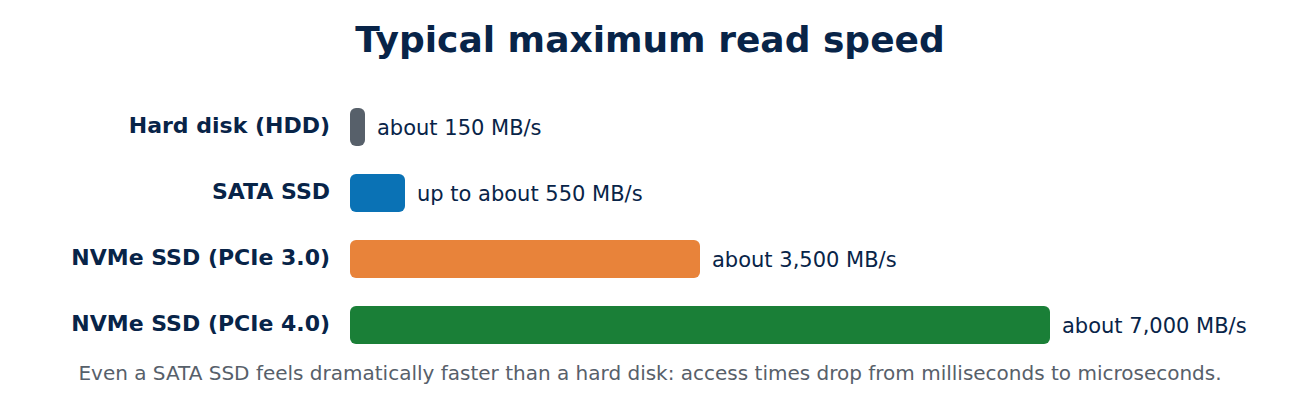
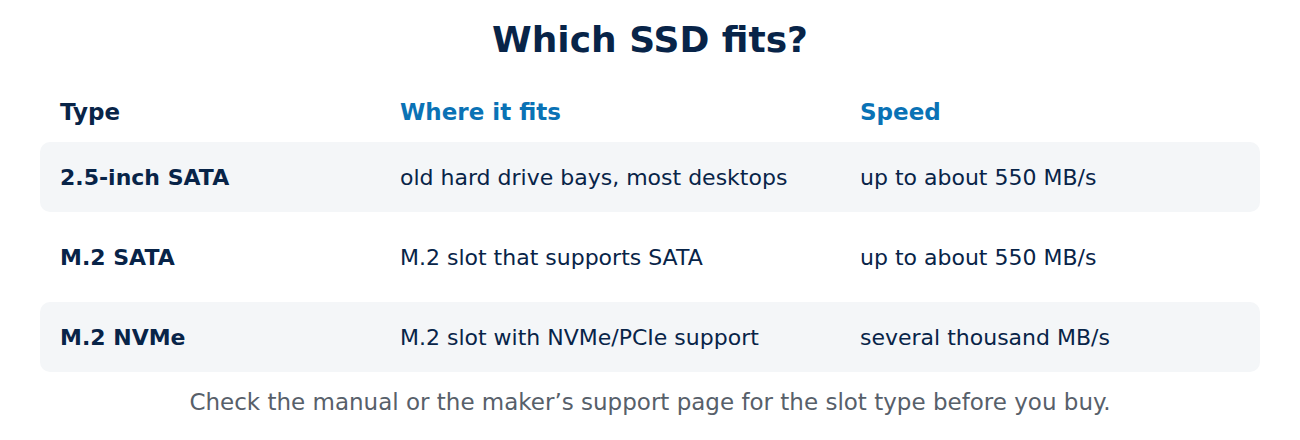
- 2.5-inch SATA SSD: fits wherever a laptop hard drive was, and in most desktop PCs. Up to about 550 MB/s, still several times faster than a hard drive in daily use.
- M.2 SATA or M.2 NVMe: small sticks that plug directly into the motherboard. NVMe models reach several thousand MB/s. Check your manual: some M.2 slots only accept SATA, some only NVMe, and the length (usually 2280) must fit.
- Capacity: 1 TB is a sensible size for most people today; 500 GB is enough for office use and the cloud.
- Quality: buy a TLC SSD from an established brand with a five-year warranty; avoid unknown no-name drives.
Prepare before you start
- Back up your files to an external drive or the cloud. Cloning is usually safe, but a backup is your insurance; see the 3-2-1 backup rule.
- Clean up: delete what you do not need, so the data fits on the new drive if it is smaller than the old one.
- Note your licences and make sure you know your Microsoft account password. Windows itself reactivates automatically on the same computer.
- Get the right tools: a small screwdriver, and for laptops with one drive bay a USB-to-SATA adapter or an external M.2 enclosure for cloning.
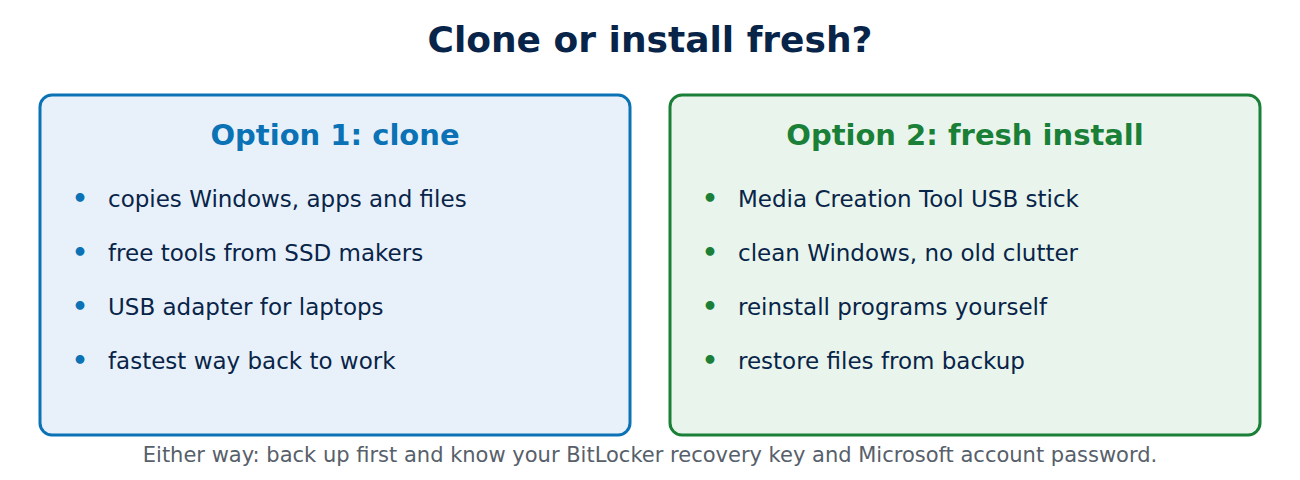
Option 1: clone the old drive
Cloning copies everything, including Windows, programs and settings, to the SSD.
- Connect the SSD: inside a desktop PC, or via a USB adapter for a laptop.
- Use cloning software. Many SSD makers offer a free cloning tool for their drives on their support pages (for example Samsung Data Migration), or use a free open-source tool such as Clonezilla.
- Select the old drive as the source and the SSD as the target, and let the tool adjust the partitions to the new size.
- Swap the drives (laptop) or set the SSD as the boot drive in the firmware (desktop), and start the computer.
Option 2: install Windows fresh
A clean installation takes a little longer, but removes years of clutter and is often the faster option overall.
- Create a Windows installation USB stick with Microsoft’s Media Creation Tool on another computer or before the swap.
- Install the SSD, boot from the USB stick and install Windows on the SSD.
- Sign in with your Microsoft account; Windows activates automatically on the same hardware.
- Install your programs and copy your files back from the backup.
After the upgrade
- Check that TRIM is on: Windows enables it automatically for SSDs; the “Optimise Drives” tool should list the drive as a solid-state drive.
- Do not defragment the SSD; Windows handles optimisation itself.
- Update the SSD firmware with the manufacturer’s tool.
- Reuse the old drive as backup storage in an external case, or wipe it securely before giving it away.
- Keep an eye on the drive’s health; see how to check SSD health and remaining lifespan.
Troubleshooting
- The computer does not boot from the SSD: check the boot order in the firmware settings, and make sure the clone included the small EFI partition.
- The SSD does not show up: new drives must be initialised in Disk Management before use; M.2 drives must fit the slot type.
- BitLocker asks for a recovery key: find it in your Microsoft account under Devices before you start.
Conclusion
Replacing a hard drive with an SSD makes an older computer feel new. Check which drive type fits (2.5-inch SATA or M.2 SATA/NVMe), back up your files, then either clone the old drive with the SSD maker’s tool or install Windows fresh from a USB stick. Afterwards, update the SSD firmware and leave optimisation to Windows.
Sources and further reading
- Download Windows 11 (Media Creation Tool) (Microsoft)



















Recent Comments