
A phone that needs a charger by mid-afternoon is frustrating, and a battery that wears out after two years can push you into buying a new phone you do not really need. Both problems have the same cure: a few settings that save energy every day, and charging habits that keep the battery healthy for longer.
This guide explains what really drains a phone battery, which settings help most on Android and iPhone, how to charge for a long battery life, and when it is time for a battery replacement.
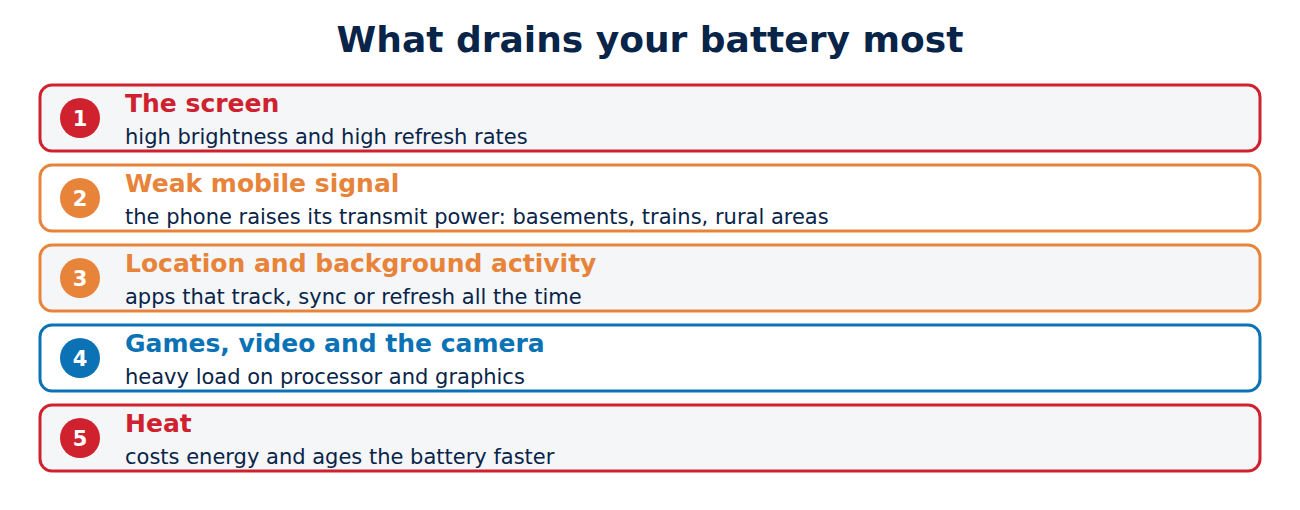
What drains your battery most
- The screen: usually the biggest consumer, especially at high brightness and high refresh rates.
- Weak mobile signal: the phone raises its transmit power to stay connected, for example in basements, trains or rural areas.
- Location and background activity: apps that track your location, sync constantly or refresh in the background.
- Games, video and the camera: heavy use of the processor and graphics.
- Heat: a hot phone uses more energy and ages its battery faster.
Find the culprits
- iPhone: Settings > Battery shows which apps used the most energy in the last 24 hours and 10 days, and how much of it was in the background.
- Android: Settings > Battery > Battery usage (names vary by manufacturer) lists apps by consumption.
An app you hardly open near the top of the list is a good candidate for restricting background activity or uninstalling.
Settings that make the biggest difference
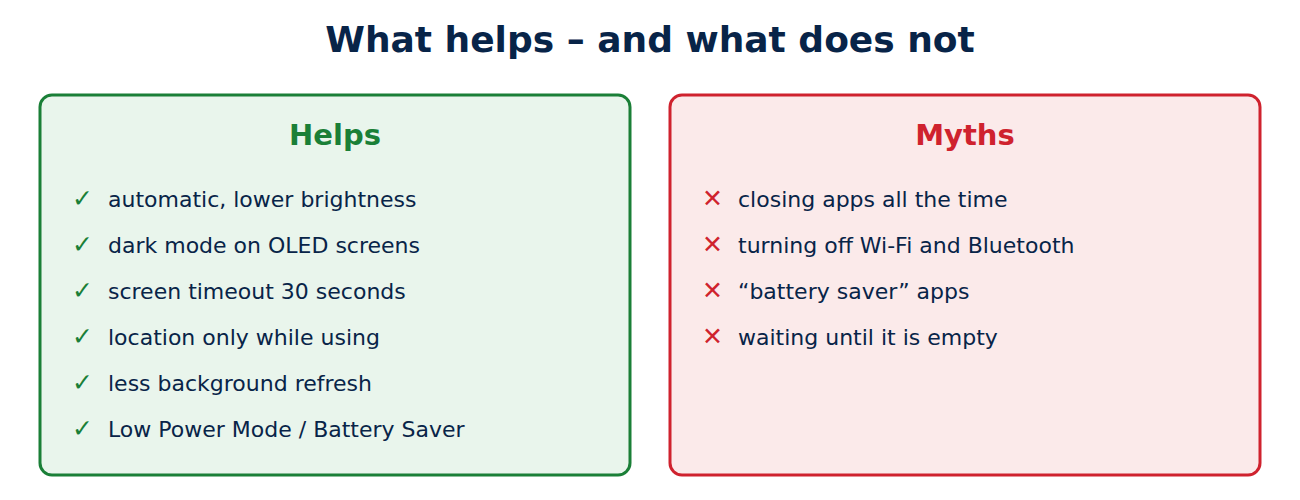
- Automatic brightness on, and a slightly lower brightness level.
- Dark mode on phones with OLED screens: black pixels use almost no power.
- Shorter screen timeout, for example 30 seconds.
- Adaptive refresh rate: keep the default; force 60 Hz only if you need every minute.
- Location only while using the app for most apps (iPhone: Settings > Privacy & Security > Location Services; Android: Settings > Location > App location permissions).
- Background activity: turn off Background App Refresh for apps that do not need it on iPhone; on Android set rarely used apps to “Restricted” in their battery settings.
- Notifications: fewer notifications mean fewer screen wake-ups.
- Power saving mode (Low Power Mode on iPhone, Battery Saver on Android) when you know it will be a long day.
Myths you can ignore
- Closing apps all the time does not save battery on modern phones and can even cost energy, because apps have to start from scratch.
- Turning off Wi-Fi and Bluetooth saves little today; Wi-Fi often uses less power than mobile data.
- “Battery saver” apps from unknown developers rarely help and often show ads or collect data.
Charging habits for a longer battery life
Lithium-ion batteries age fastest when they are hot, completely full or completely empty for long periods.
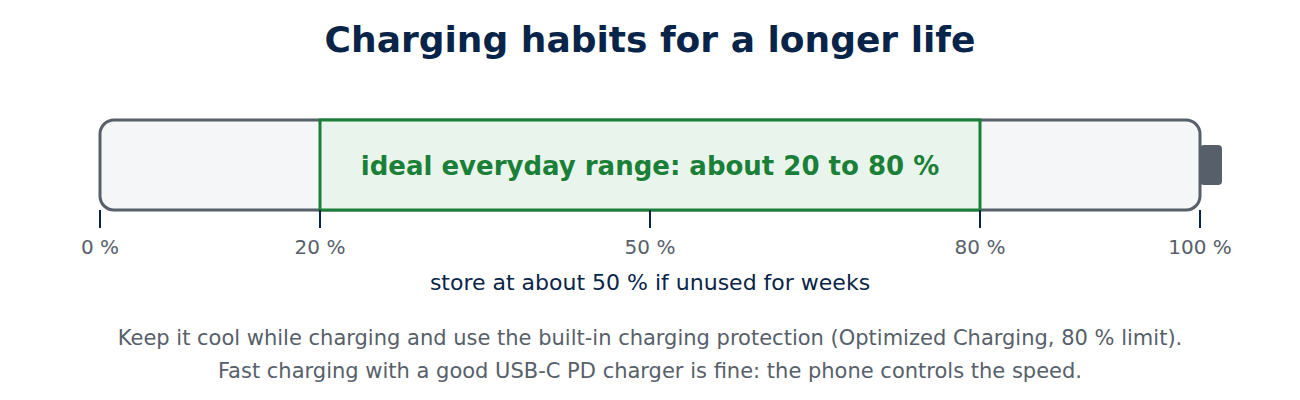
- Use the built-in charging protection: iPhones offer Optimized Battery Charging, and iPhone 15 and later models can limit charging to 80 % (Settings > Battery > Charging). Many Android phones have Adaptive Charging, a charging limit or “Protect battery” option, for example on Pixel, Samsung and OnePlus phones.
- Keep it cool: do not charge under a pillow, in direct sun or while gaming; remove thick cases if the phone gets hot on the charger.
- Top up when convenient: short charges between 20 and 80 % are fine; there is no need to wait until the phone is empty.
- Fast charging is OK with the manufacturer’s or a good USB-C PD charger; the phone controls the speed. Cheap uncertified chargers are the real risk.
- Storing a phone: leave it at about 50 % if you will not use it for weeks.
Check the battery health
- iPhone: Settings > Battery > Battery Health shows the maximum capacity compared with new and the number of charge cycles on newer models.
- Android: many phones show it under Settings > Battery > Battery health (for example Pixel 8a and newer); Samsung shows it in the Samsung Members app diagnostics.
Batteries are usually considered worn when capacity drops below about 80 %. Your laptop battery can be checked too; see how to check your laptop battery health.
When to replace the battery
If the capacity is below about 80 %, the phone shuts down unexpectedly or the battery bulges, have it replaced. A battery swap by the manufacturer or an authorised repair shop costs far less than a new phone and can give a good phone several more years. Under EU rules, phone batteries must also become easier to replace and spare parts available for longer. A bulging battery is a safety risk: stop charging it and get it checked.
Conclusion
The screen, weak signal and background apps drain most of your battery. Use automatic brightness, dark mode, location only while using apps and power saving mode on long days. Keep the phone cool, use the built-in charging protection or the 80 % limit, and do not worry about topping up. When capacity falls below about 80 %, a battery replacement is usually the smartest upgrade. If your phone is slow as well, see our quick fixes for slow devices.
Sources and further reading
- About iPhone battery and performance (Apple Support)
- Fix battery drain problems on Android (Android Help)



















Recent Comments