
Antivirus companies would like you to believe that a computer without a paid security suite is in constant danger. At the same time, many experts say the built-in protection is enough. Who is right? For most home users in 2026, the honest answer is: the free protection built into Windows, macOS, Android and iOS is good, but only if it is up to date and combined with a few safe habits.
This guide explains what the built-in protection covers, when a separate antivirus program makes sense, and which habits protect you more than any software.
What built-in protection does
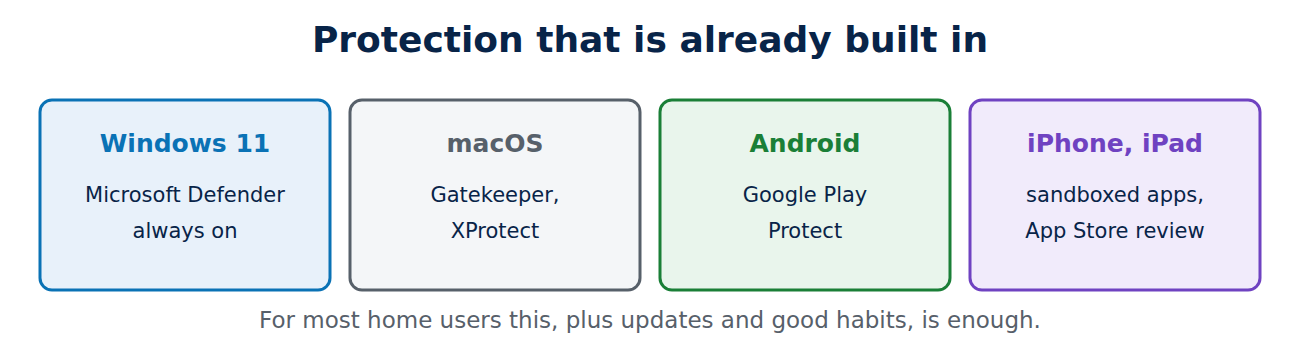
- Windows 11: Microsoft Defender Antivirus is always on unless another antivirus replaces it. It scans files and downloads in real time, includes ransomware protection (Controlled folder access), SmartScreen for dangerous downloads and websites, and a firewall. Independent test labs regularly rate its detection highly.
- macOS: Gatekeeper, notarisation and XProtect block known malware and unsigned apps, and system protection keeps core files safe.
- Android: Google Play Protect scans apps from the Play Store and on the device.
- iPhone and iPad: apps run isolated from each other and come only from the App Store (or approved marketplaces in the EU), which makes classic viruses practically impossible. “Antivirus” apps for iPhone cannot scan the system and mostly sell VPNs or web filters.
When a separate antivirus makes sense
- You often download software, cracks or files from unofficial sources (better: stop doing that).
- The computer is shared by several people with different security habits, for example children.
- You want extra features in one package: password manager, VPN, parental controls, identity monitoring.
- Small businesses that need central management and reports for several devices.
If you install a third-party antivirus, use only one. Two real-time scanners slow the computer down and can block each other.
What really protects you
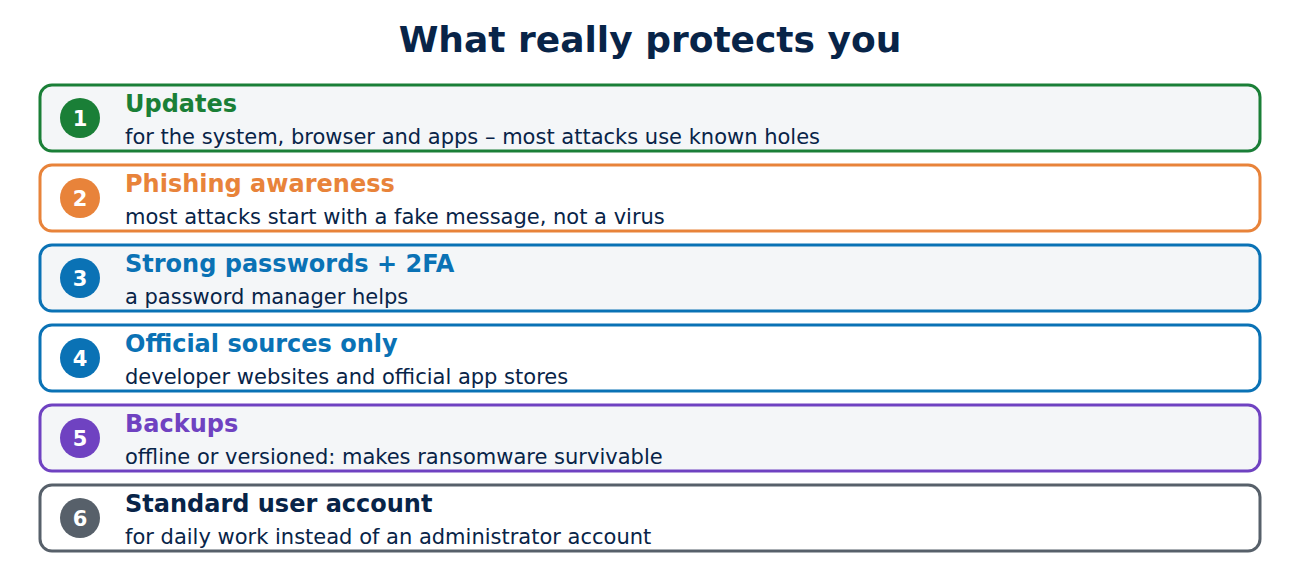
- Updates: install updates for the operating system, browser and apps promptly. Most attacks use known holes that updates already fixed. An old system without updates, such as Windows 10 without ESU, is the biggest risk; see Windows 10 end of support.
- Phishing awareness: today most attacks start with a fake message, not a virus; see how to spot a phishing e-mail.
- Strong, unique passwords and two-factor authentication: a password manager helps.
- Official sources only: install software from the developer’s website or official app stores.
- Backups: a recent offline or versioned backup makes ransomware survivable; see the 3-2-1 backup rule.
- A standard user account for daily work on Windows instead of an administrator account.
How to check that Defender is working
- Open Windows Security from the Start menu.
- Check that Virus & threat protection shows a green tick and real-time protection is on.
- Under Ransomware protection, consider turning on Controlled folder access for your Documents and Pictures.
- Under App & browser control, keep reputation-based protection on.
- Run a Quick scan now and then, and an offline scan if you suspect an infection.
Beware of fake antivirus warnings
Pop-ups in the browser that claim “Your PC is infected with 5 viruses!” and ask you to call a number or download a cleaner are scams. Real Windows Security alerts appear as system notifications, not in a web page. Close the tab (if the page will not close, open Task Manager with Ctrl + Shift + Esc and end the browser there) and never call the number shown.
Signs your computer may be infected
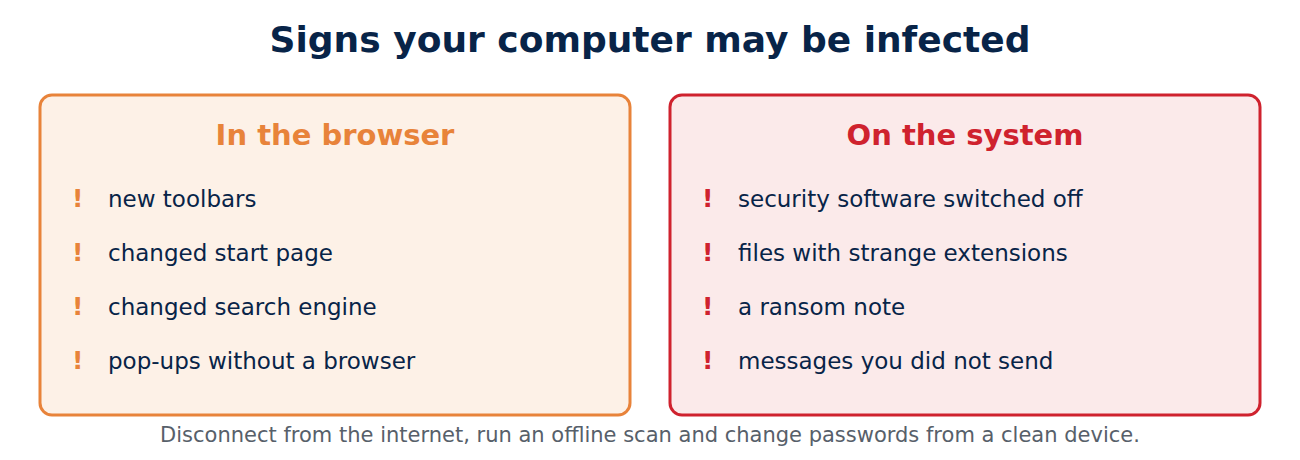
- New toolbars, a changed browser start page or search engine.
- Pop-ups even when no browser is open.
- Security software that has been switched off without your action.
- Files that suddenly have strange extensions or a ransom note.
- Accounts that send messages you did not write.
Then disconnect from the internet, run a full and an offline scan, change passwords from a clean device, and restore from a backup if files were encrypted. If deleted files need rescuing, see how to recover deleted files.
Conclusion
For most people, the built-in protection is enough: Microsoft Defender on Windows, XProtect on Mac, Play Protect on Android and the iPhone’s design. Keep it switched on and your systems updated, and add the habits that stop most attacks: phishing awareness, unique passwords with two-factor authentication, official software sources and regular backups. Pay for a security suite only if you want its extra features or manage several devices, and never install two.
Sources and further reading
- Stay protected with Windows Security (Microsoft Support)
- Antivirus tests for Windows (AV-TEST)
- Top tips for staying secure online (UK National Cyber Security Centre)


















Recent Comments